How to Open a Numbers File on Windows: See It and Save It as Excel, Plus Pages and Keynote Files
A .numbers file is a spreadsheet made in Apple's Numbers on a Mac or iPhone. Windows has no app for it and Excel cannot open it as it is. Here is how to see the tables in your browser with nothing to install and save them as Excel (.xlsx) or CSV, how to open it at iCloud.com, and how the sender can export it to Excel. Pages (.pages) and Keynote (.key) files too. The file is not uploaded.
Open the .numbers, .pages or .key file right here
Drop the file into the dashed box below and it opens on this page. A Numbers spreadsheet is shown as tables that you can save as Excel (.xlsx) or CSV. Pages and Keynote files are shown as the text and pictures taken out of them.
Drop a Pages, Numbers or Keynote file here
or click to choose one: .numbers, .pages, .key, or a .zip holding one
Up to 200 MB (50 MB on a phone or tablet). The file is read in your browser and not uploaded.
The file is read on your own device and never sent anywhere.
Someone with a Mac or iPhone sent you a ".numbers" file. Double-clicking it on your Windows PC does nothing useful, and Excel will not read it. A .numbers file is a spreadsheet from Apple's Numbers app. In the same way, a .pages file comes from Pages (documents) and a .key file from Keynote (presentations). Nothing is wrong with the file: Windows simply has no app that opens it.
This article explains what these files are and gives three ways to see what is in them on Windows. Most people want a Numbers spreadsheet in Excel, so Numbers comes first.
What .numbers, .pages and .key files are
Pages, Numbers and Keynote are Apple's apps for documents, spreadsheets and presentations: the Mac and iPhone counterparts of Word, Excel and PowerPoint. Some Mac and iPhone users make their documents in these apps instead of Microsoft Office. Their files end in:
| Extension | App | What it holds | Office counterpart |
|---|---|---|---|
.numbers | Numbers | Spreadsheet | Excel |
.pages | Pages | Document | Word |
.key | Keynote | Presentation | PowerPoint |
The three apps together are often called "iWork". A file attached to an email sometimes arrives as a .zip; inside is the same document.
Why Windows and Excel cannot open them
According to Apple Support, Pages, Numbers and Keynote are available on Mac, iPhone, iPad, Apple Vision Pro and iCloud.com on the web. Windows is not on that list. So when you double-click one of these files on Windows, there is no app to open it.
Excel, Word and PowerPoint cannot open them as they are, either. Apple Support says that to open a Pages, Numbers or Keynote file in Word, Excel or PowerPoint, you convert it in the appropriate Apple app first. Microsoft's list of "File formats that are supported in Excel" does not include .numbers.
To see what is inside on Windows, then, you either read it in a browser (Methods 1 and 2) or have it converted to an Office format in Apple's app (Method 3).
Method 1: Open it on this page (nothing to install)
The viewer at the top of this article opens it right away. There is nothing to install and no account to make, so it works on a work PC where you cannot install software. The file is read in your browser and not sent anywhere.
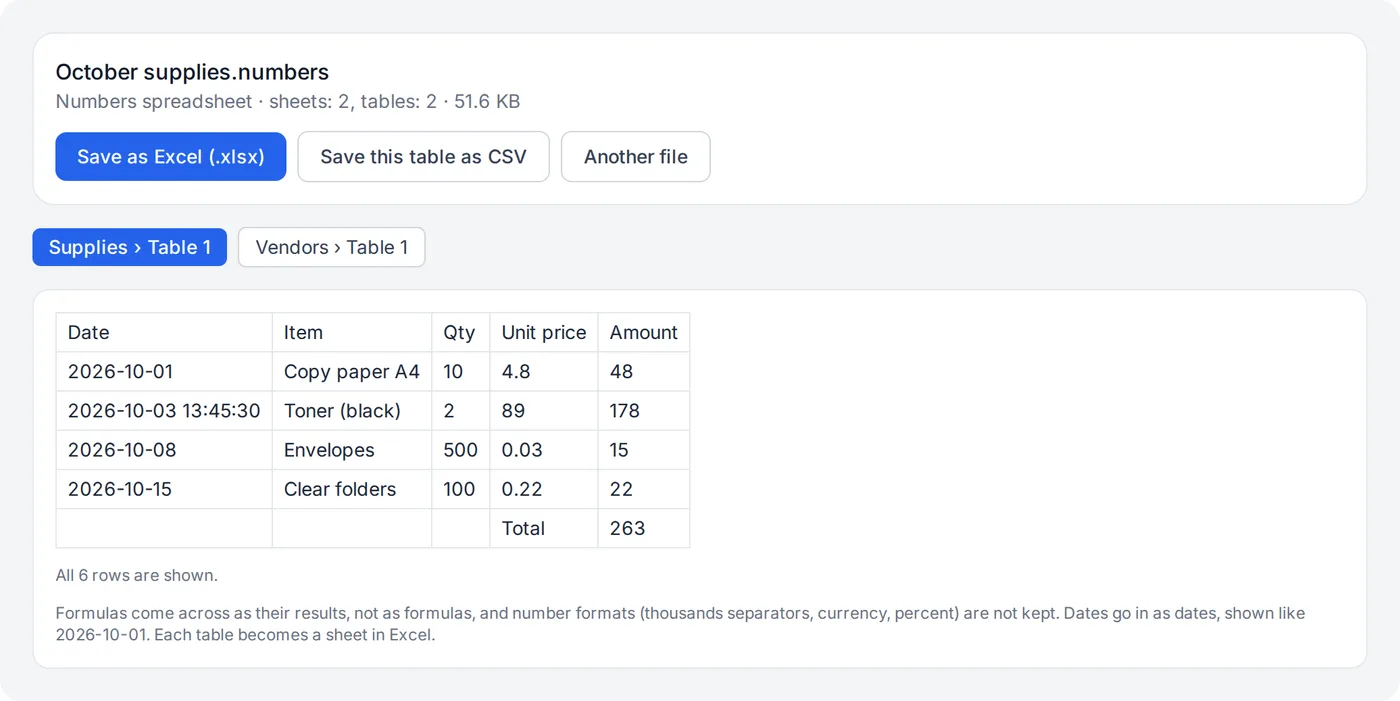
- Drop the .numbers, .pages or .key file into the dashed box (or click the box to choose it). A file that arrived as a .zip can go in as it is. To try it first, press "Try a sample Numbers file".
- Under the file name you see the kind of document (for example "Numbers spreadsheet"), the number of sheets and tables (for Pages, the paragraphs in the body; for Keynote, the slides) and the file size.
- Look through it and save what you need. What you can do depends on the kind of file, as below.
- To open another file, press "Another file".
Numbers (.numbers): see the tables, save as Excel or CSV
A Numbers file is shown as tables, with a button for each table, next to the cover picture the file carries (its first sheet as Numbers saved it). The screen shows the first 200 rows and 50 columns of a table; for a table of ordinary size, the files you save have every row and column (a table with a very large amount of text has its last rows cut from the CSV, and the Excel save refuses it, and the page says so).
- Save as Excel (.xlsx): every table goes into one .xlsx, each as its own sheet.
- Save this table as CSV: the table on screen as a CSV, saved as UTF-8 with a byte-order mark so that Excel reads non-English text correctly.
Numbers, text, dates and TRUE/FALSE values come across, and merged cells stay merged. Formulas, number formats, colours and charts do not (see What happens to formulas and formatting).
Pages (.pages): take out the text and pictures
A Pages document is shown as the paragraphs of its body, next to the picture of the first page that Pages saved in the file. Text in text boxes, headers and footers and footnotes is listed separately after the body. You can save with "Word (text only)" or "Save as text", and with "Save images as ZIP" if the document has pictures.
The layout is not reproduced. The page says so: "This shows the text and pictures taken out of the document. The layout (columns, positions, fonts) is not the same as in Pages." The Word file has the paragraphs only, and text inside tables and charts is not read.
An older Pages '09 file can carry a PDF that Pages saved with it, showing the document as it looked. Then a "Save the PDF in the file" button appears and saves that PDF.
Keynote (.key): slide thumbnails and text
A Keynote file is shown as the slides' thumbnails and the text of each slide, including presenter notes if there are any. Skipped slides are marked "skipped". You can save the slides' text with "Save as text", and the pictures with "Save images as ZIP".
The slide pictures are the small thumbnails Keynote saved in the file. As the page puts it: "The slide pictures are the small thumbnails saved in the file and cannot be enlarged." Animations are not reproduced.
Files it cannot open
- Password-protected files: it says "This file is protected with a password" and does not open them.
- Older Numbers '09 files: it says "An older Numbers '09 file" and cannot read the tables.
- Very large files: up to 200 MB on a computer and 50 MB on a phone or tablet. A Numbers file whose tables would make more than 2 million cells, or whose tables' ranges (rows × columns) add up to more than 5 million cells, is not opened either.
For these, use Method 2 or Method 3.
Method 2: Open it at iCloud.com
Apple also offers Pages, Numbers and Keynote as web apps at iCloud.com. They open the document in a browser on a Windows PC, too. What follows is as Apple Support describes it.
- Apple's user guide describes Numbers for iCloud as "a web app for creating and editing spreadsheets on a Mac computer or Windows device (using a supported browser)". Its guides for Pages for iCloud and Keynote for iCloud say the same about documents and presentations.
- On a Windows device, the supported browsers are Microsoft Edge and Google Chrome.
- You sign in to iCloud.com with an Apple Account. For people without an Apple device, Apple gives steps for creating an Apple Account on a Windows PC (in the Apple Music or Apple TV app) or on the web (at account.apple.com).
The steps, as Apple Support gives them:
- Sign in to iCloud.com with your Apple Account.
- Open Numbers (or Pages or Keynote, for those files).
- Drag the file from your computer into the spreadsheet manager (the list of documents) in your browser, or click the Upload button and choose the file.
- Double-click the file to open it.
- To save it on your computer in another format, click the More button on the file, choose Download a Copy, then choose a format. It goes to your browser's usual download location.
The formats you can download, according to Apple's guides:
- Numbers: Numbers, PDF, Microsoft Excel, CSV
- Pages: Pages, PDF, Microsoft Word, EPUB
- Keynote: Keynote, PDF, Microsoft PowerPoint
One thing to keep in mind: the file you upload goes into iCloud Drive on your Apple Account (Apple's guides describe it as uploading to iCloud Drive). Check whether your workplace allows work files on Apple's service. Apple Support also notes that some features work differently at iCloud.com than in the Mac, iPhone and iPad apps.
This article does not cover the cost of an Apple Account or other conditions for people without an Apple device, because we could not confirm them from Apple's own pages.
Method 3: Ask the sender to export it as Excel, Word, PowerPoint or PDF
The most dependable way is to ask the sender for a copy in an Office format. Pages, Numbers and Keynote can export to Word, Excel, PowerPoint and PDF. Apple Support says exporting creates a copy in the new format and leaves the original intact.
These are the steps to pass on (as Apple Support describes them):
- Open the file on a Mac, iPhone or iPad.
- Tap or click the Share button in the toolbar, then Export and Send.
- Choose the format: Excel for Numbers, Word for Pages, PowerPoint for Keynote. PDF is there too, if you only need to see how it looks.
- On a Mac, click Save to keep it, or Send a Copy to send it. On an iPhone or iPad, tap Save to Files, or send it by Mail or another way.
Apple's user guides for the Mac also give File > Export To > [file format] in the menu bar. When exporting from Numbers to Excel, the sender can choose whether to make a worksheet for each table or for each sheet.
Watch out for passwords. According to Apple's guides, if the original file has a password, the exported Excel, Word, PowerPoint or PDF copy gets it too. To receive a copy without one, ask the sender to deselect "Require password to open" when exporting.
The exported .xlsx, .docx or .pptx opens in Excel, Word or PowerPoint on Windows. Because Apple's own app does the conversion, you get an Office document rather than just the text and values this page takes out. Apple's pages do not say how closely formulas, formatting and layout match in Office, though.
What happens to formulas and formatting
When Method 1 turns a Numbers file into Excel, here is what comes across and what does not. The page itself says: "Formulas come across as their results, not as formulas, and number formats (thousands separators, currency, percent) are not kept."
| In the Numbers file | In the .xlsx saved on this page |
|---|---|
| Numbers, text, TRUE/FALSE | Come across as they are |
| Dates | Come across as dates (with a format that shows the time when there is one) |
| Merged cells | Stay merged |
| Formulas | Only their results (no formulas) |
| Number formats (thousands separators, currency, percent) | Not kept |
| Styles such as colours, charts, pictures | Not kept |
| Error cells | Become #NULL! |
| Several tables on one sheet | A sheet for each table, named "Sheet - Table" |
Dates are read as the clock time Numbers shows, not shifted by your computer's time zone.
The .xlsx files this page makes have been checked by reading them back in LibreOffice, not in Microsoft Excel itself. If you need the formulas and formatting, use Method 3: have the sender export from Numbers to Excel, and check the file you receive.
Which to use
- You want to see it now, use the values in Excel or a CSV, and not install anything or make an account: Method 1, the viewer at the top of this article.
- You want to see a Pages or Keynote file with its layout, or the file has a password or is from Numbers '09: Method 2 (iCloud.com) or Method 3.
- You want an Office document, or you will be swapping files often: Method 3, an export from the sender.
Frequently asked questions
Is the file sent anywhere when I open it here?
Do Numbers formulas come across into Excel as formulas?
What happens to a Numbers sheet with two tables on it?
It says "This file is protected with a password".
Does it work on a phone?
I saved a Pages document as Word and it does not look like the original.
Files from a Mac or iPhone
Other tools for the same situation
About the author
Ren
Developer, OpenedFile
I build and maintain OpenedFile on my own. It started when a winmail.dat attachment landed in my inbox and nothing would open it — and every online converter I found wanted me to upload the file to their server first. So I wrote a TNEF parser from scratch instead, and every tool here has run entirely in the browser ever since.
More about OpenedFile