Open DXF Files — Free Online DXF Viewer
View DXF drawings from AutoCAD, Jw_cad and other CAD software in your browser. Zoom, pan, switch layers, and save as PNG or PDF. The file is read in your browser and never uploaded.
Your files stay safe — processed entirely in your browser. Nothing is uploaded.
Drop a .dxf file here
or click to choose a file
DXF (text) from AutoCAD, Jw_cad and other CAD software. The file never leaves your device.
How to open a DXF file without CAD software
DXF is the format CAD programs such as AutoCAD and Jw_cad use to exchange drawings. On a computer or phone without CAD software, double-clicking one finds nothing to open it with.
This page shows the drawing in your browser, with nothing to install. The file is not uploaded; it is read on your device.
Choose the file
Drop the .dxf on the box above, or click it to choose the file. On an iPhone, save the attachment to the Files app first.
Look at the drawing
The whole drawing is shown. Zoom with the wheel or a pinch, drag to move, and use "Layers" to switch layers on and off.
Save or print if you need to
"Save as PNG" saves what you see as an image. "Print / Save as PDF" fits the whole drawing to A4 or A3 and opens the print dialog; choose "Save as PDF" as the printer there to get a PDF.
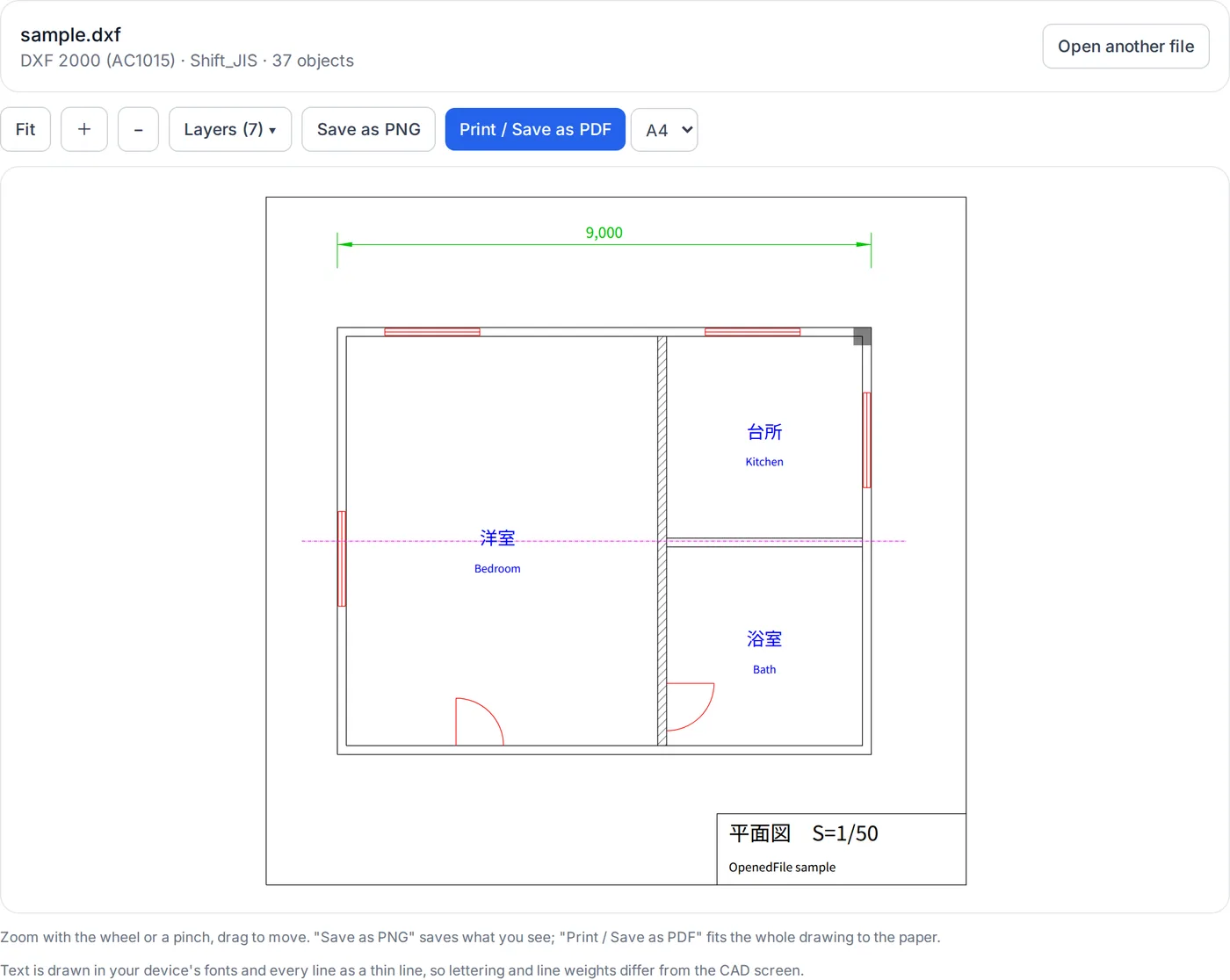
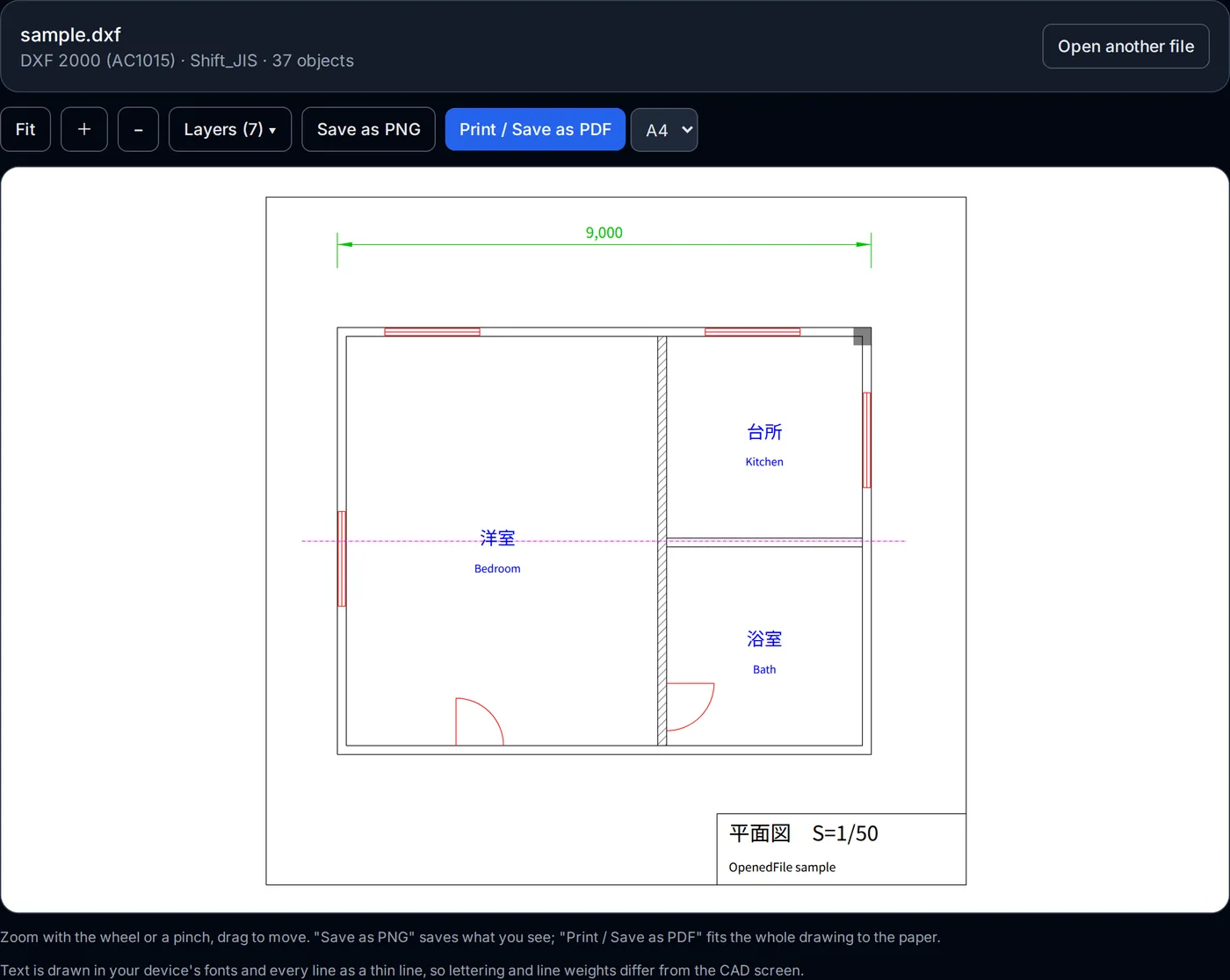
Changing the drawing — adding lines, fixing dimensions — needs CAD software. To look at it, print it or pass it on as a PDF, this page is enough.
How this DXF viewer works
DXF is a text format for exchanging drawings between CAD programs. This viewer reads it with an open-source (MIT, MPL 2.0) parser, builds each object, and draws it on screen — all in your browser, without sending the file anywhere.
- Working out the encoding
- Up to the 2004 format a DXF is written in the code page it declares ($DWGCODEPAGE); from the 2007 format it is UTF-8 by rule, whatever the declaration says (per the documentation of ezdxf, a DXF library). Software that trusts the declaration garbles the Japanese in newer files. In this viewer: First the bytes are checked as UTF-8; if they read cleanly, the file is read as UTF-8. A DXF from the 2007 format on is UTF-8 by rule, so when only a few sequences are broken it stays UTF-8 and the number of unreadable characters is shown under the drawing; otherwise UTF-8 is compared with the declared code page (Shift_JIS when none, or a Western one, is declared) and whichever reads better is used — the page says so when that is Shift_JIS. Older files are read in the declared code page (Shift_JIS when none is declared, or a Western one if Shift_JIS does not read). Characters written as \U+XXXX are turned back into the characters.
- Drawing the objects
- Blocks (INSERT) are expanded with nesting, mirroring, rotation and arrays; dimensions are drawn from the dimension blocks stored in the file. Linetypes, layer colours, hatches (solid and pattern) and text alignment follow the drawing. White lines are drawn black so they show on white paper, and bright colours such as yellow are darkened a little.
- Built not to freeze
- Reading the file and building the objects happen in a Web Worker, away from the page. Each zoom or pan only redraws prepared bundles of lines, grouped by colour and linetype, and the text.
- Printing and PDF
- For printing, the drawing is turned into an SVG fitted to A4 or A3 and handed to the browser's print dialog. Text goes in as SVG text, so a PDF saved from there is searchable.
- The parser
- DXF is read by the parser part of dxf-viewer (npm), used unmodified: the code derived from dxf-parser is under the MIT license, the parts dxf-viewer added are under MPL 2.0. It is fetched when you drop a file, not when the page opens. Licenses of dxf-viewer's parser (MIT, MPL 2.0)
What it does not do
Binary DXF and DWG files do not open. Line weights are not applied; every line is thin. Text uses your device's fonts, not CAD's SHX lettering. Multileaders (MULTILEADER), images, 3D solids, tables, external references and some other objects are not drawn, and their number is shown. Layouts (paper space) are not shown — model space is, unless it is empty. A drawing that expands to an extreme size is drawn until a limit and the page says so; a hatch with too many pattern lines is drawn as its outline. Files over 80 MB (30 MB on phones and tablets) do not open.