Extract LZH, 7z, RAR and ZIP Files Free
Windows 11 and macOS cannot open .lzh, and Windows 11 (24H2) opens 7z and RAR but not password-protected ones. This page extracts them all free, with nothing to install. ZIPs whose Japanese file names come out as 縺ッ縺セ are read with the right encoding. Everything runs in your browser; your files and passwords never leave your device.
Your files stay safe — processed entirely in your browser. Nothing is uploaded.
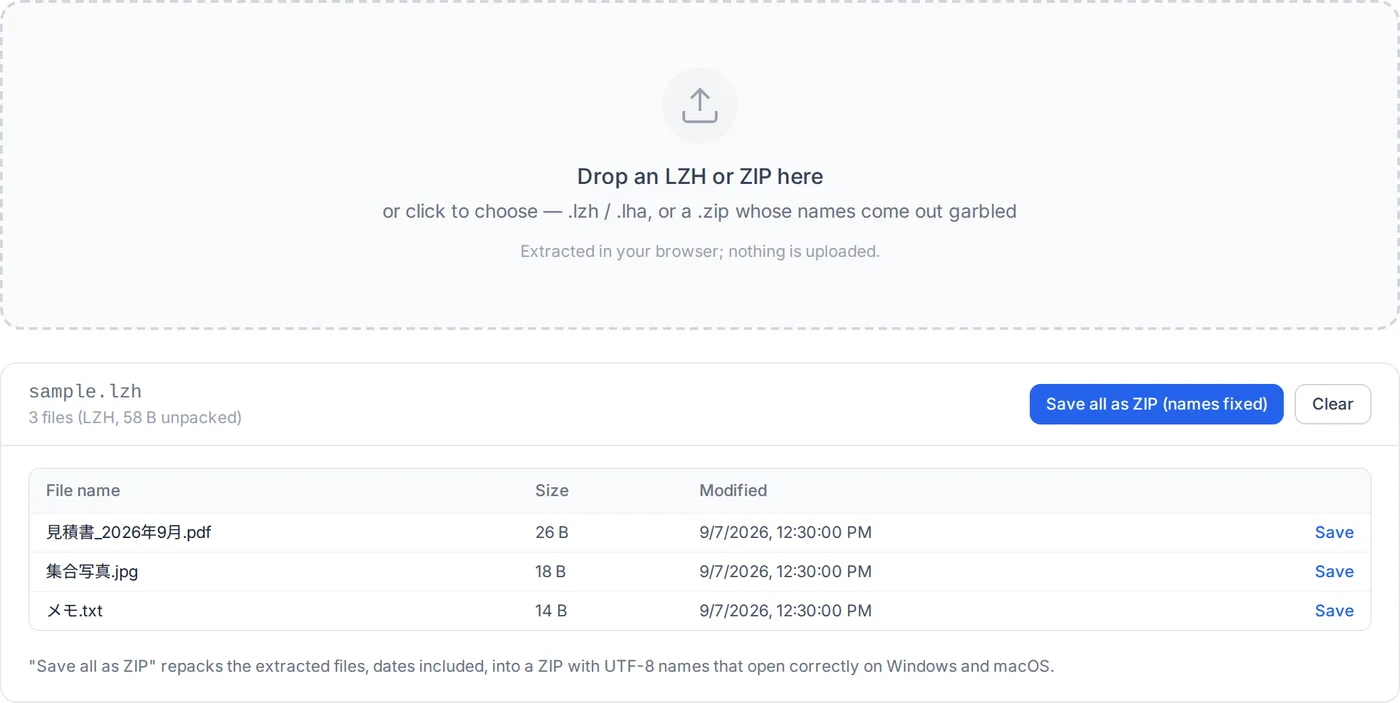
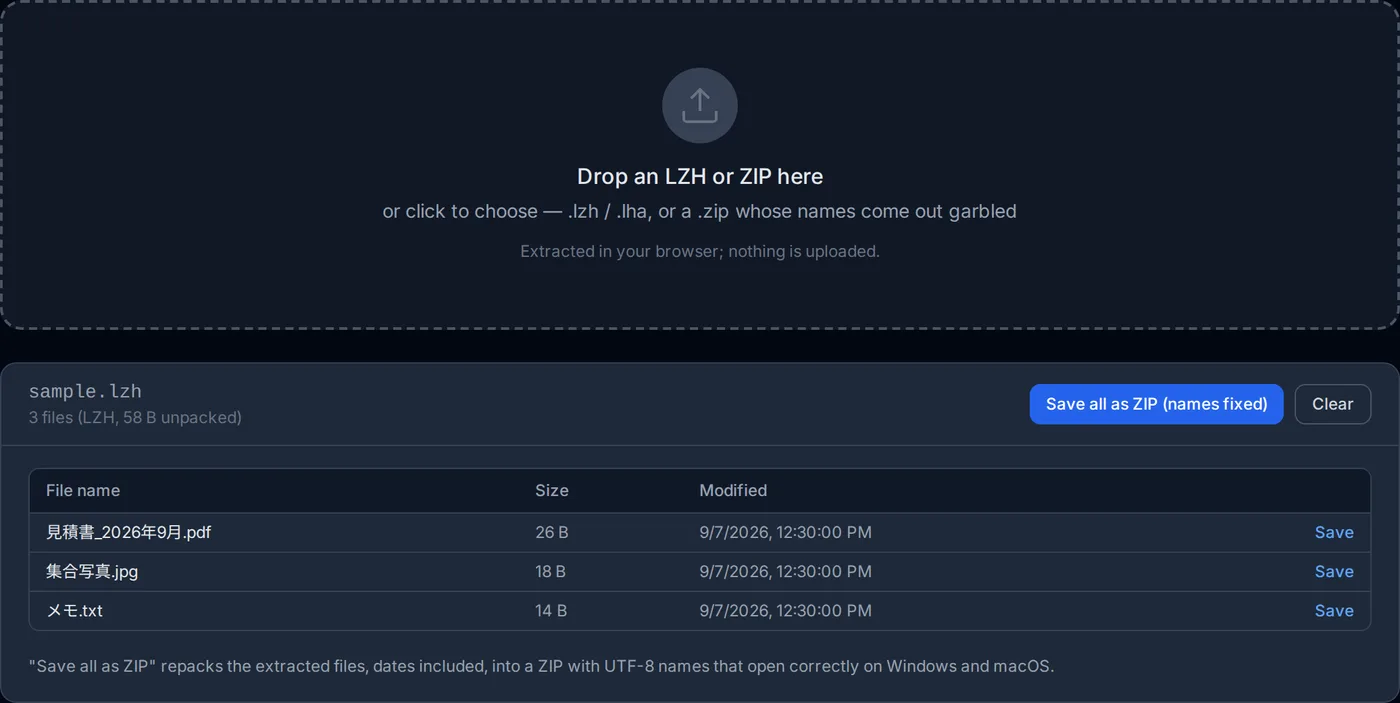
Drop an LZH, ZIP, 7z or RAR here
or click to choose — .lzh / .lha / .zip / .7z / .rar, with or without a password
Extracted in your browser; nothing is uploaded.
What LZH is, and why Windows stopped opening it
LZH (.lzh / .lha) was the standard archive format in Japan through the 1990s and 2000s, and it still turns up: downloads from public offices, older business partners, old CD-ROMs. Japanese editions of Windows 7 through Windows 10 (up to the 2016 Anniversary Update, version 1607) opened it out of the box; the 2017 Creators Update (version 1703) removed that, so on Windows 10 / 11 today a double-click only asks which app to use. macOS never opened it natively.
The author of UNLHA32.DLL, the library behind most Windows LZH tools, announced its end in 2010 and asked people to stop using the format, so new LZH files are rare. The ones that arrive still have to be opened. This page extracts them in your browser and lets you save the files as they are, or repack them into a ZIP that opens on Windows and macOS alike.
It opens 7z and RAR as well, and archives with a password: ZIP (AES-256 or the older ZipCrypto), 7z and RAR. Windows 11 version 24H2 extracts 7z and RAR in File Explorer, but Microsoft says it does not handle encrypted archives and points to 7-Zip or WinRAR; here you type the password and the files come out, with nothing to install.
Drop the file
Choose a .lzh / .lha, .7z, .rar or .zip. The listing (names, sizes, dates) appears at once; nothing is extracted yet. If the archive has a password, you are asked for it first.
Check the file names
LZH names are read as Shift_JIS, and 7z and RAR names as the archive records them. For ZIPs the encoding is detected; if names still look wrong, pick another from the list and they are re-read.
Save what you need
Save files one at a time, or use "Save all as ZIP". The ZIP records its names as UTF-8, so they read correctly on Windows and macOS.
The original stays as it is
Everything happens in the browser and the archive is not modified; neither the file nor its password is sent anywhere. The files you save carry no password. Old LZH methods such as -lh1- and archives split into parts (.part1.rar, .7z.001) are not supported.
Desktop tools open these too: 7-Zip, Lhaplus or Explzh for LZH on Windows, 7-Zip for 7z and RAR, The Unarchiver on macOS. But on a locked-down work PC, on a Mac or iPad, or when you only want to look inside one file, the browser is quicker.
Making a password-protected ZIP to send instead? That works in the browser too: Password-Protect a ZIP
How this extractor works
The LZH decoder is written for this site. The existing browser option, libarchive compiled to WebAssembly, can decompress LZH but silently drops every entry whose name is not valid UTF-8 — which is every Japanese archive, since LHA wrote names in Shift_JIS.
7z and RAR are opened by 7-Zip itself, compiled to WebAssembly, and password-protected ZIPs by zip.js; both run on your device, like the LZH decoder.
- Three header generations
- LZH headers come in levels 0, 1 and 2, written differently by DOS-era LHA, LHa for UNIX, and Windows tools such as Explzh and LHMelt. Extended headers (directory names, Unix timestamps, Windows FILETIME) are read too. Archives from five real implementations are used to check this.
- Decoding -lh5- to -lh7-
- LZSS (8 KB, 32 KB or 64 KB dictionary) with static Huffman blocks, the algorithm from Haruhiko Okumura's LHA. It fits in a few hundred lines, and every extracted file is checked against its CRC-16.
- Names are Shift_JIS
- LHA wrote names in Shift_JIS with 0xFF as the directory separator. They are decoded with the browser's Shift_JIS decoder and the separators turned into slashes, taking care not to split on a 0x5C (backslash) that is the second byte of a kanji.
- Guessing ZIP name encodings
- ZIP records no encoding for names (a flag marks UTF-8, nothing else). Unflagged names are decoded strictly as Shift_JIS, EUC-JP, UTF-8, GBK, Big5, EUC-KR and Windows-1252; whichever decodes cleanly and reads most like real text wins.
- Repacking
- "Save all as ZIP" writes the extracted files into a new ZIP with UTF-8 names and the UTF-8 flag set. Current Windows, macOS and Linux all honour the flag, so the names read correctly anywhere. Dates are kept.
- 7z and RAR: 7-Zip in the browser
- 7-Zip 24.09 compiled to WebAssembly (the 7z-wasm package) reads 7z, RAR 4 and RAR 5 in a background worker, so a long extraction does not freeze the page and "Clear" stops it. It is about 1.7 MB, fetched only when you drop a 7z or RAR. "Save all as ZIP" extracts the whole archive in one pass, since 7z and RAR usually compress everything as one block. Its RAR code comes from unRAR and may not be used to develop a RAR-compatible archiver; nothing here creates RAR files. 7-Zip (© Igor Pavlov): license (GNU LGPL + unRAR restriction)
- Password-protected ZIP
- zip.js reads WinZip AES (the AES-256 that Japanese archivers offer) and the older ZipCrypto. Before the listing appears, the smallest encrypted file is decrypted completely and its CRC checked, because ZipCrypto's own check lets about one wrong password in 256 through. A password typed in Japanese is tried as UTF-8 and then as Shift_JIS, which Japanese Windows tools use. Names are decoded the same way as for any other ZIP, so a Shift_JIS archive reads correctly. zip.js license (BSD 3-Clause)
Not supported
LZH header level 3 and old methods such as -lh1-, -lh4-, -lzs- and -lz5- are listed but cannot be extracted. Archives split into parts (.part1.rar, .7z.001, .z01) and self-extracting .exe files do not open. Symbolic links inside a 7z or RAR are listed but not extracted, and an old RAR that stored Japanese names without Unicode shows them garbled and may not extract them. Files up to 200 MB, and a 7z or RAR up to 1 GB once extracted; extracting a large archive can take tens of seconds.
Frequently asked questions
What is the difference between LZH and ZIP?
How do I open .lzh on Windows 11?
How do I open .lzh on a Mac?
I heard LZH is dangerous.
The file names are garbled.
Is my file sent anywhere?
Can it open a password-protected ZIP, 7z or RAR?
How do I open 7z or RAR on Windows 11 or a Mac?
Which LZH archives open?
Related articles
Why a ZIP File Will Not Open, and How to Fix Each Cause
A ZIP that refuses to open has one of six causes: a truncated download, a password, a split archive, garbled names, a file that is not really a ZIP, or an archiver too old for it. How to tell which, and what to do about each.
Why File Names in a ZIP Come Out Garbled, and How to Fix Them
Unzip a file from a Japanese colleague and the names read 縺ッ縺セ縺 — or a ZIP made on a Mac garbles on Windows. ZIP never recorded the encoding of names. What each system writes, which tools guess right, and how to re-save the archive so it opens anywhere.