Convert CSV to Excel (.xlsx)
No garbled text, and leading zeros, long numbers and date-like values go into Excel exactly as the CSV has them. The file never leaves your browser.
Your files stay safe — processed entirely in your browser. Nothing is uploaded.
Drop a CSV file here
or click to choose — CSV, TSV (tab-separated) or TXT
The file is read in your browser and never uploaded.
How to convert a CSV to Excel without losing anything
Double-click a CSV and Excel opens it, but not as written. Excel reads the text in its own guess of the encoding, so a UTF-8 file from a web service comes out garbled in Japanese Excel. And it converts values as it reads them: the leading 0 of a ZIP code or phone number disappears, a long ID number becomes 1.23457E+17 and loses its last digits, and values like 1-2 become dates. Microsoft documents the leading zeros and long numbers and suggests importing those columns as text.
This page does that for you. It reads the CSV in your browser, finds the columns Excel would change, and writes an Excel workbook (.xlsx) in which those columns are text. The file is never uploaded.
Drop the CSV
Drop a .csv (or a tab-separated .tsv or .txt) into the box above, or click to choose it. The encoding (UTF-8, Shift_JIS and others) and the delimiter are detected for you.
Check the preview
Each column is marked "Number" or "Text as is", and the columns Excel would have changed are listed with the reason. If the preview reads wrongly, change the encoding or the delimiter.
Save as Excel
Click "Save as Excel (.xlsx)". The workbook has the same name as the CSV. Open it in Excel: the header row is bold and frozen, with filters on it.
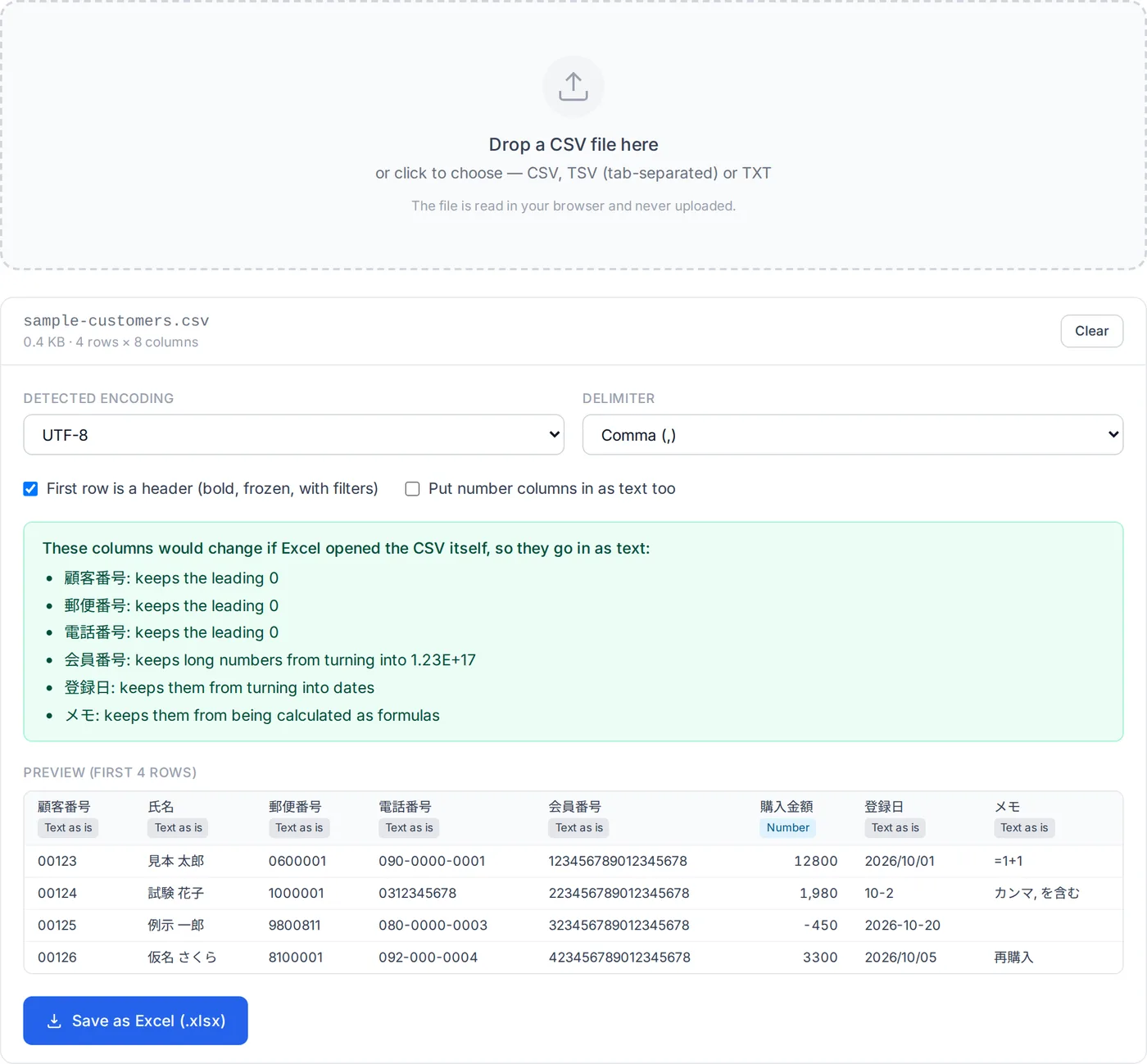
Only columns where every value is a plain number become numbers, so they can be added up in Excel. Everything else goes in as text, exactly as the CSV has it.
How this converter works
An .xlsx file is a ZIP of XML files. This page writes those files itself, so the cell types are exactly what it chose, with no conversion on the way. Everything runs in your browser.
- Reading the CSV
- The encoding is guessed from the bytes (a BOM decides it when there is one), the same way as the mojibake fixer on this site. Quoted fields may contain commas, quotes and line breaks. The delimiter is the one (comma, tab or semicolon) that splits the first rows into the same number of fields.
- Which values Excel would change
- Numbers with a leading zero (00123, 090-…), numbers of 12 digits or more, values Excel reads as dates or times (1-2, 2026/10/01, 10:30), and values starting with =, +, - or @ that are not numbers. A column with any of these, or any other text, is written as text cells with the Text format, so editing a cell in Excel keeps it text.
- Making the workbook
- One sheet, named after the file. Column widths follow the content. The files are zipped with JSZip, which this site already uses for its ZIP downloads. JSZip license (MIT)
Limits
One CSV makes one sheet. Formulas, colors and merged cells cannot come from a CSV, so there are none. Files over 50 MB or 3 million cells are not taken. In a semicolon-separated file, where decimal points and thousands separators are written differently by region, only whole numbers become numbers.