Why a CSV Opens Garbled in Excel, and Three Ways to Fix It
A CSV from a Japanese partner opens in Excel as '譁�ュ怜喧縺�' or '����'. The cause is Excel guessing the encoding. How to convert the file to UTF-8 with BOM in your browser, how to set the encoding in Excel's import, and how to re-save it in Notepad.
Fix the garbled CSV right now
Drop the file: the encoding is detected and the file is saved again in a form Excel reads correctly (UTF-8 with BOM).
The file is processed in your browser and sent nowhere.
A CSV arrives from a partner in Japan. You open it in Excel and every name and address reads 譁�ュ怜喧縺� or ����. It looks like the data is damaged. It is not: the program that wrote the file and Excel disagree about which encoding the text is in. This post explains why in a minute, then gives three fixes for different situations.
Why it garbles: Excel guesses the encoding
A CSV is plain text and carries no note of which encoding it was written in. The program opening it has to guess, and Excel with Japanese regional settings guesses Shift_JIS (CP932) when you double-click a CSV. Exports from web services, Mac applications and most programs are UTF-8. Read UTF-8 bytes as if they were Shift_JIS and you get different characters.
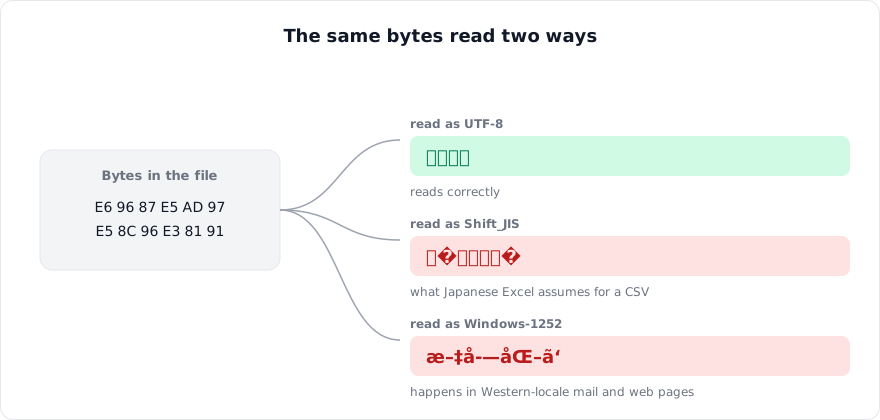
So what needs fixing is not the data but the reading. Either make Excel understand the file is UTF-8, or make the file match what Excel expects, and the original text comes back.
What the garble tells you
| What you see | What happened | Recoverable? |
|---|---|---|
| 譁�ュ怜喧縺� | A UTF-8 file read as Shift_JIS (the usual result of opening a CSV in Japanese Excel) | Yes — read the file as UTF-8 |
| ���� | A Shift_JIS file read as UTF-8 (a CSV saved by Excel, loaded into a web system) | From the file, yes. From this text alone, no |
| æ–‡å—化㑠| UTF-8 read as Western text (Windows-1252), typical of mail clients and web pages in a Western locale | Yes — even from the pasted text |
| ハクサ嵂ス、ア | EUC-JP (older UNIX systems) read as Shift_JIS | Yes — read it as EUC-JP |
You do not have to tell them apart. Drop the file into the mojibake fixer and it tries each candidate encoding and shows the one that reads.
Fix 1: convert to UTF-8 with BOM in the browser
The quickest route, and it touches neither the sender's file nor Excel's settings. When a UTF-8 file starts with a BOM (byte order mark, the three bytes EF BB BF), Excel recognises it as UTF-8 and opens it correctly. The tool adds those three bytes and saves a copy; the data itself does not change.
- Open the mojibake fixer and drop the CSV in.
- Check that the preview reads correctly (if not, switch the detected encoding).
- Leave "Save as" on "UTF-8 with BOM (Excel)" and click "Convert and download".
- Double-click the saved
name_utf8.csv. It opens correctly in Excel.
The file is processed inside your browser and never sent to a server, so a customer list you cannot share is fine.
Fix 2: set the encoding in Excel's import
If you would rather not touch the file, or the same export arrives every week, tell Excel the encoding when you load it. The trick is to use the import feature instead of double-clicking.
- Open a blank workbook and choose Data → From Text/CSV (Excel 2016 and later; older versions have Get External Data → From Text).
- Pick the CSV. In the preview dialog, change "File Origin" to "65001: Unicode (UTF-8)" and watch the preview correct itself.
- Click Load. The data lands in the sheet as a table.
The original CSV is untouched, but you repeat this every time. For a recurring file it is easier to have the sender export UTF-8 with BOM or Shift_JIS (below).
Fix 3: re-save it from Notepad
Windows Notepad detects the encoding when it opens a file, so the text shows correctly there, and it can save with a BOM.
- Right-click the CSV → Open with → Notepad.
- File → Save As. At the bottom of the dialog set Encoding to "UTF-8 with BOM" (available in Notepad since Windows 10 version 1903).
- Open the saved file in Excel.
Notepad struggles with CSVs of tens of megabytes; use fix 1 or 2 for those.
The other direction: a CSV saved by Excel garbles on the web
A file saved from Japanese Excel as "CSV (Comma delimited)" is Shift_JIS. Load it into a web service or a program that expects UTF-8 and it garbles there instead, as ���� or �}�X�g.
- In Excel 2016 and later, choose the file type "CSV UTF-8 (Comma delimited)" in Save As. That writes UTF-8 with BOM, which both the web and Excel read.
- For a file already saved as Shift_JIS, drop it into the mojibake fixer and save as "UTF-8" (for systems that reject a BOM) or "UTF-8 with BOM".
- If the destination is an old system that only accepts Shift_JIS, choose "Shift_JIS" in the same tool. Emoji and extended kanji such as 𠮷 do not exist in Shift_JIS and become "?"; the tool lists them before converting.
Stopping it for good
- Receiving: open CSVs through Data → From Text/CSV rather than double-clicking, and no encoding will garble.
- Sending: from Excel, save as "CSV UTF-8". From a program, write UTF-8 with BOM (in Python,
encoding="utf-8-sig"). If the recipient uses Excel, this causes the fewest problems. - Between Mac and Windows: Numbers and Mac Excel have the same issue. CSV UTF-8 opens on both.
If what you are converting is a contacts file, How to Convert VCF to CSV for Excel covers it; that converter writes UTF-8 with BOM from the start, so this problem does not arise.
Summary
- A CSV garbles in Japanese Excel because Excel assumes Shift_JIS. The data is intact.
- Fix it by converting to UTF-8 with BOM in the browser, by setting 65001 in Excel's import, or by re-saving as "UTF-8 with BOM" in Notepad.
- When saving from Excel, use "CSV UTF-8 (Comma delimited)" and it opens everywhere.
- Text that has turned into "�" cannot be recovered from the text; re-read the original file.
Frequently asked questions
I fixed it, then re-saved in Excel and it garbled again.
Is it the same in Excel for Mac?
Does Google Sheets avoid this?
About the author
Ren
Developer, OpenedFile
I build and maintain OpenedFile on my own. It started when a winmail.dat attachment landed in my inbox and nothing would open it — and every online converter I found wanted me to upload the file to their server first. So I wrote a TNEF parser from scratch instead, and every tool here has run entirely in the browser ever since.
More about OpenedFile