How to Open an MHT (MHTML) File: View It With Its Images, Even on a Mac or iPhone, and Save as HTML or PDF
An .mht or .mhtml file is a web page saved with its images in a single file. Open one, or a Steps Recorder ZIP, in your browser with the images and nothing to install, then save it as HTML or PDF. Also what to expect in Microsoft Edge and on a Mac or iPhone. The file is not uploaded.
Open the .mht file right here
Drop an .mht or .mhtml into the dashed box below and the page appears here, images included. A Steps Recorder ZIP can go in as it is, without unzipping. You can save it as a single HTML file or a PDF.
Drop an .mht or .mhtml file here
or click to choose a file
A Steps Recorder ZIP works too, without unzipping it. Scripts in the page are not run. The file stays on your device.
The file is read on your own device and never sent anywhere.
Someone emailed you an ".mht" file. Double-clicking it does nothing useful, and on a Mac or iPhone it is not clear what to open it with. Or a colleague sent a Steps Recorder ZIP showing what they did on their PC. An .mht (.mhtml) file is a web page saved together with its images in one file. Some PCs used to open these in Internet Explorer, so now that support for Internet Explorer 11 has ended, it is easy to be unsure what to open them with.
This article explains what an MHT file is and why it sometimes will not open, then how to open it in a browser, how to read a Steps Recorder file, and what to expect in Microsoft Edge and on a Mac or iPhone.
What an MHT (.mht, .mhtml) file is
A normal web page is made of separate files: the HTML with the text, and the images and design (CSS) it uses. The browser fetches each one and puts the page together. An MHT file puts the page's HTML and the images and other files it uses into one single file. Being one file makes it easy to attach to an email or keep.
The format's proper name is MHTML (MIME HTML). The IETF, which sets internet standards, defined it as RFC 2557 in March 1999, originally as a way to send a web page with its images in a single email. RFC 2557 also describes using it to keep everything needed to show a web page, as it looked at a given moment, in one file. Inside, it is built like an email, so in Notepad you see lines such as "Content-Type" and long runs of letters and digits, which are the images written out as text.
MHT files come from places like these:
- "Single File Web Page" in Word and Excel: Microsoft describes it as a web page saved as a single file that includes an .htm file and all supporting files, such as images, sound files, style sheets and scripts. The extension is .mht or .mhtml.
- Saving a page in Microsoft Edge: Microsoft's Edge release notes talk about MHTML files saved from Edge with its Save As or Save Page As options.
- Windows Steps Recorder: a tool that records what someone does on a PC as screenshots and short descriptions. The recording is an .mht inside a ZIP (more below).
Why it will not open, or looks wrong
- Support has ended for the Internet Explorer that used to open it: according to Microsoft's release notes, before Edge version 92 (July 2021) some PCs had Internet Explorer 11 set as the app that opens MHTML files. Microsoft ended support for the Internet Explorer 11 desktop application on certain versions of Windows 10 on June 15, 2022, and has permanently disabled it on certain versions of Windows 10.
- Edge may try to open it in IE mode: Microsoft's release notes for Edge 94 (September 2021) say that when IE mode (a way to show sites built for Internet Explorer inside Edge) is turned on, MHTML files open in IE mode unless they were saved from Edge. On a work PC, an administrator's policies can change this too. See Method 2.
- We found no Apple instructions for MHT on a Mac or iPhone: Apple's Safari guide lists two formats for saving a whole page, Web Archive and Page Source, and says nothing about opening or saving MHT (On a Mac or iPhone).
- A Steps Recorder recording is inside a ZIP: the file you received ends in .zip, and the MHT is inside it.
In none of these cases is the file broken. The page's text and images are all still inside the MHT.
Method 1: Open it on this page (nothing to install)
The MHT viewer at the top of this article opens it as it is. There is nothing to install, so it works on a work PC where you cannot add software, and in the browser on a Mac or iPhone.
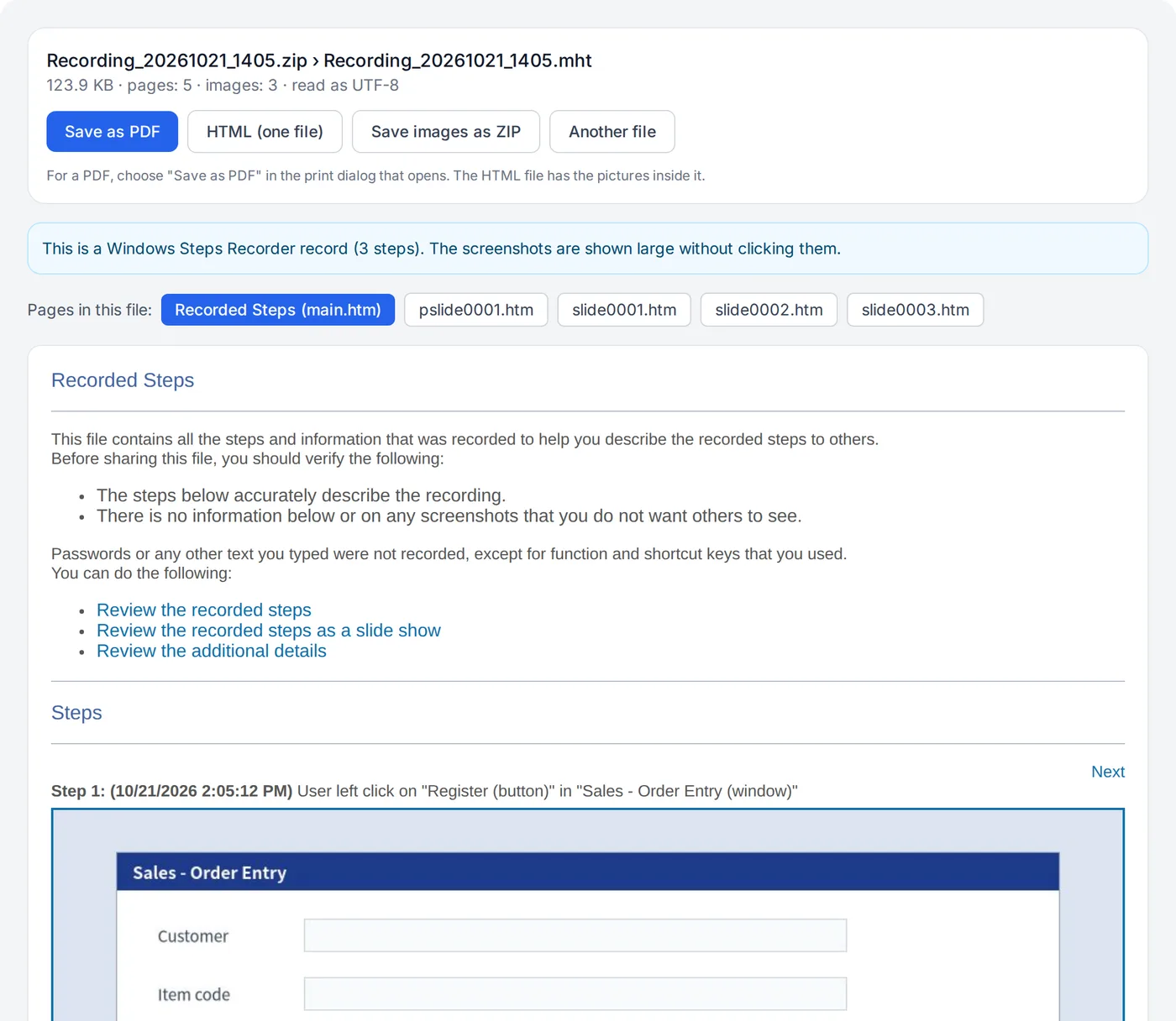
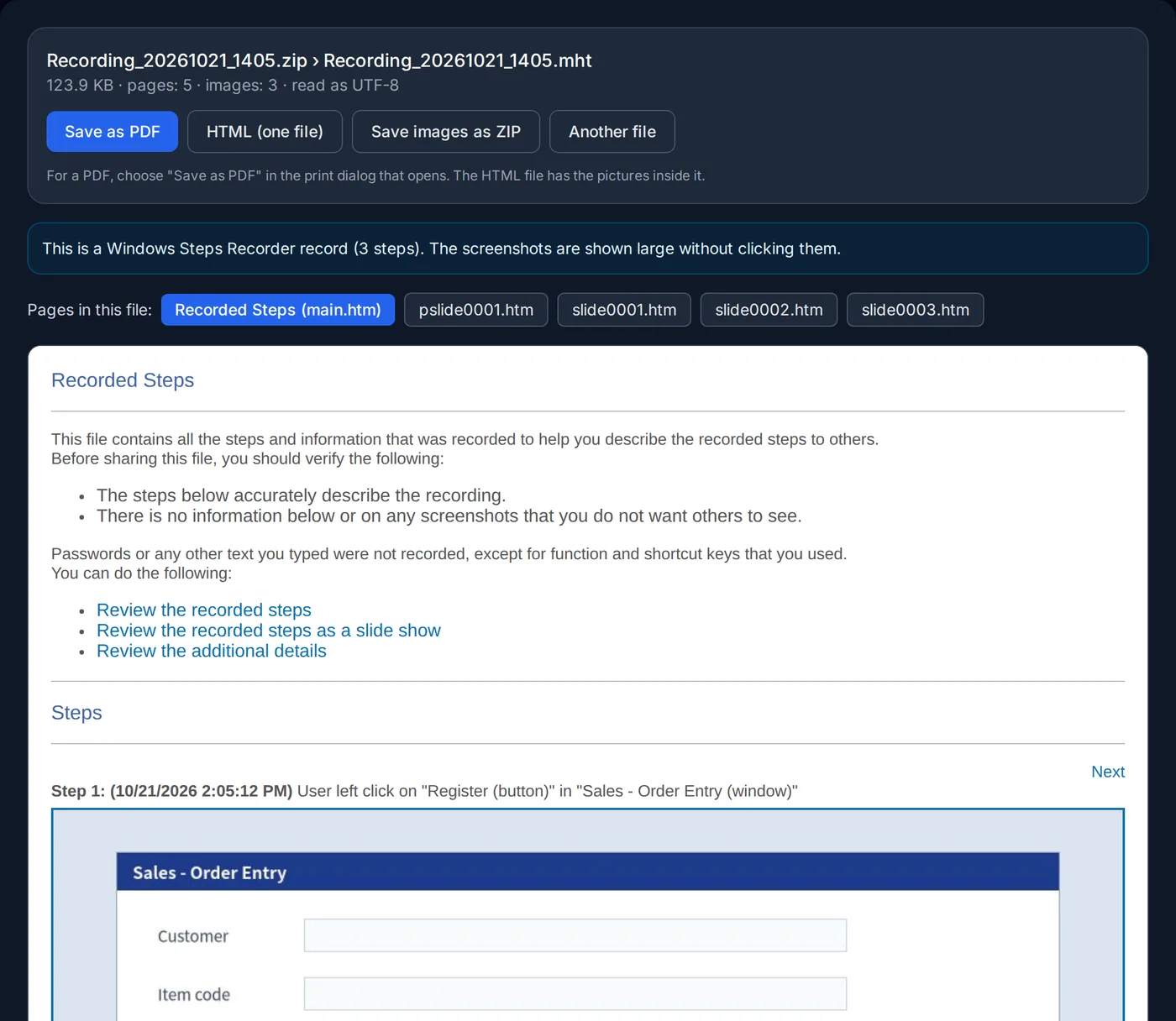
- Drop the .mht (.mhtml) into the dashed box (or click the box to choose it). A Steps Recorder ZIP can go in as it is, without unzipping. To try it first, press "Try a sample file".
- The page appears with its images. Under the file name you see the size, the number of pages and images inside, and which text encoding it was read as ("read as UTF-8", for example).
- If the file holds more than one page, switch between them with the buttons after "Pages in this file:".
- To save, choose "Save as PDF", "HTML (one file)" or "Save images as ZIP" (see Turning it into HTML or PDF).
- To open something else, press "Another file".
Older MHT files saved in Shift_JIS or another non-UTF-8 encoding are detected and read without garbled text. A very large page (several megabytes of HTML alone) takes a while to lay out and the page cannot be used meanwhile, so it waits for you to press "Show the page" first.
For safety, a few things deliberately differ from the original page. Scripts (programs) inside the MHT are not run. Moving menus and things that open when pressed will not work; you get the text and images. Images on other sites that are not inside the file are not loaded, because loading them would tell the site hosting them that the MHT was opened, along with your device's IP address. The number left out is shown under the file name ("… addresses outside the file not loaded"). The page is shown inside a separate frame where programs cannot run.
Links inside the page that go to another page in the same MHT do not move when pressed inside the frame; use the "Pages in this file:" buttons instead. Links to other sites open in a new tab.
If you were sent a Steps Recorder file
Steps Recorder (called Problem Steps Recorder in Windows 7) is a tool built into Windows that records what someone does on the PC. Microsoft says it records a screenshot of each action along with a description of what was clicked. It is used to show a support team "I did this, and this happened".
When the recording is saved, it becomes a compressed file with the .zip extension. A Microsoft engineer's blog post (2010) explains that the ZIP holds an .mht file, which you can scroll through step by step or watch as a slide show.
Here is how the viewer at the top handles it:
- Drop the ZIP as it is: no need to unzip; the viewer finds the .mht inside and opens it. If the ZIP holds two or more .mht files, you choose which one to open.
- Screenshots shown large: in the original file the screenshots are small and grow when pressed, which is done by a script. This page does not run that script, so it shows them large from the start and says how many steps there are, for example "This is a Windows Steps Recorder record (12 steps). The screenshots are shown large without clicking them."
- Slide show pages: the slide show pages in the recording open from the "Pages in this file:" buttons.
- Just the screenshots: "Save images as ZIP" saves all the screenshots in the recording together.
A recording does not include text typed on the keyboard, and by default it keeps only the last 25 screenshots (both according to Microsoft). If screenshots or typed details are missing, ask the person who made the recording.
Note that Steps Recorder is deprecated. Microsoft's support page says that starting with the Windows 11 update in February 2024, Steps Recorder shows a banner about it. Microsoft's list of deprecated Windows features says the deprecation was announced in November 2023 and that Steps Recorder "is no longer being updated and will be removed in a future release of Windows" (no removal date is given). For recording the screen instead, Microsoft recommends the Snipping Tool, Xbox Game Bar or Microsoft Clipchamp. Recordings already made stay as .mht files, though, and the viewer at the top opens them when you receive one.
Method 2: Microsoft Edge
On Windows, double-clicking an .mht normally opens it in a browser. Microsoft's own Steps Recorder instructions say the same: open the saved ZIP, double-click the file inside, and it opens in your browser.
How Edge opens it has changed over time, according to Microsoft's Edge release notes:
- Edge 92 (July 2021): on PCs where Internet Explorer 11 was the app for MHTML files, MHTML files started opening in IE mode in Edge instead of in Internet Explorer 11. Microsoft says this was most often seen when trying to view Outlook emails in a browser.
- Edge 94 (September 2021): MHTML files keep opening in IE mode if IE mode is turned on, but files saved from Edge (with its Save As or Save Page As options) now open in Edge itself.
On a work PC, an administrator may decide through Edge's policies whether MHT files open in IE mode. Microsoft says it will support IE mode through at least 2029. If the file does not open the way you expect, or the layout looks broken, try Method 1.
As for Google Chrome, Chrome's developer documentation for extensions says that, for security reasons, an MHTML file can only be loaded from the file system (so an MHT placed on a website will not simply open). The two Chrome Help pages we read (on saving a page) give no steps for opening an .mht file, so this article does not give any either.
On a Mac or iPhone
Apple's Safari guide gives two formats for saving a whole page in Safari on a Mac: Web Archive and Page Source (File > Save As, then Format). MHT is not one of the choices, and the guide says nothing about opening MHT. For the iPhone we could not read all of Apple's guide, so whether it opens MHT is not confirmed.
The viewer at the top works in the browser on a Mac or iPhone. Saving the opened MHT with "HTML (one file)" gives one HTML file with the images inside. We checked that the saved file opens with its images in WebKit, the engine inside Safari (not on a real iPhone).
Turning it into HTML or PDF to pass on
To pass the page to someone who cannot open MHT, or to print it, open it in the viewer at the top and save it.
- Save as PDF: opens your browser's print screen. Choose "Save as PDF" there. Only the page itself is printed.
- HTML (one file): one HTML file with the images inside. It opens in a browser (checked with its images in WebKit, the engine inside Safari). No scripts are included.
- Save images as ZIP: puts the images inside the MHT into one ZIP, under their original names. Handy for pulling the screenshots out of a Steps Recorder file.
Saving never changes the original MHT file. Each save downloads a new file.
Which to use
- You want to see it now, on a Mac or iPhone, or cannot install software: Method 1 (the viewer at the top of this article).
- You received a Steps Recorder ZIP: Method 1. Drop the ZIP as it is and the screenshots are shown large.
- You need to pass it on or print it: open it with Method 1, then use "HTML (one file)" or "Save as PDF".
- You are on Windows with an MHT saved from Edge: Method 2 (Edge).
Frequently asked questions
Is the file sent anywhere when I open it here?
The Steps Recorder file does not show what was typed.
Why are there fewer screenshots than steps?
Some images are missing and leave an empty space.
Are .mht and .mhtml different?
Can I see the other pages in one MHT, such as other Excel sheets?
Documents from work that won't open
Other tools for the same situation
About the author
Ren
Developer, OpenedFile
I build and maintain OpenedFile on my own. It started when a winmail.dat attachment landed in my inbox and nothing would open it — and every online converter I found wanted me to upload the file to their server first. So I wrote a TNEF parser from scratch instead, and every tool here has run entirely in the browser ever since.
More about OpenedFile