How to Open a .md (Markdown) File: Read It as a Formatted Page, Edit It, and Save as PDF or Word
A .md file is Markdown: plain text with marks like # and ** that a viewer turns into headings, lists and tables. Open one as a formatted page in your browser with nothing to install, fix it, and save it as PDF or Word, or open it in Notepad, VS Code or on a Mac. The file is not uploaded.
Open the .md file right here
Drop a .md into the dashed box below and it appears on this page as a readable document with headings, lists and tables. You can edit it here and save it as a PDF or a Word (.docx) file.
Drop a .md or .markdown file here
or click to choose a file
.md, .markdown and .txt. Files in Shift_JIS and other encodings are read too. The file stays on your device.
The file is read on your own device and never sent anywhere.
Someone sent you a ".md" file: an AI chat tool, a GitHub project, a colleague. You open it and it is full of #, ** and | characters. A .md file is plain text written in Markdown, a way of marking headings, lists and tables with ordinary characters. Nothing is broken: opened in a program that reads those marks, it looks like a normal document.
This article explains what a .md file is and why it looks like this, then the ways to read it formatted and how to turn it into a PDF or a Word file.
What a .md (Markdown) file is
Markdown is a set of rules for writing headings, lists, tables and the like with characters you can type on any keyboard. John Gruber published it in 2004. Files written this way end in .md (sometimes .markdown).
The file holds only text. A Word file keeps its bold and its tables in hidden formatting; a Markdown file writes "this is a heading" or "this is bold" into the text itself, as symbols. For example:
| What the file says | What a viewer shows |
|---|---|
# Meeting notes | A large heading (## and ### are smaller ones) |
**the day before** | Bold text |
- Keep phone bookings | A bulleted list |
| Task | Owner | | A table (each | separates a column) |
- [ ] Make a notice | A checkbox ([x] is a ticked one) |
[the manual](https://…) | A link that reads "the manual" |
For the writer, the appeal is that a document with headings and tables can be typed without reaching for the mouse. GitHub shows Markdown files in a project (README files included) formatted. AI chat tools use it too: Claude's help center, for example, says documents made there can be exported as Markdown.
Why it is full of symbols
The symbols are instructions for a program that formats the document. A program that shows text exactly as it is, without formatting it, does not act on them, so you see the marks themselves. That is all "full of symbols" means.
Gruber writes that Markdown was designed to stay readable even unformatted. Still, a table drawn with | characters, or a long document scattered with # and **, is hard going if you are not used to it. Open it in something that formats Markdown and you see it the way the writer did.
Method 1: Open it on this page (nothing to install)
The Markdown viewer at the top of this article opens the file in place. Nothing is installed, so it also works on a work computer where you cannot add software.
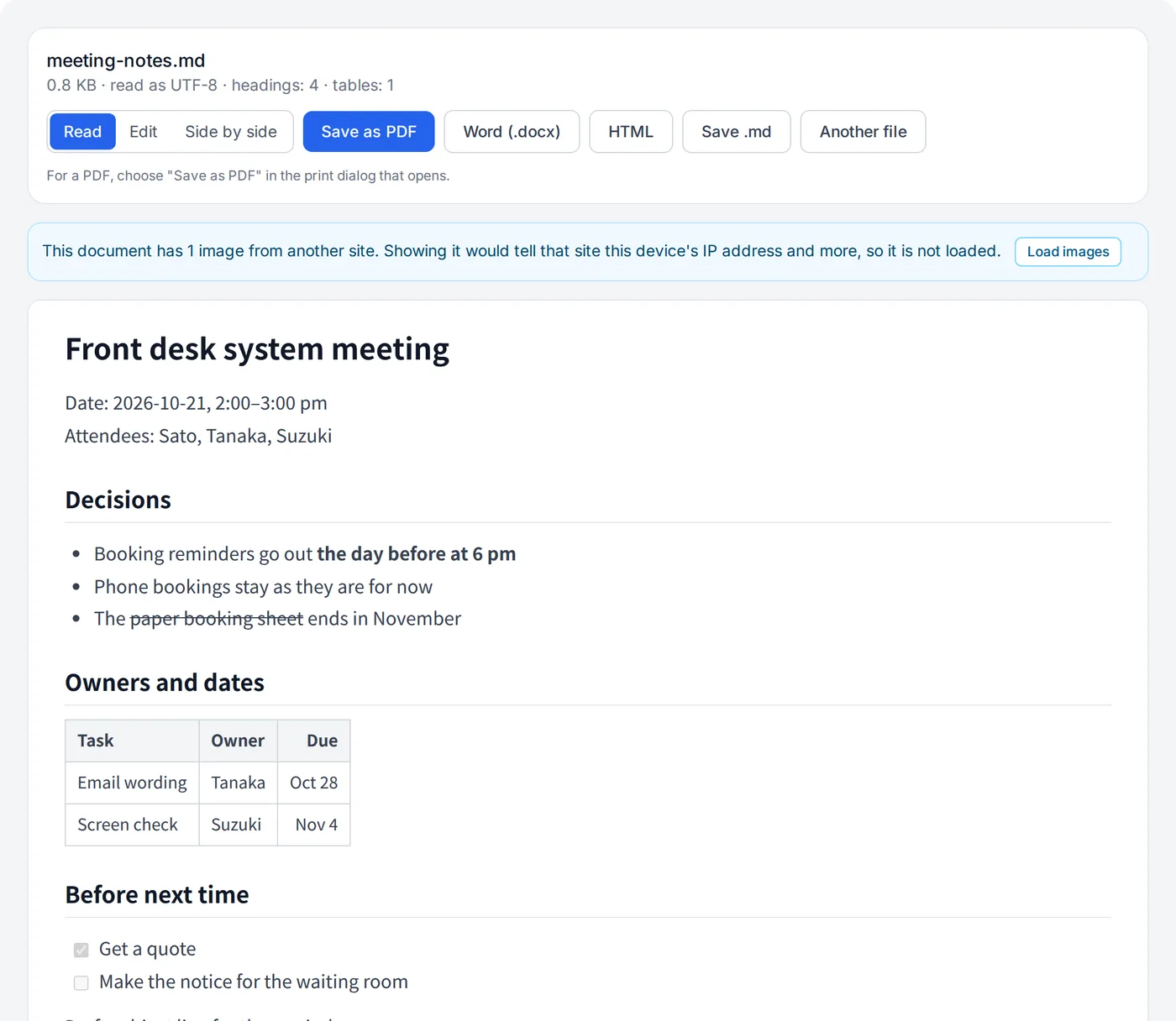
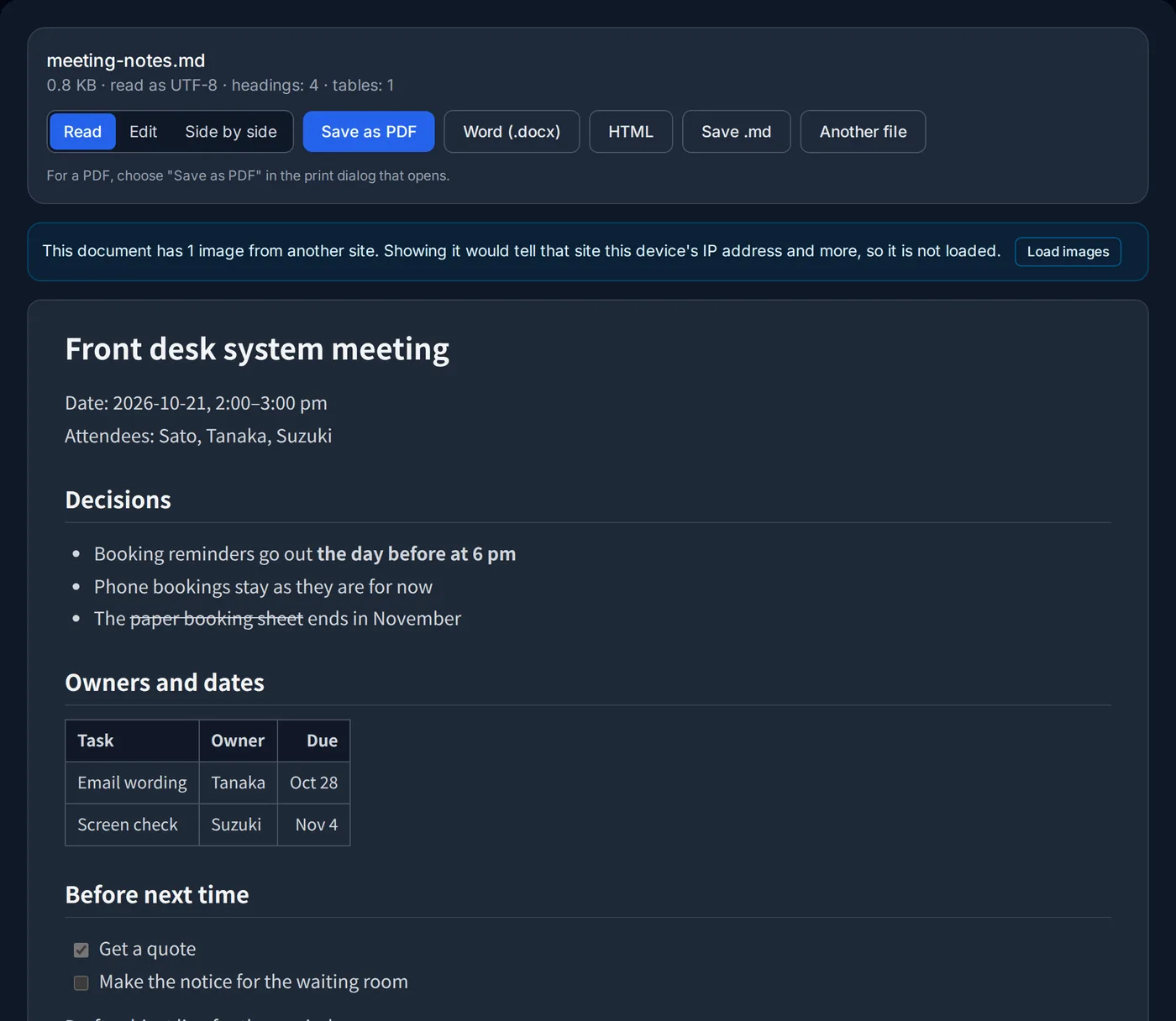
- Drop the .md into the dashed box, or click the box to choose it. To start from copied text instead of a file, press "Paste text instead"; to try it first, press "Try a sample file".
- The document appears with its headings, lists and tables. The line under the file name gives its size, the encoding it was read as, and how many headings and tables were found.
- To correct something, press "Edit" to see the text with its marks. On a wide screen, "Side by side" puts the text on the left and the page on the right, and the right side follows as you type. "Read" goes back to the formatted page.
- Save with "Save as PDF", "Word (.docx)", "HTML" or "Save .md" (see Turning it into a PDF or Word file).
- To open something else, press "Another file".
Files that are not UTF-8, such as Shift_JIS, are detected and read correctly. A .txt with Markdown in it opens too.
There are limits. Files can be up to 2 MB. Math ($…$), Mermaid diagrams and footnotes are shown as written, not drawn. Images kept in the same folder as the .md cannot be shown (explained below). And one difference from GitHub is on purpose: a single line break is shown as a line break, where GitHub joins the two lines. Japanese and Chinese have no spaces between words, so joining lines would put gaps in the middle of sentences.
Method 2: Windows Notepad
A .md file is plain text, so Windows Notepad opens it. Depending on the version of Notepad, you may see the marks just as they are.
Newer versions of Notepad are learning to format Markdown. In May 2025 Microsoft announced that it had started rolling out text formatting in Notepad to Windows Insiders (people enrolled to try new Windows features early). The announcement says the feature "supports Markdown style input and files", with bold, italics, links, simple lists and headings. Later Insider announcements added tables (November 2025) and strikethrough and nested lists (January 2026).
In a Notepad that has the feature, you can switch between the formatted view and the plain Markdown view from the View menu or with the toggle button in the status bar at the bottom of the window, and you can turn formatting off entirely in the app's settings (all according to Microsoft's announcement).
The catch: these are all announcements for Windows Insiders. We have not found a Microsoft statement that the feature has reached every Windows 11 PC outside the Insider program, so whether your Notepad formats Markdown depends on the version you have. The announcements also do not say how Notepad shows code blocks, images or quotes. If your Notepad does not format the file, or you need a PDF or Word file, use Method 1.
Method 3: The preview in VS Code
VS Code (Visual Studio Code) is Microsoft's code editor, and it has a Markdown preview built in. It suits people who write code, or who write .md files every day. These steps follow VS Code's own documentation.
- Open the .md file in VS Code.
- Press Ctrl+Shift+V (on a Mac, ⇧+⌘+V) to switch between the text and the preview.
- To edit and watch the result at the same time, press Ctrl+K and then V (on a Mac, ⌘+K then V). The preview opens beside the file and updates as you type.
According to the documentation, VS Code's built-in preview also renders math (with KaTeX) and Mermaid diagrams, so for a .md with formulas or diagrams it is a better fit than Method 1. On the other hand it has to be installed, which a work computer may not allow.
This article covers VS Code only, because its steps could be checked against official documentation; we have not checked other editors.
On a Mac or iPhone
The Notes app on a Mac can import .md files. Apple's support page says: "In macOS Tahoe 26, iOS 26, iPadOS 26, and later, Notes converts Markdown syntax to rich text that maintains formatting." On a Mac:
- Open Notes.
- Choose Import Markdown from the File menu in the menu bar.
- Select the .md file and click Import, then click Import again in the "Import to Notes?" window.
Each file becomes a new note in an Imported Notes folder; if you use iCloud, that folder is in the iCloud section of Notes. If you would rather not put a work document into Notes or iCloud, use Method 1.
For iPhone and iPad, Apple's page points to sharing from the Files app: touch and hold the file, tap Share, tap Notes, and save it as a new note.
Apple does not say which Markdown elements (tables, for example) are converted. We could not confirm from Apple's official information how a .md file looks in Quick Look (pressing Space in the Finder), so this article gives no other Mac or iPhone steps. The viewer on this page also opens in the browser on a Mac or iPhone.
Turning it into a PDF or Word file
To pass the document to someone who cannot open .md files, or to print it, open it in the viewer at the top and save it. If you edited it first, your edits are what gets saved.
- Save as PDF: opens your browser's print dialog. As the note under the buttons says, "For a PDF, choose "Save as PDF" in the print dialog that opens." Only the document is printed, and the text in the PDF can be selected and searched.
- Word (.docx): headings use Word's Heading 1–6 styles, lists are real Word lists, and tables have borders and a header row that repeats on each page. Images from other sites are not included; they become a line of text such as "[Image: description (address)]". The Word file has been checked by reading its parts back, not in Microsoft Word itself, so how it looks in Word is not confirmed.
- HTML: one web page file that opens in any browser.
- Save .md: keeps your edits as Markdown. It always writes UTF-8, even if the file you opened was in another encoding.
Saving never changes the original .md file; the result downloads as a new file.
Why images from other sites wait
A .md file can show a picture stored on another website by giving its address (URL). The viewer at the top does not load such images straight away. Instead it says:
This document has 1 image from another site. Showing it would tell that site this device's IP address and more, so it is not loaded.
Loading the image would tell the site that holds it that the document was opened, and give it a clue to where from (the IP address). Holding back means opening a .md from an unknown writer does not tell anyone you opened it. To see the images, press "Load images". They are shown only while that document is open, and the page says "Images from other sites are shown for this document only."
Images given as a path next to the .md file (written like images/photo.png) cannot be shown; in their place the page says "(images from the file's own folder cannot be shown here)". The page receives only the one file you opened, not the folder around it. Images carried inside the file (data: URLs) are shown as they are.
For the same reason, HTML written into a .md file is cleaned of anything that could run or load from the network (scripts, forms, embedded media and so on), and the document is shown in a separate frame that cannot run scripts.
Which to use
- You want to read it now, cannot install software, or need a PDF or Word file: Method 1, the viewer at the top of this article.
- You want to fix a few things before passing it on: Method 1. Edit side by side, then save as PDF or Word.
- You have the newer Notepad and just want a quick read: Method 2. Whether it formats the file depends on your version.
- You write .md files every day, or need math and Mermaid diagrams drawn: Method 3, VS Code.
- You are on a Mac and want to keep it as a note: Import Markdown in the Notes app (macOS Tahoe 26 or later).
Frequently asked questions
Is the file sent anywhere when I open it here?
Can it open a file that is not UTF-8?
Are tables and checkboxes ([ ] and [x]) shown?
Math and Mermaid diagrams are not drawn.
Are my edits kept anywhere?
Can it open a .txt file?
Garbled text, contacts and text files
Other tools for the same situation
About the author
Ren
Developer, OpenedFile
I build and maintain OpenedFile on my own. It started when a winmail.dat attachment landed in my inbox and nothing would open it — and every online converter I found wanted me to upload the file to their server first. So I wrote a TNEF parser from scratch instead, and every tool here has run entirely in the browser ever since.
More about OpenedFile