HEIC Won't Open on Windows? Three Ways to View iPhone Photos
iPhone photos (.heic) will not open on Windows because Windows ships without a HEIC decoder. Convert them to JPEG in your browser, add the codec extensions to Windows, or have the iPhone hand over JPEG in the first place — compared.
Convert HEIC to JPG right now
Pick the photos and get JPG (or PNG) back. Batches are fine, and you can download them together as a ZIP.
Conversion runs on your own computer. The photos are never uploaded.
You copy photos from an iPhone to a Windows PC, the files end in .heic, and double-clicking one brings up "You'll need a new app to open this file". Photos shows a black frame; Explorer shows no thumbnail. The pictures are not damaged. Windows simply ships without the component needed to decode HEIC.
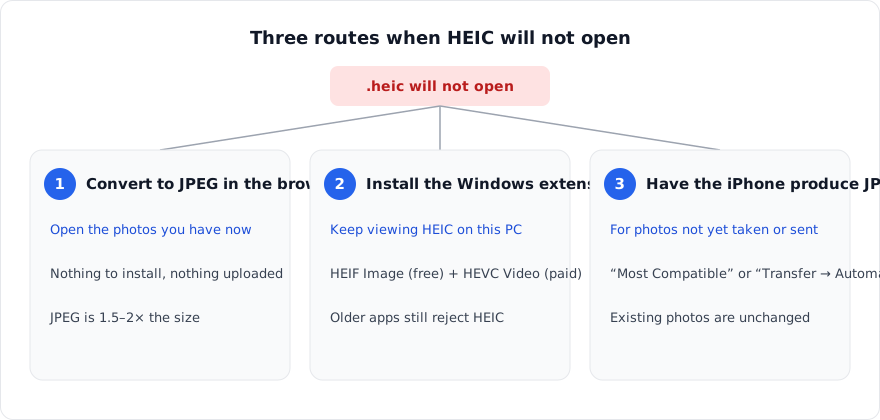
There are three ways around it. Each takes a few minutes, but they suit different situations, so here is the overview before the detail.
Why Windows cannot open HEIC
HEIC has been the iPhone's default photo format since 2017 (iOS 11). It stores the same picture in roughly half the space of a JPEG, but the compression inside it (HEVC) carries patent licensing fees. Microsoft chose not to bundle that decoder with Windows and instead offers it as separate "extensions" in the Microsoft Store. A fresh Windows 10 or 11 therefore has no way to read HEIC, and neither Photos nor Explorer can render one.
Macs and iPhones open the same file without complaint because Apple builds the decoder into the OS. Whether a file "opens" depends on the machine, not the file.
Route 1: convert to JPEG in the browser
If the goal is to open the .heic files you have in front of you, this is the quickest route. Nothing is installed on Windows, and the resulting JPEGs open in anything.
- Open the HEIC to JPEG converter.
- Drop the .heic files in — several at once is fine.
- Choose JPG or PNG, and for JPG a quality level. The default of 90 is visually indistinguishable from the original for most photos.
- Download each file, or all of them as a ZIP.
The converter bundles its own decoder (compiled to WebAssembly) and runs it on your machine. The photos are never sent to a server, so family pictures and site photos from work can go straight in. Most online converters work the other way — upload, convert, download — and what happens to the uploaded copy is down to each service's terms.
One thing to know: a JPEG is larger than the HEIC it came from, typically 1.5 to 2 times. If you are only archiving the photos and do not need to open them, leaving them as HEIC saves space.
Route 2: install the extensions on Windows
If you will keep handling iPhone photos on this PC, teaching Windows to read HEIC is less hassle in the long run. Two Microsoft Store extensions are needed, and photos only display once both are installed.
- HEIF Image Extension (free) — reads the HEIC container.
- HEVC Video Extensions (paid; $0.99 in the US store, ¥120 in Japan) — decodes the image data inside. Despite the "video" in the name, still HEIC photos need it too.
Once both are in, Photos opens .heic files and Explorer shows thumbnails. On Windows 10 you need version 1809 or later. A free listing called "HEVC Video Extensions from Device Manufacturer" used to exist in the Store; it is generally no longer findable. If you would rather not pay, routes 1 and 3 cover the same ground.
Installing the extensions does not change what older image editors or web upload forms accept. When one of those rejects HEIC, you end up converting to JPEG anyway.
Route 3: make the iPhone produce JPEG
If you know the photos are headed for Windows, the iPhone can hand over JPEG from the start. There are two settings, and they do different things.
Shoot in JPEG
Settings → Camera → Formats → Most Compatible makes every new photo a JPEG and every new video H.264. Files are bigger, but they open anywhere. Photos already taken are unaffected.
Convert only when transferring to a computer
Settings → Photos → Transfer to Mac or PC → Automatic (on iOS 18 and later, look under Apps if Photos is not in the top-level list) has the iPhone convert to JPEG as photos are imported over a cable. You keep shooting HEIC (and keep the space saving) and only the copies that reach the PC become JPEG. This is usually the better everyday setting. It does not apply to AirDrop or cloud transfers.
Sending by email or in a messaging app usually converts to JPEG on the way out. "The other person cannot open it" almost always comes from a cable, iCloud or Google Drive transfer that passed the original file through untouched.
Other reasons it still will not open
- The extension is .heic but the content is not. Some Android phones, and any file that was merely renamed, can be JPEG or something else under a .heic name. If the converter says the file is not HEIC, the file identifier will read the real format from the first bytes.
- The full-size photo was never downloaded from iCloud. With "Optimize iPhone Storage" on, the phone may hold only a thumbnail, and the transferred file is a few kilobytes. Open the photo on the iPhone once, then transfer again.
- You want the moving part of a Live Photo. The HEIC holds only the still frame; the motion is a separate .mov. A converter can only give you the still.
- The transfer was cut off. A 0-byte or unusually small file was interrupted mid-copy. Copy it again.
Which one to pick
| Situation | Best fit | Why |
|---|---|---|
| Need to open or share these photos now | Route 1 (browser) | Nothing to install; JPEG opens everywhere |
| Will keep viewing HEIC on this PC | Route 2 (extensions) | One-time setup, then it just works |
| Work PC where you cannot install software | Route 1 | Browser only, and the photos stay on the machine |
| Future photos are headed for Windows | Route 3 (iPhone settings) | No conversion step on each transfer |
Summary
- HEIC will not open because Windows has no decoder for it. The photos are fine.
- To open them now, convert to JPEG in the browser. Nothing to install, nothing uploaded.
- For the long term, install the Store's HEIF Image Extension and HEVC Video Extensions (the latter costs $0.99, or ¥120 in Japan).
- For future photos, set the iPhone to Most Compatible, or Transfer to Mac or PC → Automatic.
Frequently asked questions
The HEIF Image Extensions say they cost money.
Does converting to JPEG lose quality?
I have hundreds of photos.
What happens to Live Photos?
About the author
Ren
Developer, OpenedFile
I build and maintain OpenedFile on my own. It started when a winmail.dat attachment landed in my inbox and nothing would open it — and every online converter I found wanted me to upload the file to their server first. So I wrote a TNEF parser from scratch instead, and every tool here has run entirely in the browser ever since.
More about OpenedFile