Winmail.dat on iPhone: What to Do When You Receive One
How to handle winmail.dat attachments on your iPhone or iPad using free browser-based tools.
You are on your iPhone checking email between meetings or on the go, and you notice an attachment called winmail.dat. You tap on it, and your iPhone offers no way to open it. There is no preview, no associated app, and no obvious solution. You are stuck with a file you cannot read on the device you use most.
This is a frustrating but extremely common situation for iPhone and iPad users. In this guide, we will explain why this happens and walk you through the simplest way to open winmail.dat files directly on your iOS device using nothing more than Safari.
Why You Receive Winmail.dat on iPhone
A winmail.dat file is created when someone sends you an email from Microsoft Outlook using Rich Text Format (RTF). Outlook encodes the message and its attachments into a proprietary binary format called TNEF (Transport Neutral Encapsulation Format). When this encoded email arrives in the Mail app on your iPhone or iPad, iOS does not know how to decode the TNEF container. The result is a single opaque file called winmail.dat instead of the documents, images, or other files the sender intended to share.
This issue affects every version of iOS. Whether you are using the built-in Mail app, Gmail for iOS, Outlook for iOS (ironically, the mobile version handles TNEF inconsistently), or any other email app, winmail.dat files can appear when the sender's Outlook is configured to use RTF.
Why the iPhone Mail App Cannot Read Winmail.dat
Apple's iOS Mail app does not include a TNEF decoder. TNEF is a Microsoft-proprietary format, and Apple has chosen not to build full support for it into iOS. While macOS versions of Apple Mail have included limited TNEF support in recent years, iOS Mail has not received the same treatment.
When you tap on a winmail.dat file in iOS Mail, the system looks for an app that can handle the application/ms-tnef MIME type. Since no built-in app supports this format, iOS either shows a blank preview or offers to share the file with third-party apps. Without a TNEF-capable app installed, you have no way to access the contents.
How to Open Winmail.dat on iPhone Using Safari
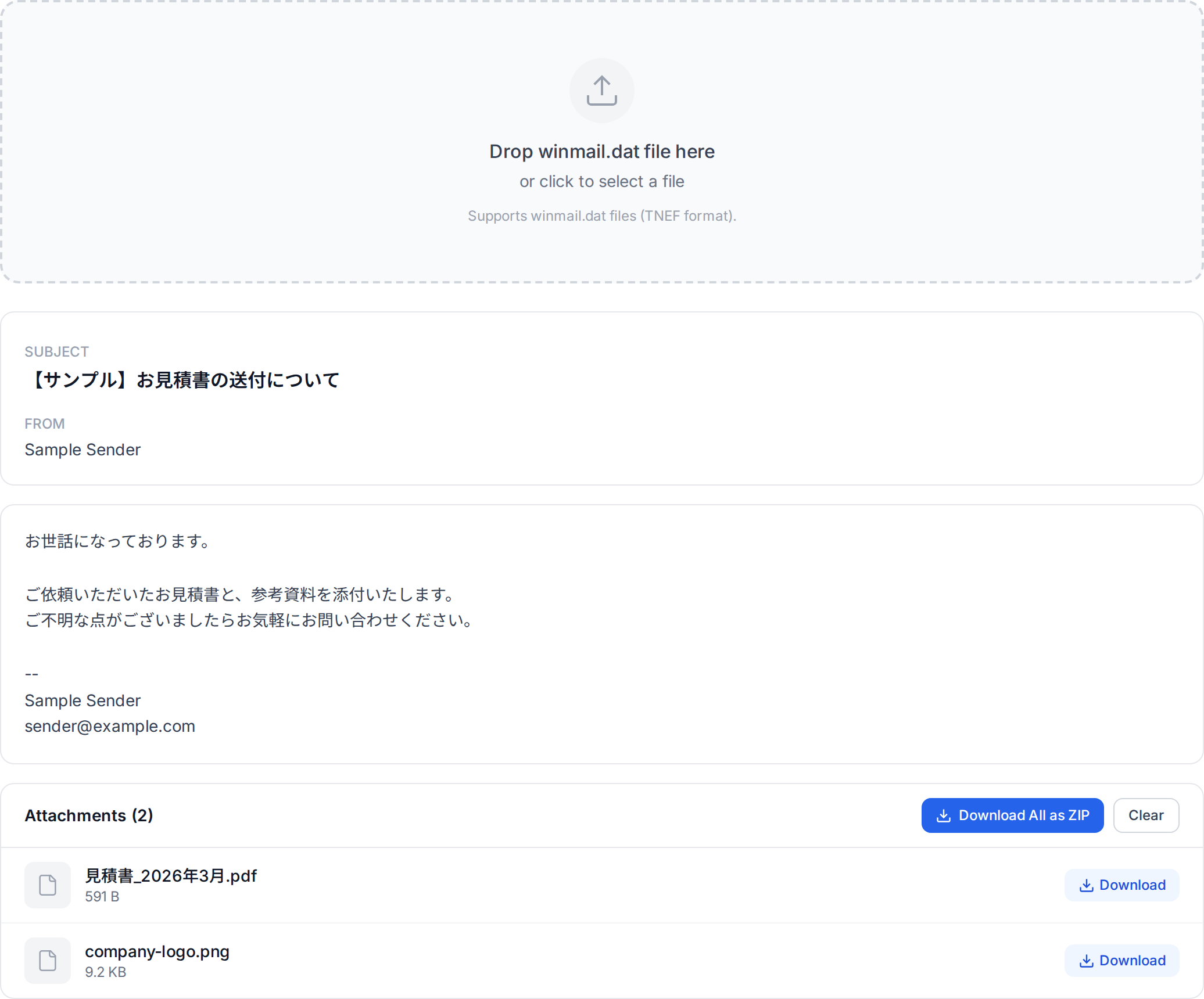
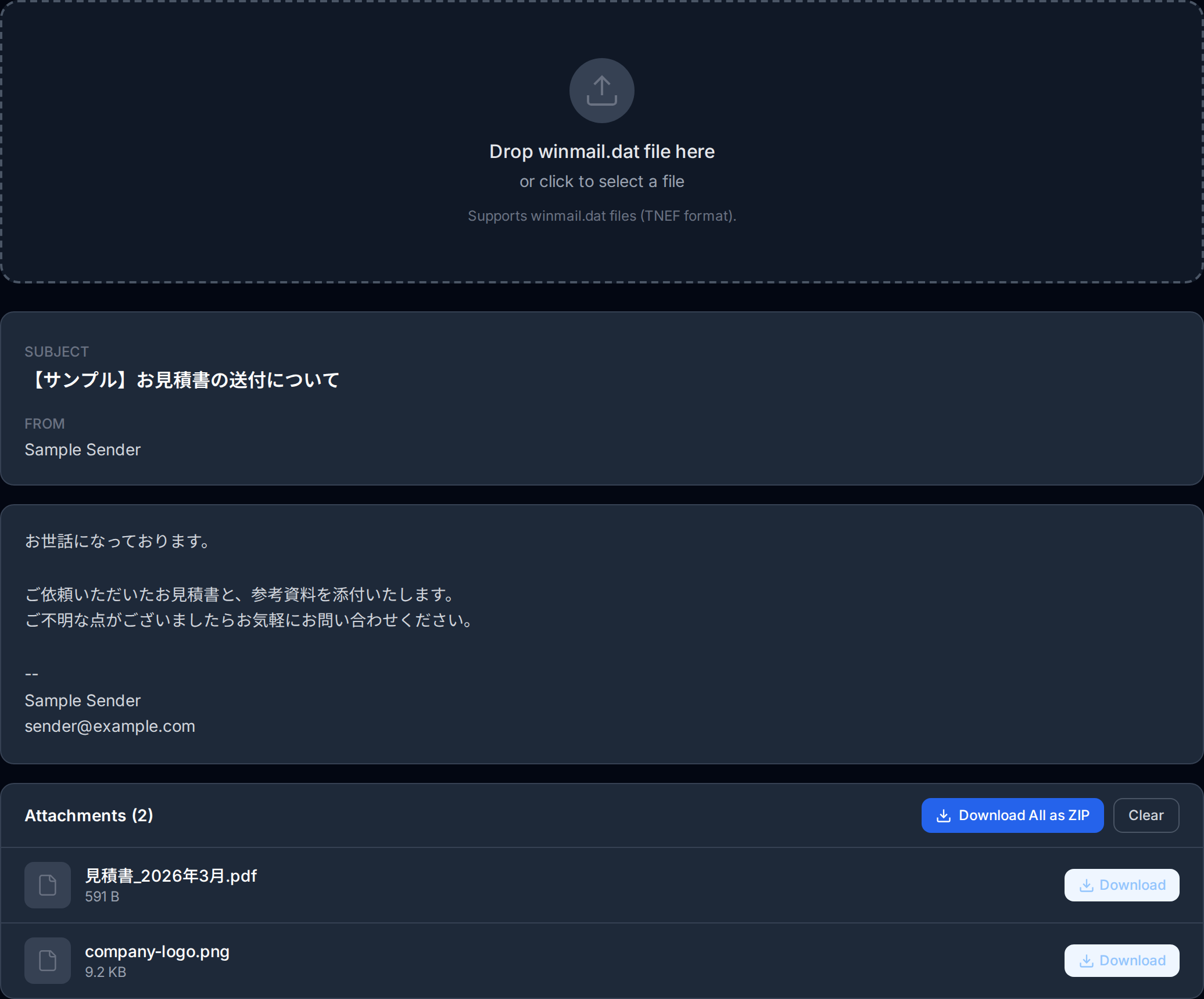
The easiest way to open a winmail.dat file on your iPhone is to use a browser-based tool. Our free Winmail.dat Viewer works perfectly in Safari on iPhone and iPad. Here is the step-by-step process:
Save the Winmail.dat File
In the Mail app, tap and hold on the winmail.dat attachment. Select "Share" from the menu that appears, then choose "Save to Files". Save the file to a location you can easily find, such as the Downloads folder or iCloud Drive.
Open the Viewer in Safari
Open Safari and navigate to our Winmail.dat Viewer. The tool is fully optimized for mobile browsers, so it will work smoothly on your iPhone or iPad screen.
Upload the File
Tap the upload area on the viewer page. Safari will present the iOS file picker. Navigate to the location where you saved the winmail.dat file and select it.
View and Download the Contents
The viewer will instantly decode the TNEF file and display all the embedded contents. You will see a list of every attachment that was hidden inside the winmail.dat container, such as PDFs, Word documents, images, or spreadsheets. Tap on any file to download it to your iPhone.
The entire process takes less than a minute and does not require installing any app from the App Store.
Alternative: Using a Third-Party iOS App
If you prefer having a dedicated app, there are several TNEF viewer apps available on the App Store. Search for "winmail.dat" or "TNEF viewer" to find options. These apps typically allow you to open winmail.dat files using the iOS Share Sheet directly from your email app.
However, most of these apps are either paid, contain ads, or require in-app purchases for full functionality. A browser-based tool like our Winmail.dat Viewer provides the same functionality for free, without ads, and without requiring an app installation that takes up storage on your device.
Tips for Mobile Users
Here are some practical tips for dealing with winmail.dat files on your iPhone or iPad:
- Add a home screen shortcut: If you receive winmail.dat files regularly, open our Winmail.dat Viewer in Safari, tap the Share button, and select "Add to Home Screen." This gives you one-tap access to the viewer whenever you need it.
- Use the Files app: The iOS Files app is the easiest way to manage winmail.dat files. Save them there first, then upload them to the viewer. This keeps your workflow organized.
- Check your Gmail or webmail: If you also access your email through a web browser, some webmail interfaces (particularly Gmail) can extract basic attachments from TNEF-encoded messages automatically. Try accessing the same email through Safari before resorting to a decoder tool.
- Do not delete the winmail.dat file: Until you have successfully extracted all the contents, keep the original winmail.dat file in your Files app. You may need to process it again if you miss an attachment.
Recommended
Add our Winmail.dat Viewer to your iPhone home screen for one-tap access. In Safari, tap the Share button and select "Add to Home Screen." It works just like a native app without taking up storage space.
What to Tell the Sender
If you know the person who sent you the winmail.dat file, consider letting them know about the issue. Many Outlook users have no idea that their emails arrive as unreadable attachments for non-Outlook recipients. Here is a polite way to bring it up:
"I received your email, but the attachment arrived as a winmail.dat file that I cannot open on my phone. This happens when Outlook uses Rich Text Format. Could you resend the email using HTML format? In Outlook, you can change this under Format Text in the toolbar."
You can also share our guide on how to prevent winmail.dat with them so they can update their Outlook settings and avoid the issue in the future.
Privacy Considerations
When using any tool to open a winmail.dat file, privacy should be a top concern, especially on a mobile device. Here is what to look for:
- Client-side processing: Our Winmail.dat Viewer processes files entirely within your browser. The winmail.dat file is never uploaded to a remote server. All decoding happens locally on your iPhone using JavaScript.
- No data retention: Since the file is processed in your browser, there is no server-side storage of your data. When you close the browser tab, the data is gone.
- Be cautious with other tools: Some online winmail.dat converters upload your file to their servers for processing. This means your email attachments, which may contain sensitive business documents or personal information, are transmitted to and stored on a third-party server. Always check the privacy policy of any tool before uploading sensitive files.
Important
Be cautious when using third-party winmail.dat tools. Some online converters upload your file to their servers, meaning sensitive business documents or personal information could be stored on a third party's infrastructure. Always choose tools that process files locally in your browser.
Choosing a tool that processes files locally is especially important for business emails that may contain confidential information, contracts, financial data, or personal details.
Conclusion
Receiving a winmail.dat file on your iPhone does not have to derail your day. With a simple browser-based tool like our Winmail.dat Viewer, you can extract the hidden attachments in under a minute without installing any apps. Save the file from your email, open it in the viewer through Safari, and download the contents you need.
The next time a winmail.dat file appears on your iPhone, you will know exactly what it is and exactly what to do. No confusion, no app store visits, no frustration. Just a quick and private solution that works anywhere you have a web browser.
Related Articles
How to Open Winmail.dat on Mac
Step-by-step guide for macOS users dealing with winmail.dat attachments.
What Is a Winmail.dat File?
The complete guide to understanding winmail.dat files and how to open them.
How to Prevent Winmail.dat
Configure Outlook to stop sending winmail.dat files to your recipients.
About the author
Ren
Developer, OpenedFile
I build and maintain OpenedFile on my own. It started when a winmail.dat attachment landed in my inbox and nothing would open it — and every online converter I found wanted me to upload the file to their server first. So I wrote a TNEF parser from scratch instead, and every tool here has run entirely in the browser ever since.
More about OpenedFile