Why iPhone Uses HEIC and How to Convert
Understand why Apple chose HEIC as the default photo format and learn easy ways to convert to JPG.
Introduction
If you have ever transferred photos from an iPhone to a Windows PC, you have likely been surprised to find files with the .heic extension instead of the familiar .jpg. This unfamiliar format can cause confusion, especially when your computer cannot open the files or when you try to share them with someone who does not have an Apple device. So why did Apple switch to this format in the first place, and what can you do about it?
In this article, we will explain why Apple adopted HEIC, what benefits it brings to iPhone users, and how you can easily convert your HEIC photos to the more universally compatible JPG format whenever you need to.
Apple's Adoption of HEIC: The iOS 11 Shift
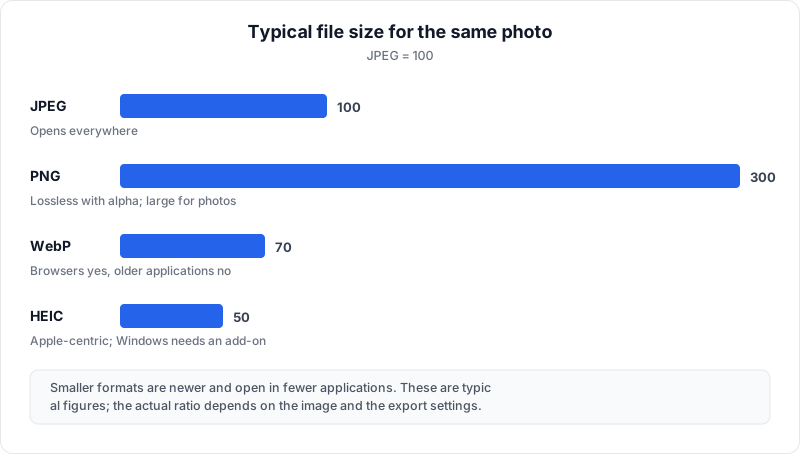
In September 2017, Apple released iOS 11 and quietly changed the default photo format on iPhones and iPads from JPG to HEIC (High Efficiency Image Container). This was not an arbitrary decision. Apple had been involved in the development of the HEIF standard and the underlying HEVC (H.265) video codec, and the company saw an opportunity to solve a growing problem: photo storage.
By 2017, iPhone cameras had reached 12 megapixels, and the average user was taking more photos than ever before. Each JPG photo consumed 3 to 5 MB of storage, and users were constantly running out of space on their devices. iCloud storage costs were adding up. Apple needed a way to let users take the same high-quality photos while using significantly less storage, and HEIC was the answer.
The transition was largely seamless for users within the Apple ecosystem. iPhones, iPads, and Macs could all read and display HEIC files natively. The problems only became apparent when users tried to move their photos outside the Apple ecosystem.
Benefits of HEIC for iPhone Users
Dramatic Storage Savings
The primary benefit of HEIC is that it produces files roughly 50% smaller than equivalent JPG files at the same visual quality. For a user with 10,000 photos on their iPhone, switching from JPG to HEIC can free up 10 to 15 GB of storage. On a base-model iPhone with 128 GB of storage, that is a substantial amount of recovered space.
Did You Know?
Switching from JPG to HEIC can save roughly 50% of your photo storage. For an iPhone user with 10,000 photos, that translates to 10 to 15 GB of freed-up space — and reduced iCloud backup costs too.
Equal or Better Image Quality
Despite the smaller file sizes, HEIC does not sacrifice image quality. The HEVC compression algorithm is simply more efficient than the decades-old JPEG compression. HEIC images retain more detail in areas with subtle gradients, like skies and skin tones, and produce fewer of the blocky artifacts that JPG is known for at higher compression levels.
Advanced Photography Features
HEIC supports features that JPG cannot. When you take a Portrait Mode photo, the depth map data is stored within the HEIC file. Live Photos, which capture a short video clip alongside the still image, also leverage the HEIC container format. HDR gain maps, which enable the dynamic range adjustments you see on iPhone displays, are embedded in HEIC files as well.
16-Bit Color Depth
HEIC supports 16-bit color depth compared to JPG's 8-bit limitation. This provides a wider range of colors and smoother tonal transitions, which is important for the increasingly sophisticated computational photography features that modern iPhones use.
How the iPhone Captures Photos in HEIC
When you press the shutter button on an iPhone running iOS 11 or later (with default settings), the camera app captures the raw sensor data and processes it through the image signal processor (ISP). The resulting image is then compressed using the HEVC codec and saved in the HEIC container format. This all happens in milliseconds, and the process is completely transparent to the user.
The iPhone also captures and embeds additional metadata within the HEIC file, including EXIF data (camera settings, GPS location, timestamp), depth maps for Portrait Mode shots, and HDR gain map information. All of this data is packaged efficiently within the single HEIC container.
The Compatibility Problem
The downside of HEIC is that it is not universally supported. While it works perfectly within the Apple ecosystem, problems arise in several common scenarios:
- Transferring to Windows: Windows does not natively open HEIC files without installing extensions from the Microsoft Store
- Sharing with Android users: Android support for HEIC is inconsistent and depends on the device manufacturer and Android version
- Uploading to websites: Many websites and web applications do not accept HEIC uploads
- Email attachments: Recipients without HEIC support will not be able to view the photos
- Printing services: Many online photo printing services do not accept HEIC files
- Older software: Photo editing applications released before 2018 generally do not support HEIC
How to Change Your iPhone to Shoot JPG Instead
If you prefer to avoid HEIC entirely, you can configure your iPhone to capture photos in JPG format. Here is how:
Open Settings
Open the Settings app on your iPhone.
Navigate to Camera
Scroll down and tap Camera.
Open Formats
Tap Formats to see the capture format options.
Select Most Compatible
Select Most Compatible instead of "High Efficiency." This switches photos to JPG and videos to H.264.
The "High Efficiency" option captures photos in HEIC and videos in HEVC (H.265). The "Most Compatible" option switches to JPG for photos and H.264 for videos. Be aware that choosing "Most Compatible" will result in larger file sizes, so your photos and videos will consume more storage space on your device.
There is an important trade-off to consider here. Switching to "Most Compatible" also disables certain features that require the HEIC container, such as some computational photography capabilities. For most users, a better approach is to keep shooting in HEIC and convert only when needed.
Recommended
Keep shooting in HEIC to preserve storage savings and advanced features like depth maps and HDR. Only convert to JPG when you specifically need to share with non-Apple users or upload to incompatible platforms.
How to Convert Existing HEIC Photos to JPG
If you have a collection of HEIC photos that you need in JPG format, converting them is straightforward. OpenedFile's HEIC to JPG/PNG converter is a free tool that converts your photos directly in your web browser. Because the conversion happens locally on your device, your photos are never uploaded to any server, which is a significant privacy advantage over server-based conversion tools.
To convert your HEIC files:
Open the Converter
Visit the HEIC converter tool in your web browser.
Add Your HEIC Files
Drag and drop your HEIC files onto the page, or click to browse and select files from your device.
Choose Output Settings
Choose your output format (JPG or PNG) and select the quality level (higher quality means larger files).
Download Converted Files
Download the converted files. You can convert multiple files at once, making it practical to batch-convert entire photo collections.
Automatic Conversion When Sharing from iPhone
Apple anticipated the compatibility problem and built an automatic conversion feature into iOS. When you share photos from your iPhone using certain methods, iOS can automatically convert HEIC files to JPG on the fly:
- AirDrop to a Mac: Files remain in HEIC format since macOS supports it natively
- Email: iOS typically converts HEIC to JPG when attaching photos to emails
- USB transfer to Windows: You can enable automatic conversion in Settings > Photos > Transfer to Mac or PC > Automatic
- Third-party apps: Most apps that request photos through the iOS photo picker receive JPG versions automatically
However, this automatic conversion does not cover all scenarios. If you copy files directly from your iPhone's file system, use iCloud Drive, or transfer via methods that bypass the iOS sharing framework, you will get the original HEIC files.
Tips for Managing HEIC Photos
- Keep originals in HEIC: There is no reason to convert your entire photo library preemptively. HEIC saves space and preserves quality. Convert only when needed.
- Use automatic transfer settings: Enable "Automatic" under Settings > Photos > Transfer to Mac or PC if you regularly connect your iPhone to a Windows computer.
- Bookmark a converter: Keep OpenedFile's HEIC converter bookmarked for quick access when you need to convert files manually.
- Check before sharing: Before sending photos to someone outside the Apple ecosystem, verify whether the recipient can handle HEIC files or convert them first.
- Back up in original format: When backing up your photos, keep the HEIC originals. They contain the full quality and all auxiliary data like depth maps.
Conclusion
Apple's decision to adopt HEIC was driven by practical necessity: as cameras improved and users took more photos, storage efficiency became critical. HEIC delivers on this promise with files that are roughly half the size of JPGs without any loss in visual quality, while also supporting advanced features like depth maps, HDR, and 16-bit color.
The compatibility challenges are real but manageable. By using automatic conversion settings on your iPhone and keeping a reliable converter like OpenedFile handy for manual conversions, you can enjoy the storage benefits of HEIC without sacrificing the ability to share your photos with anyone, regardless of what device they use.
Related Articles
HEIC vs JPG: The Complete Comparison Guide
Compare HEIC and JPG image formats — quality, file size, compatibility, and when to use each.
HEIC Compatibility Guide: Windows, Android & Linux
Everything you need to know about HEIC support across platforms and how to solve compatibility issues.
HEIC Quality and File Size: What You Need to Know
How HEIC achieves smaller file sizes without sacrificing image quality compared to JPG.
About the author
Ren
Developer, OpenedFile
I build and maintain OpenedFile on my own. It started when a winmail.dat attachment landed in my inbox and nothing would open it — and every online converter I found wanted me to upload the file to their server first. So I wrote a TNEF parser from scratch instead, and every tool here has run entirely in the browser ever since.
More about OpenedFile