Why Client-Side Processing Is Safer for Your Files
How browser-based file processing protects your privacy compared to server-side conversion tools.
Server-Side vs Client-Side Processing Explained
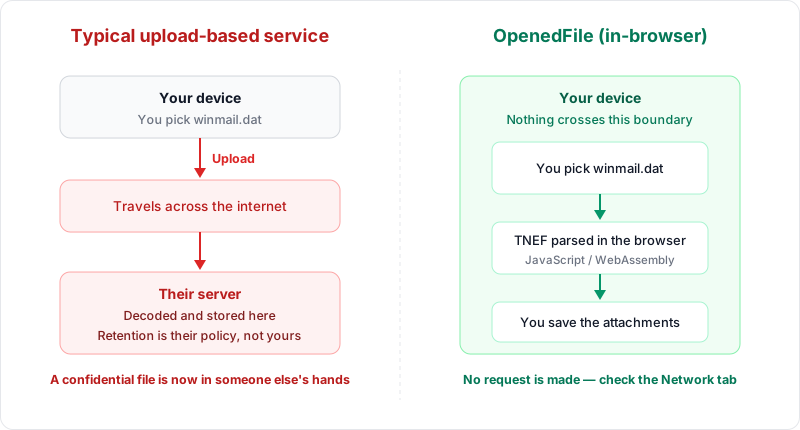
When you use an online tool to convert, edit, or view a file, the processing has to happen somewhere. There are two fundamentally different approaches: server-side processing, where your file is sent to a remote computer for processing, and client-side processing, where the work happens right on your own device inside your web browser. The difference between these two approaches has profound implications for your privacy, security, and even performance.
This article explores both approaches in detail, explains why client-side processing is inherently safer, and shows you how to verify that a tool is truly processing your files locally.
How Server-Side Converters Work
The traditional model for online file conversion is server-side processing. Here is what happens step by step when you use a server-side converter:
- Step 1: Upload — You select a file on your device. The browser packages the file into an HTTP request and sends it over the internet to the converter's server. Even with HTTPS encryption protecting the data in transit, the file is fully decrypted and accessible once it reaches the server.
- Step 2: Server reception and storage — The server receives your file and writes it to disk or holds it in memory. Many services also write files to temporary directories, log file metadata, and create database entries to track the conversion job.
- Step 3: Processing — Server-side software (often running ImageMagick, FFmpeg, LibreOffice, or custom code) reads your file, performs the conversion, and writes the output to a new file.
- Step 4: Download — The server sends the converted file back to your browser for download.
- Step 5: Cleanup (maybe) — The server is supposed to delete both the original and converted files. Some services do this promptly; others retain files for hours, days, or indefinitely. Backup systems may preserve copies even after the primary files are deleted.
Throughout this process, your file exists on infrastructure you do not own, cannot inspect, and cannot control. You are trusting the service operator to handle your data responsibly, and you have no way to verify that trust.
How Client-Side Converters Work
Client-side processing takes a fundamentally different approach. Instead of sending your file to a server, the processing code is sent to your browser:
- Step 1: Load the application — When you open a client-side converter in your browser, the webpage downloads the conversion code (JavaScript, WebAssembly modules, and other static assets) to your device. This is the only download that happens.
- Step 2: Select your file — You choose a file using the browser's file picker or drag-and-drop interface. The browser's File API reads the file directly from your device's storage into the browser's memory. No network request is made.
- Step 3: Local processing — The conversion code running in your browser processes the file. This might use the HTML5 Canvas API for image manipulation, WebAssembly for computationally intensive tasks, or Web Workers for background processing. All of this happens in the browser's sandboxed environment on your device.
- Step 4: Download the result — The converted file is generated in your browser's memory and offered for download. It is written directly to your device's downloads folder. No server is involved.
The critical difference is that your file never leaves your device. The conversion happens entirely within the browser's sandbox, using your device's CPU and memory. There is no upload, no remote storage, and no third-party access.
Did You Know?
With client-side processing, your file never leaves your device. The conversion code is downloaded to your browser, and all processing happens locally using your device's CPU and memory. There is no upload, no remote storage, and no third-party access.
Privacy Advantages of Client-Side Processing
The privacy benefits of client-side processing are substantial and straightforward:
No Upload Means No Exposure
If your file never leaves your device, it cannot be intercepted in transit, stored on a remote server, accessed by unauthorized parties, included in a data breach, or mined for advertising data. The entire category of server-side privacy risks simply does not exist with client-side processing.
No Storage Means No Breach Risk
Server-side converters accumulate vast collections of user files, making them attractive targets for hackers. A client-side tool stores nothing on any server, so there is nothing to breach. Even if the tool's web server were compromised, no user files would be at risk because no user files are ever present on the server.
No Interception in Transit
While HTTPS encrypts data in transit, encryption is not foolproof. Misconfigured certificates, compromised certificate authorities, or man-in-the-middle attacks at the network level can potentially expose data in transit. With client-side processing, your file data never traverses the network, so interception is impossible regardless of the network's security.
No Account Required
Server-side converters often require you to create an account, which links your conversion activity to your identity. Client-side tools can operate without any account or login, providing anonymity by design.
Performance Advantages
Beyond privacy, client-side processing offers meaningful performance benefits:
- No upload wait time — Uploading a large file to a server can take significant time, especially on slower internet connections. Client-side processing eliminates upload time entirely. The conversion starts the moment you select the file.
- No download wait time — Similarly, you do not have to wait for the converted file to download from the server. It is generated locally and available instantly.
- Works offline — Once the converter page has loaded, a client-side tool can operate without an internet connection. This is particularly useful for users with unreliable connectivity or when working in environments without internet access, such as airplanes.
- No server queue — Server-side converters may have processing queues, especially during peak usage. Your conversion job might wait behind hundreds of other jobs. Client-side processing uses your own device's resources immediately, with no queuing.
- Consistent speed — Server-side conversion speed depends on server load, network latency, and bandwidth. Client-side processing speed depends only on your device's capabilities, providing a more consistent and predictable experience.
Security Considerations
From a security perspective, client-side processing eliminates several attack vectors:
No Man-in-the-Middle Risk for File Data
When you upload a file to a server, the data travels across multiple network hops, each of which is a potential interception point. Public Wi-Fi networks, compromised routers, or ISP-level surveillance can all potentially access data in transit. Client-side processing keeps your file data local, eliminating this risk entirely.
Browser Sandboxing
Modern web browsers execute JavaScript and WebAssembly code in a tightly controlled sandbox. This sandbox restricts what the code can access on your device. A client-side converter running in the browser cannot read files outside of what you explicitly provide, cannot access other browser tabs, cannot install software, and cannot communicate with other applications on your device. This sandboxed execution model provides a strong security boundary.
No Server-Side Vulnerabilities
Server-side converters face a wide range of security challenges: operating system vulnerabilities, unpatched software dependencies, misconfigured access controls, SQL injection, and more. Client-side tools dramatically reduce the attack surface because the server's role is limited to serving static files (HTML, JavaScript, CSS), with no user data processing or storage.
Technical Deep Dive: The Technologies Behind Client-Side Conversion
Several modern web technologies make client-side file conversion possible:
HTML5 Canvas API
The Canvas API allows JavaScript to draw and manipulate images programmatically. For image format conversion, the workflow typically involves loading an image into a canvas element, manipulating it if needed (resizing, cropping), and then exporting it using canvas.toBlob() or canvas.toDataURL() in the desired format. The Canvas API natively supports exporting as JPG, PNG, and WebP in browsers that support these formats.
WebAssembly (Wasm)
WebAssembly is a binary instruction format that allows code written in languages like C, C++, and Rust to run in the browser at near-native speed. This is critical for computationally intensive tasks like decoding HEIC images, parsing complex file formats, or performing advanced image processing that would be too slow in pure JavaScript. Libraries compiled to WebAssembly bring the power of native applications to the browser.
File API and Blob API
The File API allows JavaScript to read files selected by the user through file input elements or drag-and-drop. The Blob API provides a way to work with raw binary data in the browser. Together, these APIs enable reading input files and creating output files entirely in the browser's memory without any server communication.
Web Workers
Web Workers run JavaScript code in background threads, preventing heavy processing from freezing the user interface. When a client-side converter processes a large file, it can offload the computation to a Web Worker, keeping the page responsive while the conversion runs in the background.
Service Workers
Service Workers can cache the application code, enabling the converter to work completely offline after the first visit. This further reinforces the client-side processing model by ensuring the tool remains functional even without an internet connection.
Limitations of Client-Side Processing
Client-side processing is not without limitations, and it is important to understand them:
- Device-dependent performance — Processing speed depends on your device's CPU, GPU, and available memory. Older or lower-powered devices (budget smartphones, older tablets) may process files more slowly than a powerful server would.
- Memory constraints — Browsers have memory limits that are typically lower than what a server can allocate. Very large files (hundreds of megabytes or more) may exceed the browser's available memory, causing the conversion to fail.
- Format support limitations — Not all file format conversions can be performed efficiently in the browser. Some specialized or proprietary formats may require server-side tools that are not available as WebAssembly libraries.
- Initial load time — Client-side tools must download the conversion code (sometimes several megabytes of WebAssembly) before they can process files. This initial download can take a few seconds on slower connections, though subsequent visits benefit from browser caching.
Despite these limitations, client-side processing is more than capable of handling the vast majority of common file conversion tasks, including image format conversion, document viewing, and file extraction.
Recommended
Always prefer file conversion tools that process files locally in your browser. You can verify this by checking the Network tab in your browser's developer tools — a true client-side tool will show no file upload requests during conversion.
How OpenedFile Implements Client-Side Processing
OpenedFile is built entirely around the client-side processing model. Every tool on the platform, from the WebP converter to the HEIC converter to the winmail.dat viewer, processes files exclusively in your browser.
The implementation uses a combination of the technologies described above: the HTML5 Canvas API for image format conversion, WebAssembly for decoding formats like HEIC that require specialized codecs, the File API for reading user-selected files, and Web Workers for keeping the interface responsive during processing. The result is a fast, private, and reliable conversion experience that requires no account, no installation, and no trust in a remote server.
How to Verify Client-Side Processing
You should never simply trust a tool's claim that it processes files locally. Fortunately, verification is straightforward using your browser's built-in developer tools:
- Step 1 — Open the converter tool in your browser.
- Step 2 — Press F12 (or right-click and select "Inspect") to open Developer Tools.
- Step 3 — Click the Network tab.
- Step 4 — Clear the network log by clicking the clear button (a circle with a line through it).
- Step 5 — Perform the file conversion.
- Step 6 — Examine the Network tab. Look for any requests that contain your file data. With a true client-side tool, you will see no outgoing requests with file content. There may be requests for analytics or static resources, but no request should contain your file.
You can also perform a definitive test by disconnecting from the internet after the page has loaded and then attempting the conversion. If the tool works offline, it is definitively processing files on your device.
Conclusion
Client-side processing represents a fundamentally safer approach to online file conversion. By keeping your files on your device and bringing the processing code to you instead of sending your files to a server, client-side tools eliminate the privacy risks, security vulnerabilities, and trust requirements inherent in server-side processing.
Modern web technologies like WebAssembly, the Canvas API, and Web Workers have made it possible to perform sophisticated file conversions entirely in the browser, with performance that rivals native applications. While client-side processing has some limitations related to device performance and memory, it is more than adequate for the file conversion tasks most people need.
When choosing an online file conversion tool, always prefer one that processes files locally. Verify its claims using the browser's Network tab. And remember: the safest file is the one that never leaves your device. Tools like OpenedFile prove that convenience and privacy do not have to be mutually exclusive.
About the author
Ren
Developer, OpenedFile
I build and maintain OpenedFile on my own. It started when a winmail.dat attachment landed in my inbox and nothing would open it — and every online converter I found wanted me to upload the file to their server first. So I wrote a TNEF parser from scratch instead, and every tool here has run entirely in the browser ever since.
More about OpenedFile