What is a VCF File? Complete vCard Guide
Everything you need to know about VCF files — vCard versions, structure, compatibility, and how to open them.
If you have ever exported contacts from your phone, email client, or address book application, you have likely encountered a file with the .vcf extension. VCF stands for vCard File, and it is the universal standard for storing and exchanging digital contact information. Whether you are transferring contacts between devices, backing up your address book, or sharing business cards electronically, VCF files are the format that makes it all possible. In this comprehensive guide, we cover everything you need to know about VCF files, from their origins and structure to practical tips for opening and converting them.
What Is a VCF File?
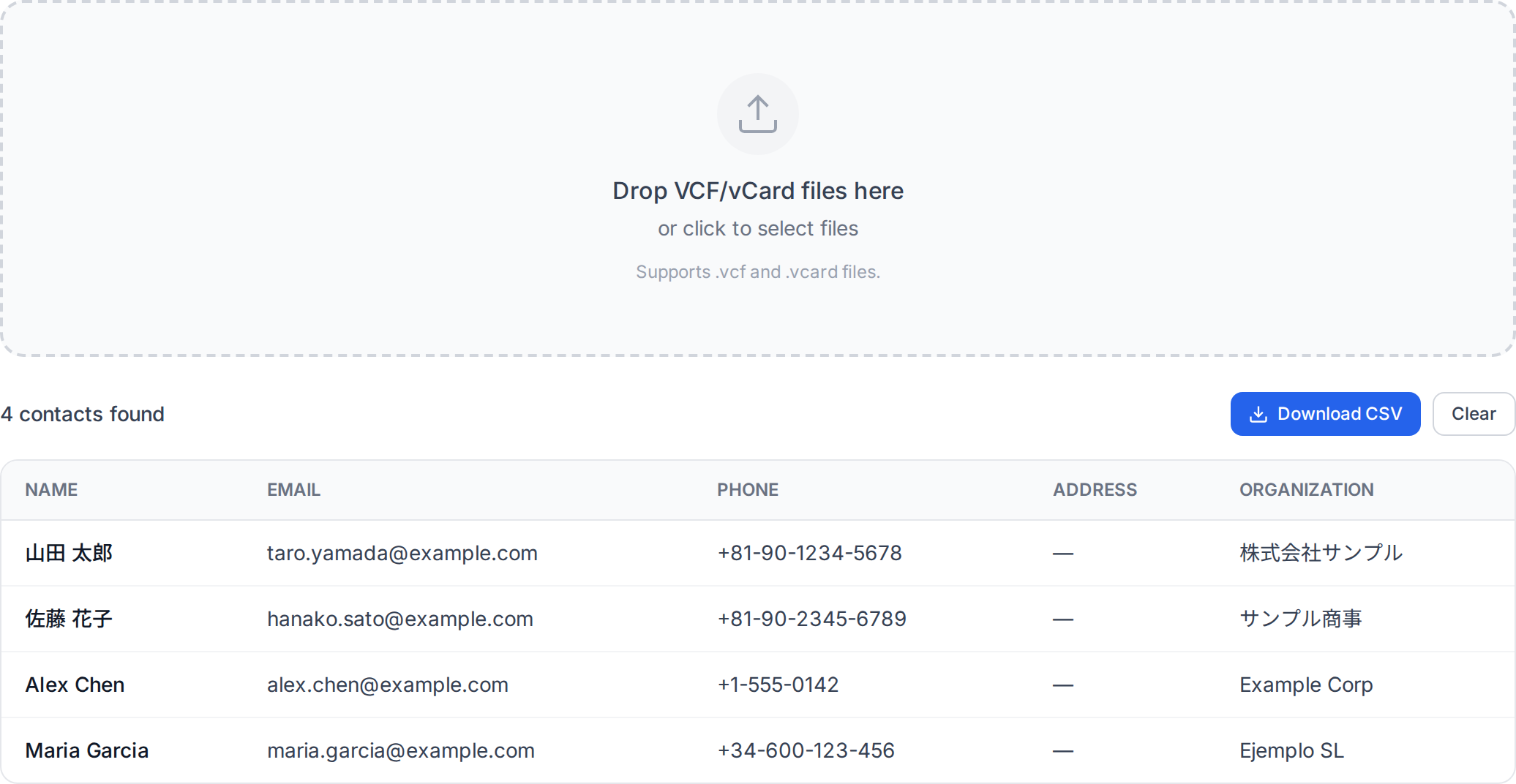
A VCF file, short for vCard File, is a standardized text-based file format used to store contact information for individuals and organizations. Each VCF file can contain one or more contact entries, with each entry holding details such as the person's full name, phone numbers, email addresses, physical addresses, job title, organization, website URLs, and even a photograph.
The vCard format is defined by an open standard, meaning it is not tied to any single vendor or platform. This universality is what makes VCF files the de facto format for contact exchange across virtually every operating system, mobile device, and email client in use today. When you tap "Share Contact" on your smartphone or click "Export" in your email application, the resulting file is almost always a .vcf file.
Because VCF files are plain text at their core, they are both human-readable and machine-parseable. You can open a VCF file in any text editor to see its contents, though dedicated contact applications will render the data in a more user-friendly way.
History of vCard
The vCard format has a long and well-established history in the world of digital communications. The original specification was created in 1995 by the Versit Consortium, a group founded by Apple, AT&T, IBM, and Siemens. The goal was to develop an open standard for electronic business cards that could be easily exchanged between different computing platforms and applications.
Did You Know?
The vCard standard was created in 1995 by the Versit Consortium, a joint effort between Apple, AT&T, IBM, and Siemens. It was one of the earliest attempts to create a universal format for sharing digital contact information, and it remains the dominant standard over three decades later.
After the Versit Consortium dissolved, stewardship of the vCard standard was transferred to the Internet Mail Consortium (IMC), which published vCard 3.0 as RFC 2426 in 1998. Later, the Internet Engineering Task Force (IETF) took over and published vCard 4.0 as RFC 6350 in 2011, bringing the standard into the modern era with support for new data types and improved internationalization.
vCard Versions: 2.1, 3.0, and 4.0
Over the years, the vCard standard has gone through three major versions, each adding new capabilities and refining the format. Understanding the differences between these versions is important because compatibility varies between applications and devices.
vCard 2.1
The original widely-adopted version, vCard 2.1 was published by the Versit Consortium and later formalized by the IMC. It supports basic contact fields like name, phone, email, and address. Character encoding in version 2.1 uses the quoted-printable encoding method, and its handling of international characters is limited. Despite its age, vCard 2.1 remains common in legacy systems and many older mobile phones still export contacts in this format.
vCard 3.0
Published as RFC 2426 in 1998, vCard 3.0 improved the format in several ways. It introduced mandatory UTF-8 support for better internationalization, standardized the use of the TYPE parameter for categorizing phone numbers and addresses (e.g., TYPE=WORK, TYPE=CELL), and added support for new properties. Version 3.0 is probably the most widely supported version across modern platforms and is the default export format for many applications, including Apple's Contacts app and many Android devices.
vCard 4.0
The most recent version, published as RFC 6350 in 2011, introduced significant modernizations. vCard 4.0 added support for data URIs (allowing photos and other binary data to be embedded directly), improved structured data types, added new properties like KIND (to distinguish between individuals, organizations, groups, and locations), and introduced better support for multiple languages within a single contact entry. It also aligned the format more closely with other IETF standards. However, adoption of vCard 4.0 has been slower than expected, and many applications still default to version 3.0 for maximum compatibility.
Important
Not all applications support every vCard version equally. A contact exported as vCard 4.0 may lose data or fail to import on older devices that only support version 2.1 or 3.0. If you experience compatibility issues when transferring contacts between devices, try exporting in vCard 3.0 format, which offers the broadest cross-platform support.
vCard Structure and Fields
A VCF file is structured as plain text with a specific syntax. Every contact entry begins with BEGIN:VCARD and ends with END:VCARD. Between these markers, each line represents a property and its value. Here is an example of a simple vCard 3.0 entry:
BEGIN:VCARD
VERSION:3.0
FN:Jane Smith
N:Smith;Jane;;;
TEL;TYPE=CELL:+1-555-123-4567
TEL;TYPE=WORK:+1-555-987-6543
EMAIL;TYPE=INTERNET:[email protected]
ADR;TYPE=WORK:;;123 Business Ave;New York;NY;10001;USA
ORG:Acme Corporation
TITLE:Marketing Director
URL:https://www.example.com
PHOTO;VALUE=URI:https://www.example.com/photo.jpg
NOTE:Met at the 2025 technology conference.
END:VCARD
The most commonly used vCard properties include:
- FN (Formatted Name): The full display name of the contact, such as "Jane Smith."
- N (Name): A structured name field with components separated by semicolons: last name, first name, middle name, prefix, and suffix.
- TEL (Telephone): One or more phone numbers, with optional TYPE parameters like CELL, WORK, HOME, FAX, and PAGER.
- EMAIL: One or more email addresses, often with a TYPE parameter indicating INTERNET, WORK, or HOME.
- ADR (Address): A structured mailing address with fields for PO box, extended address, street, city, state, postal code, and country.
- ORG (Organization): The company or organization name.
- TITLE: The job title or role within the organization.
- PHOTO: A photograph of the contact, either embedded as Base64-encoded data or referenced by a URL.
- URL: A website or web page associated with the contact.
- NOTE: Free-text notes about the contact.
- BDAY (Birthday): The date of birth in a standardized date format.
A single VCF file can contain multiple contact entries stacked one after another. This is how bulk contact exports work: hundreds or thousands of contacts can be packaged into a single .vcf file, with each contact delimited by its own BEGIN:VCARD and END:VCARD markers.
Where VCF Files Are Used
VCF files are used across a remarkably wide range of platforms and applications:
- Smartphones: Both iOS and Android devices use VCF files for contact import and export. When you share a contact from your phone via AirDrop, Bluetooth, or messaging apps, it is sent as a VCF file.
- Email clients: Applications like Microsoft Outlook, Apple Mail, Mozilla Thunderbird, and Gmail all support importing and exporting contacts in VCF format.
- CRM systems: Customer relationship management platforms such as Salesforce, HubSpot, and Zoho CRM can import VCF files to populate contact databases.
- Cloud contact services: Google Contacts, iCloud Contacts, and Microsoft People all use VCF as their primary import and export format.
- Business card scanners: Many business card scanning apps save captured information as VCF files for easy import into your contacts.
- QR codes: Digital business cards encoded in QR codes often use the vCard format. Scanning the code generates a VCF file that can be directly imported into your address book.
How to Open VCF Files
There are several ways to open and work with VCF files, depending on what you need to do with the data:
Use OpenedFile's VCF to CSV Converter
For the most flexible approach, our VCF to CSV Converter lets you upload any VCF file and instantly convert it to a CSV spreadsheet format. This is especially useful when you need to view, edit, or analyze your contacts in a spreadsheet application like Microsoft Excel or Google Sheets. The conversion happens entirely in your browser, so your contact data never leaves your device.
Recommended
Convert your VCF files to CSV format with OpenedFile's VCF to CSV Converter for easy viewing and editing in Excel or Google Sheets. All processing happens locally in your browser, keeping your personal contact data completely private.
Import Directly on Your Phone
On iPhone, you can open a VCF file received via email, messaging, or AirDrop, and iOS will offer to add the contact(s) to your address book. On Android, you can import VCF files through the Contacts app by going to Settings and selecting "Import from .vcf file."
Import into an Email Client
Most desktop email clients have a built-in contact import feature. In Microsoft Outlook, go to File, then Open & Export, then Import/Export, and select "Import a VCARD file." In Apple Contacts, simply open the VCF file and it will prompt you to add the contacts. Google Contacts supports VCF import through its web interface by clicking the Import button in the left sidebar.
Open in a Text Editor
Since VCF files are plain text, you can open them in any text editor (Notepad, TextEdit, VS Code) to inspect their raw contents. This is useful for debugging or manually editing contact data, though it is not the most user-friendly approach for everyday use.
Compatibility Across Platforms
One of the greatest strengths of the VCF format is its near-universal compatibility. However, there are some nuances to be aware of:
- Apple (iOS and macOS): Excellent VCF support. Apple's Contacts app reads and writes vCard 3.0 by default and can handle most vCard 4.0 properties. Exporting from iCloud produces clean, standards-compliant VCF files.
- Android: Strong VCF support across most manufacturers. Google Contacts exports in vCard 3.0 format. Some Android devices from specific manufacturers may add custom properties to their VCF exports, which can occasionally cause minor issues when importing on other platforms.
- Microsoft Outlook: Outlook supports VCF import and export, but historically its implementation has had quirks, particularly with character encoding for non-Latin characters and handling of multi-contact VCF files. Outlook sometimes exports each contact as an individual VCF file rather than combining them into a single file.
- Google Contacts: Google's web-based contact manager has excellent VCF import and export capabilities. It handles large multi-contact VCF files well and correctly processes most vCard properties.
- Linux: Applications like GNOME Contacts and Evolution support VCF files. The open-source community has generally maintained strong vCard standards compliance.
When transferring contacts between different platforms, the most common issues involve character encoding (especially for contacts with names in non-Latin scripts like Chinese, Japanese, Arabic, or Cyrillic) and photo handling (some applications embed photos as large Base64 strings while others use external URLs). Converting your VCF file to CSV with our VCF to CSV Converter can help you identify and resolve such issues before importing into a new platform.
Conclusion
The VCF file format is one of the most enduring and widely supported standards in personal computing. From its origins in the mid-1990s with the Versit Consortium to its modern vCard 4.0 specification, the format has continually evolved to meet the needs of a connected world. Whether you are backing up your phone contacts, migrating between email platforms, sharing your business card via QR code, or managing a CRM database, VCF files are the foundation of digital contact exchange.
Understanding the structure, versions, and compatibility characteristics of VCF files empowers you to manage your contacts more effectively and troubleshoot issues when they arise. And when you need to quickly view or convert your VCF files, our VCF to CSV Converter makes the process fast, private, and effortless.
Related Articles
How to Transfer Contacts Between Phones
Step-by-step guide for moving contacts between iOS and Android devices using VCF files.
VCF to CSV Conversion Guide
Learn how to convert your vCard contacts to spreadsheet format for easy editing.
Manage Your Contacts Efficiently
Best practices for organizing, deduplicating, and maintaining your digital address book.
About the author
Ren
Developer, OpenedFile
I build and maintain OpenedFile on my own. It started when a winmail.dat attachment landed in my inbox and nothing would open it — and every online converter I found wanted me to upload the file to their server first. So I wrote a TNEF parser from scratch instead, and every tool here has run entirely in the browser ever since.
More about OpenedFile