What is an EML File? How to Open Email Files
Learn what EML files are, which email clients use them, and how to open .eml files easily in your browser.
Open your EML file now
No mail client needed. Drop the file in and the body, headers and attachments appear immediately.
Processed in your browser — nothing is uploaded.
You have just downloaded an email attachment or exported a message from your email client, and now you are staring at a file with the .eml extension. It does not open with a double-click on every system, and you are not quite sure what it contains or how to view it. If this sounds familiar, you are in the right place.
EML files are one of the most widely used email file formats, supported by dozens of email clients and applications. In this comprehensive guide, we will explain exactly what EML files are, how the format works under the hood, which email programs create them, and the best ways to open them on any device.
What Is an EML File?
An EML file is a single email message saved in a standardized text-based format. The file extension .eml stands for "electronic mail," and each file contains the complete contents of one email, including the sender and recipient addresses, the subject line, the date, the message body (in plain text and/or HTML), and any file attachments encoded within it.
Unlike proprietary formats such as Microsoft Outlook's .msg files, the EML format is an open standard based on the MIME specification defined in RFC 2045 through RFC 2049 and the Internet Message Format defined in RFC 5322. This means EML files are inherently cross-platform and can be read by any software that understands the MIME standard, which includes virtually every modern email client.
Because EML files are plain text at their core, you can even open one in a basic text editor like Notepad to see the raw email headers and encoded content. However, reading a properly rendered version with formatted HTML and decoded attachments requires a dedicated viewer.
The MIME Standard Behind EML
EML files are built on top of MIME, which stands for Multipurpose Internet Mail Extensions. MIME was introduced in 1996 to extend the original plain-text-only email specification and allow messages to carry rich content such as HTML formatting, images, PDFs, and other binary file attachments.
Did You Know?
The MIME standard is used far beyond email. Every file you download from the web is served with a MIME type header (like text/html or image/png). The same encoding system that powers EML files is the backbone of how the entire internet identifies and transfers different types of content.
MIME works by dividing an email into multiple parts, each with its own content type and encoding. Text content is typically encoded in quoted-printable or UTF-8, while binary attachments like images and documents are encoded using Base64, which converts binary data into ASCII characters that can safely travel through email systems designed for text.
Anatomy of an EML File
Every EML file follows a consistent structure composed of two main sections: headers and body.
Email Headers
The headers appear at the top of the file and contain metadata about the message. Key headers include:
- From: The sender's email address and display name
- To: The recipient's email address (and CC/BCC fields if applicable)
- Subject: The subject line of the message
- Date: The timestamp when the message was sent
- MIME-Version: Almost always set to
1.0, indicating the file uses MIME encoding - Content-Type: Defines the format of the message body, often
multipart/mixedfor emails with attachments ormultipart/alternativefor messages with both plain text and HTML versions
Message Body
Below the headers, the body section contains the actual email content. In a multipart message, each part is separated by a boundary string defined in the Content-Type header. A typical email might include a text/plain part for simple email clients, a text/html part for rich rendering, and one or more attachment parts with Base64-encoded file data.
Which Email Clients Use EML?
The EML format enjoys broad support across the email ecosystem. Here are the most common email clients and applications that create, export, or natively open EML files:
- Mozilla Thunderbird - One of the most popular desktop email clients, Thunderbird uses EML as its default format for saving and exporting individual messages.
- Windows Mail and Windows Live Mail - Microsoft's built-in mail applications for Windows have used EML as their native message storage format for years.
- Apple Mail - The default email client on macOS and iOS can open EML files directly and allows exporting messages in EML format.
- Microsoft Outlook - While Outlook prefers its own .msg format, it can open EML files and also allows saving messages as EML through drag-and-drop to the file system.
- Gmail - Google's webmail service lets you download any email as an EML file by selecting "Download message" from the message options menu.
- eM Client - A modern desktop email client that fully supports importing and exporting EML files.
- The Bat! - A Windows email client popular in Europe that uses EML for message archiving.
- Postbox, Mailspring, and other Thunderbird-based clients - These applications inherit EML support from the Mozilla platform.
EML is also commonly used by IT professionals, legal teams, and compliance departments for email archiving and forensic analysis because the format preserves all original message headers and metadata intact.
How to Open EML Files

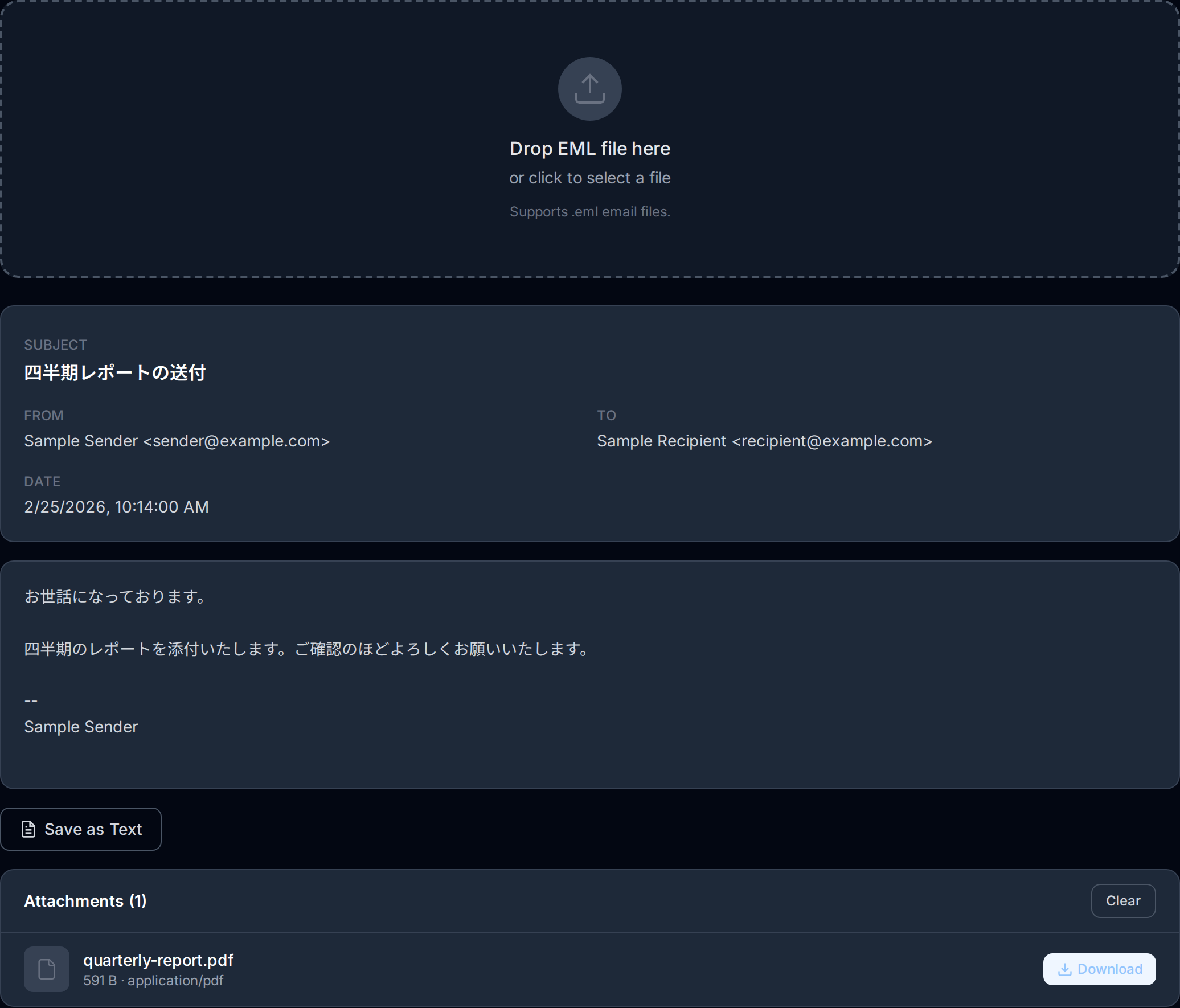
There are several ways to open and read EML files, depending on your device and preferences. Here are the most effective methods, starting with the easiest.
Method 1: Use a Browser-Based EML Viewer (Recommended)
The fastest and most convenient way to open an EML file is to use a browser-based viewer that works on any device. Our free EML Viewer lets you drag and drop any .eml file directly into your browser window. The tool parses the MIME structure, renders the HTML message body, displays all headers, and lets you download any file attachments, all without installing software or creating an account.
This approach is especially useful when you receive an EML file on a device that does not have a desktop email client installed, such as a Chromebook, a tablet, or a work computer with restricted software installation permissions.
Recommended
Open any EML file instantly with the free OpenedFile EML Viewer. It works on every device, requires no installation or sign-up, and processes your files entirely in your browser so nothing is ever uploaded to a server. Your email data stays private.
Method 2: Open with a Desktop Email Client
If you already have a desktop email client installed, you can usually open an EML file by double-clicking it. On Windows, if you have Windows Mail or Outlook configured as the default email application, EML files will open automatically. On macOS, Apple Mail handles EML files natively. In Thunderbird, you can drag the EML file into the inbox or use the File menu to open it.
Method 3: Import into a Webmail Service
Some webmail services allow you to import EML files into your mailbox. For example, you can drag an EML file into the Thunderbird inbox linked to your email account, or use third-party import tools for Gmail and other providers. However, this method is more cumbersome than simply viewing the file in a browser.
Method 4: Open with a Text Editor
Since EML files are plain text, you can open them in Notepad, VS Code, Sublime Text, or any other text editor. You will see the raw email headers and the MIME-encoded content. While this is useful for technical inspection and debugging, it is not practical for reading the formatted message or extracting attachments, as binary content will appear as unreadable Base64 strings.
Troubleshooting When EML Files Won't Open
If you are having trouble opening an EML file, here are the most common issues and how to resolve them:
No Application Is Associated with .eml Files
On Windows, if no email client is installed, double-clicking an EML file may do nothing or prompt you to choose an application. The quickest solution is to use a browser-based viewer like the OpenedFile EML Viewer instead of installing a desktop email client.
The File Appears as Garbled Text
If you opened the EML file in a text editor and see a mixture of headers and encoded strings, that is actually the normal raw content of the file. You need a proper EML viewer or email client to decode and render the message correctly.
The File Extension Was Changed
Sometimes EML files get renamed with incorrect extensions during transfer or download, such as .eml.txt or just .txt. Try renaming the file back to a .eml extension and opening it again.
The File Is Corrupted
If the EML file was partially downloaded or transferred incorrectly, it may be corrupted. Try downloading it again from the source. A valid EML file must contain at minimum the basic headers (From, To, Date, Subject) at the beginning of the file.
Character Encoding Issues
Emails in non-Latin scripts (such as Japanese, Chinese, Arabic, or Cyrillic) may appear garbled if the viewer does not support the correct character encoding. The OpenedFile EML Viewer handles all standard character encodings automatically, including UTF-8, ISO-8859-1, and various regional encodings.
Important
EML files can contain file attachments just like any email. Always exercise caution when opening attachments from unknown senders. Scan extracted files with antivirus software before opening them, and be especially wary of executable files (.exe, .bat, .scr) or documents with macros (.docm, .xlsm) embedded in email messages from untrusted sources.
EML vs. Other Email Formats
Understanding how EML compares to other email file formats can help you choose the right approach for archiving and sharing:
- EML vs. MSG - MSG is Microsoft Outlook's proprietary format that stores emails in a binary structure based on Microsoft's OLE Compound File format. Unlike EML, MSG files can only be reliably opened with Outlook or specialized tools. EML is the more portable and universally supported option.
- EML vs. MBOX - MBOX files store multiple email messages concatenated into a single file, while each EML file contains exactly one message. MBOX is used for bulk email archiving, whereas EML is better suited for individual message storage and sharing.
- EML vs. PST - PST (Personal Storage Table) is Outlook's database format for storing entire mailboxes, including folders, contacts, and calendar entries. PST is a full mailbox container, while EML represents a single message.
Conclusion
EML files are the universal standard for storing individual email messages. Built on the open MIME specification, they are supported by virtually every email client and platform, making them ideal for email archiving, sharing, and forensic analysis. Whether you receive an EML file as a forwarded email backup, a legal document, or an exported message from Gmail or Thunderbird, opening it is straightforward.
For the quickest and most hassle-free experience, use the OpenedFile EML Viewer to open any EML file directly in your browser. There is nothing to install, your data stays private, and it works on every device. If you deal with EML files regularly, bookmark the tool so it is always just one click away.
Related Articles
How to Open EML Files Without Outlook
Step-by-step methods for viewing EML emails on any device without Microsoft Outlook.
EML vs. MSG: Email Format Comparison
Understand the key differences between open EML and proprietary MSG email formats.
The Complete Email Backup Guide
Learn how to back up your emails safely using EML, MBOX, and other archiving formats.
About the author
Ren
Developer, OpenedFile
I build and maintain OpenedFile on my own. It started when a winmail.dat attachment landed in my inbox and nothing would open it — and every online converter I found wanted me to upload the file to their server first. So I wrote a TNEF parser from scratch instead, and every tool here has run entirely in the browser ever since.
More about OpenedFile