WebP vs JPG vs PNG: Which Format Should You Use?
Compare the three most popular image formats and learn which one is best for your use case.
The Image Format Dilemma
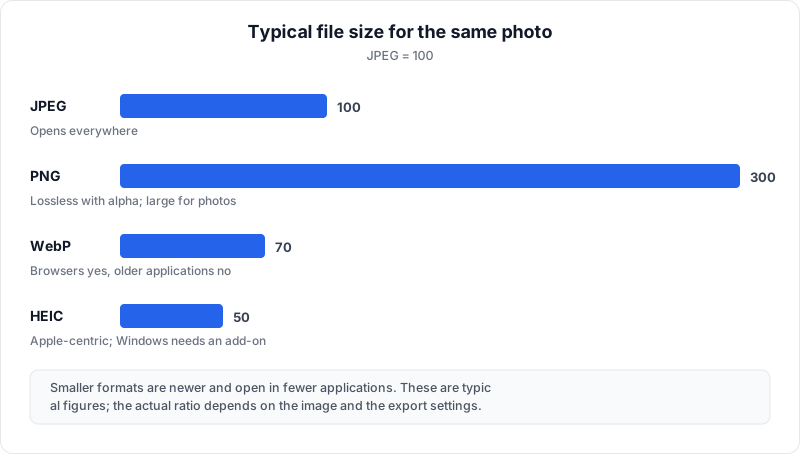
Choosing the right image format seems like a simple decision, but it can have a significant impact on everything from website performance to print quality to file compatibility. The three most common formats you will encounter are JPG (also written as JPEG), PNG, and WebP. Each has distinct strengths and weaknesses, and the best choice depends entirely on your specific use case.
In this article, we will thoroughly compare all three formats across multiple dimensions, including compression, quality, transparency, animation, browser support, and file size. By the end, you will know exactly which format to reach for in any situation.
JPG: The Universal Standard for Photos
JPG (Joint Photographic Experts Group) has been the workhorse of digital photography since the early 1990s. It uses lossy compression, meaning it discards some image data to achieve smaller file sizes. The amount of data discarded is controlled by a quality setting, typically ranging from 0 (maximum compression, lowest quality) to 100 (minimal compression, highest quality).
JPG Strengths
- Universal compatibility — JPG works everywhere. Every operating system, browser, image editor, email client, social media platform, and printer understands JPG. It is the closest thing to a universally accepted image format.
- Excellent for photographs — JPG's lossy compression algorithm is specifically optimized for continuous-tone images like photographs, where subtle data loss is nearly imperceptible to the human eye.
- Adjustable compression — You can fine-tune the balance between file size and quality by adjusting the compression level.
- Widespread metadata support — JPG supports EXIF data (camera settings, date, GPS coordinates), ICC color profiles, and IPTC metadata.
JPG Weaknesses
- No transparency — JPG does not support alpha channels. If you need a transparent background, JPG is not an option.
- Lossy only — There is no way to save a JPG file without some data loss. Each time you edit and resave a JPG, quality degrades further (generation loss).
- Poor for sharp edges — Text, line art, logos, and screenshots with sharp color boundaries suffer visible artifacts in JPG, especially at lower quality settings.
- No animation — JPG does not support animated frames.
Important
JPG does not support transparency at all. If you need an image with a transparent background (such as a logo or icon overlay), you must use PNG or WebP instead. Saving a transparent image as JPG will replace the transparent areas with a solid color, usually white.
PNG: The Lossless Choice for Graphics
PNG (Portable Network Graphics) was developed in the mid-1990s as a patent-free alternative to GIF. It uses lossless compression, meaning it preserves every single pixel of the original image perfectly. PNG has become the standard format for graphics, screenshots, and any image where precision matters.
PNG Strengths
- Lossless compression — PNG files are identical to the original image, pixel for pixel. You can edit and resave them as many times as you want without any quality loss.
- Full alpha transparency — PNG supports 8-bit alpha channels, allowing 256 levels of transparency per pixel. This makes it ideal for logos, icons, and overlays.
- Sharp edges and text — PNG excels at preserving crisp lines, text, and flat color areas without introducing compression artifacts.
- Universal support — Like JPG, PNG is supported by virtually all software, browsers, and operating systems.
PNG Weaknesses
- Large file sizes — Because PNG is lossless, file sizes are significantly larger than lossy formats, especially for photographs. A photo that is 200 KB as a JPG might be 2 MB or more as a PNG.
- Not ideal for photos — While PNG can store photographs perfectly, the massive file sizes make it impractical for web use or large photo collections.
- Limited animation — While APNG (Animated PNG) exists, it has limited support compared to GIF or animated WebP.
WebP: The Modern All-Rounder
WebP, developed by Google and released in 2010, was designed to combine the best features of both JPG and PNG into a single, more efficient format. It supports both lossy and lossless compression, transparency, and animation.
Did You Know?
WebP is the only major image format that supports both lossy and lossless compression, alpha transparency, and animation in a single container. This means one format can replace JPG, PNG, and GIF for virtually all web use cases.
WebP Strengths
- Smaller file sizes — Lossy WebP is 25-34% smaller than JPG at equivalent quality. Lossless WebP is about 26% smaller than PNG.
- Lossy and lossless — One format covers both use cases, simplifying workflows.
- Transparency in lossy mode — Unlike JPG, lossy WebP supports alpha transparency. You can have a compressed photo with a transparent background.
- Animation support — Animated WebP is far more efficient than GIF, with better color depth and transparency.
- Modern browser support — All modern browsers including Chrome, Firefox, Safari, and Edge support WebP natively.
WebP Weaknesses
- Limited software support — Many desktop applications, email clients, and older operating systems still do not handle WebP well. This can create friction in non-web workflows.
- Not universally accepted for uploads — Some platforms, print services, and document editors do not accept WebP files.
- Encoding speed — WebP encoding is generally slower than JPG encoding, which can matter in high-volume image processing pipelines.
Detailed Format Comparison
Here is a side-by-side comparison of the three formats across key characteristics:
| Feature | JPG | PNG | WebP |
|---|---|---|---|
| Compression type | Lossy only | Lossless only | Lossy and lossless |
| Transparency | No | Yes (8-bit alpha) | Yes (8-bit alpha) |
| Animation | No | Limited (APNG) | Yes |
| Color depth | 24-bit | Up to 48-bit | 24-bit + 8-bit alpha |
| Browser support | 100% | 100% | 97%+ |
| Software support | Universal | Universal | Growing but limited |
| File size (photo) | Medium | Very large | Small |
| File size (graphic) | Medium (with artifacts) | Medium | Small |
| Quality retention | Degrades on resave | Perfect | Depends on mode |
| Best for | Photos, sharing | Graphics, screenshots | Web delivery |
Best Format for Photographs
For photographs with rich colors and smooth gradients, WebP (lossy) offers the best compression-to-quality ratio for web use. If you need maximum compatibility for sharing via email, messaging apps, or inserting into documents, JPG remains the safest bet. Avoid PNG for photos unless you specifically need lossless archival quality and are not concerned about file size.
Best Format for Graphics and Logos
For logos, icons, illustrations, and any image with flat colors, sharp edges, or text, PNG is the traditional gold standard because of its lossless compression and universal support. Lossless WebP is an even better choice if your target audience views images in modern browsers, since it produces smaller files with identical quality. Avoid JPG for graphics entirely, as lossy compression creates ugly artifacts around sharp edges.
Best Format for Web Pages
For images displayed on websites, WebP is the clear winner. Its superior compression reduces page load times and bandwidth usage. Modern web development best practices recommend serving WebP with JPG or PNG fallbacks for the small percentage of users on older browsers. Many content management systems and CDNs now handle this format negotiation automatically.
Best Format for Social Media
Social media platforms have their own rules. Most platforms accept JPG and PNG uploads and will re-encode images internally regardless of what you submit. For photos, upload high-quality JPG files. For graphics with transparency (like logos), upload PNG. While some platforms now accept WebP, JPG and PNG remain the most reliable choices for social media uploads.
Best Format for Archiving
For long-term archival of images, PNG is the safest choice. It is an open standard, universally supported, and lossless. Lossless WebP is technically superior in terms of compression, but PNG's decades-long track record and universal tool support make it the more conservative archival format. If you are archiving photographs and storage space is a major concern, high-quality JPG (quality 95-100) is a reasonable compromise.
Converting Between Formats
In practice, you will often need to convert between these formats. You might receive a WebP image from a website but need to insert it into a PowerPoint presentation that only accepts JPG or PNG. Or you might want to convert a large PNG to WebP for faster web delivery.
The safest way to convert images is using a tool that processes files locally on your device rather than uploading them to a server. This protects your privacy and avoids the risks associated with sending personal images to third-party servers.
OpenedFile's WebP to JPG/PNG Converter handles these conversions entirely in your browser. Your images never leave your device, and the conversion happens instantly using your computer's own processing power. It is free, requires no signup, and works on any modern browser.
Conclusion and Recommendations
There is no single "best" image format for every situation. Here is a quick decision framework:
Recommended
Quick decision framework: Use WebP for web delivery (best quality-to-size ratio). Use JPG for universal sharing via email, documents, and printing (works everywhere). Use PNG for lossless quality, transparency, graphics, and screenshots (never loses data).
- Use WebP when you are optimizing images for web delivery and your audience uses modern browsers. It offers the best balance of quality and file size.
- Use JPG when you need universal compatibility, especially for sharing photos via email, messaging, documents, or printing. It is the format that works everywhere.
- Use PNG when you need lossless quality, transparency, or are working with graphics, screenshots, and logos. It is the format that never loses data.
And when you need to move between formats, a privacy-friendly browser-based converter makes the process quick and secure.
Related Articles
WebP Format Explained: Everything You Need to Know
A comprehensive guide to Google's WebP image format — features, benefits, limitations, and conversion.
WebP Compatibility Issues and How to Solve Them
Troubleshoot WebP compatibility problems across browsers, apps, and operating systems.
Privacy Risks of Online File Converters
Why uploading your files to online conversion tools is risky and what alternatives exist.
About the author
Ren
Developer, OpenedFile
I build and maintain OpenedFile on my own. It started when a winmail.dat attachment landed in my inbox and nothing would open it — and every online converter I found wanted me to upload the file to their server first. So I wrote a TNEF parser from scratch instead, and every tool here has run entirely in the browser ever since.
More about OpenedFile