WebP Compatibility Issues and How to Solve Them
Troubleshoot WebP compatibility problems across browsers, apps, and operating systems.
The WebP Compatibility Problem
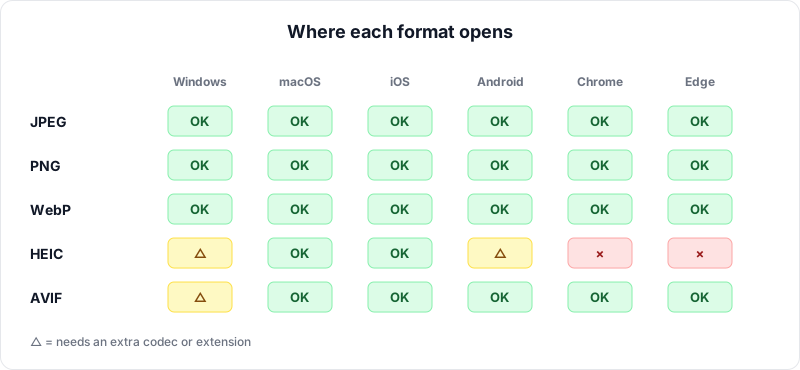
WebP has become the default image format on millions of websites, and for good reason: it delivers smaller file sizes, supports transparency, and handles animation. But while WebP works beautifully inside web browsers, the moment you try to use a WebP file outside of a browser, problems can arise. You might find that your photo editor cannot open it, your email client displays a broken image, or your presentation software refuses to insert it.
This article covers the current state of WebP compatibility across browsers, operating systems, and applications, and provides practical solutions for every common problem you might encounter.
Browser Support: The Good News
In 2026, WebP enjoys near-universal browser support. If you are viewing images in a web browser, WebP will almost certainly work:
- Google Chrome — Full WebP support since 2014 (version 32). Chrome was the first major browser to support the format, which is unsurprising given that Google developed WebP.
- Mozilla Firefox — Full support since 2019 (version 65). Firefox initially resisted adding WebP support but eventually adopted it due to the format's widespread use.
- Apple Safari — Full support since 2022 (version 16 on macOS Ventura and iOS 16). Safari was the last major holdout, and its adoption effectively made WebP universally supported across browsers.
- Microsoft Edge — Full support since its transition to the Chromium engine in 2020.
- Other Chromium-based browsers — Opera, Brave, Vivaldi, Samsung Internet, and all other Chromium-based browsers support WebP fully.
The only browser that never supported WebP was Internet Explorer, which Microsoft officially retired in June 2022. If you are still encountering users on Internet Explorer, it may be time to consider dropping support for it entirely, as Microsoft no longer provides security updates for it.
Operating System Support
Operating system support for WebP has improved significantly in recent years, but gaps remain:
Windows
Windows 10 (version 1809 and later) and Windows 11 include native WebP support through the Microsoft WebP Image Extensions. This means the Windows Photo viewer, File Explorer thumbnails, and the Photos app can all display WebP files. However, if you are running an older version of Windows 10, you may need to install the WebP Image Extension manually from the Microsoft Store.
macOS
macOS Ventura (13) and later support WebP natively in Preview, Quick Look, and Finder thumbnails. Users on older macOS versions may find that WebP files display as blank icons and cannot be opened in Preview. Updating to a newer version of macOS resolves this, but if upgrading is not possible, converting WebP files to JPG or PNG is the practical solution.
Linux
Most modern Linux distributions include WebP support through libraries like libwebp. Image viewers such as Eye of GNOME, Gwenview, and feh generally handle WebP well. However, support can vary depending on which packages are installed on your system.
iOS and Android
Android has supported WebP since version 4.0 (2011) for lossy and version 4.2.1 for lossless and transparency. iOS added full WebP support in iOS 14 (2020). Both platforms handle WebP well in their native photo galleries and sharing workflows.
Application Support Issues
While browsers and modern operating systems handle WebP smoothly, many desktop applications still struggle with the format:
Image Editors
- Adobe Photoshop — Added native WebP support in version 23.2 (February 2022). Older versions require a third-party plugin. If you are using an older Photoshop version, you will need to convert WebP files before editing them.
- GIMP — Has supported WebP since version 2.10 (2018). If you use GIMP, you should be fine with WebP files.
- Affinity Photo — Supports WebP import and export.
- Paint.NET — Supports WebP through a plugin that must be installed separately.
- Microsoft Paint — Windows 11's version of Paint supports WebP. Older versions do not.
Office Applications
- Microsoft Office — Microsoft 365 (recent versions) supports inserting WebP images into Word, PowerPoint, and Excel. However, older perpetual license versions (Office 2019, Office 2016) do not. If you share a document containing WebP images with someone using an older Office version, the images may not display.
- Google Docs/Slides — Supports WebP image insertion through its web interface.
- LibreOffice — Added WebP support in version 7.4 (2022).
Social Media Platform Support
Social media platforms have inconsistent WebP support for uploads:
- Facebook and Instagram — Accept WebP uploads and may serve WebP to users who have compatible browsers.
- Twitter/X — Accepts WebP uploads but converts them to JPG or PNG internally.
- LinkedIn — WebP support for uploads has been inconsistent. JPG and PNG are more reliable choices.
- Pinterest — Supports WebP.
As a general rule, if you are uploading images to social media, JPG for photos and PNG for graphics with transparency remain the safest options.
Email Client Limitations
Email is one of the most challenging environments for WebP:
- Outlook (desktop) — Does not render WebP images inline. Recipients will see a placeholder or download link.
- Outlook (web) — Supports WebP since it runs in a modern browser.
- Apple Mail — Supports WebP on macOS Ventura and later, but older versions do not.
- Gmail (web) — Supports WebP display since it runs in a browser.
- Thunderbird — Supports WebP.
Important
Desktop Outlook does not render WebP images inline. Recipients will see a broken image placeholder or a download link instead. For professional email communication, always convert WebP images to JPG or PNG before embedding or attaching them.
For email attachments and embedded images, always use JPG or PNG to ensure maximum compatibility across all email clients. This is one of the most important practical rules for working with images in professional communication.
Common Problems and Solutions
"I Downloaded an Image and It's a .webp File I Can't Open"
This is the single most common WebP complaint. When you right-click and save an image from a website, your browser often saves it as a .webp file because that is the format the server delivered. The solution is straightforward: convert the WebP file to JPG or PNG using a browser-based converter. The conversion takes seconds and does not require installing any software.
"Chrome Keeps Saving Images as WebP"
When you use "Save image as" in Chrome, the browser saves the image in whatever format the website serves. Since most modern websites serve WebP, your downloads folder fills up with .webp files. There is no built-in Chrome setting to change this behavior. Your best options are: use a browser extension that forces downloads as JPG/PNG, or batch-convert your WebP files after downloading using a tool like OpenedFile's converter.
"I Need to Convert Many WebP Files at Once"
If you have a folder full of WebP images that need converting, look for a converter that supports batch processing. OpenedFile's WebP converter allows you to drag and drop multiple files at once and convert them all simultaneously, with all processing happening locally in your browser.
"WebP Files Won't Open in My Image Editor"
If your image editor predates WebP support, you have two options: update to a newer version that supports WebP natively, or convert the WebP file to JPG or PNG before opening it in your editor.
Recommended
When you need to send images via email or embed them in documents, always convert WebP files to JPG (for photos) or PNG (for graphics with transparency) first. This ensures your images display correctly for every recipient, regardless of their software version.
Converting WebP for Maximum Compatibility
The most reliable solution to any WebP compatibility issue is to convert the file to a universally supported format. When choosing your target format:
- Convert to JPG when the image is a photograph or does not require transparency. JPG offers the widest compatibility and reasonable file sizes.
- Convert to PNG when the image has transparency, contains text or sharp graphics, or when you need lossless quality.
For privacy and convenience, use a converter that processes files entirely on your device. OpenedFile's WebP to JPG/PNG Converter is a free, browser-based tool that never uploads your images to any server. Your files stay on your computer throughout the entire conversion process, making it safe to use with personal photos, business documents, and sensitive images.
The Future of WebP Compatibility
WebP compatibility is steadily improving. As older software versions phase out and users upgrade their operating systems, the number of environments that cannot handle WebP shrinks every year. Newer formats like AVIF and JPEG XL are also emerging, which may eventually surpass WebP in both compression efficiency and feature set.
However, complete universal support for any single format takes years, sometimes decades. JPG has been around since 1992 and is only now truly universal. WebP, at 16 years old, is well on its way but still has gaps. For the foreseeable future, knowing how to convert between formats remains an essential skill.
Conclusion
WebP works perfectly in browsers and increasingly well in operating systems and applications, but it is not yet a universal format for all workflows. Email, older software, and some social media platforms still handle WebP poorly. The practical solution is simple: when WebP causes problems, convert it to JPG or PNG.
A fast, privacy-respecting browser-based converter is the most convenient tool for the job. It requires no installation, no account, and no file uploads, and it solves the compatibility problem in seconds. As the software ecosystem continues to evolve, WebP compatibility issues will gradually diminish, but until then, format conversion remains your best friend.
Related Articles
WebP Format Explained: Everything You Need to Know
A comprehensive guide to Google's WebP image format — features, benefits, limitations, and conversion.
WebP vs JPG vs PNG: Which Format Should You Use?
Compare the three most popular image formats and learn which one is best for your use case.
Why Client-Side Processing Is Safer for Your Files
How browser-based file processing protects your privacy compared to server-side conversion tools.
About the author
Ren
Developer, OpenedFile
I build and maintain OpenedFile on my own. It started when a winmail.dat attachment landed in my inbox and nothing would open it — and every online converter I found wanted me to upload the file to their server first. So I wrote a TNEF parser from scratch instead, and every tool here has run entirely in the browser ever since.
More about OpenedFile