How to Convert VCF to CSV for Excel
Learn how to convert VCF contact files to CSV format for use in Excel, Google Sheets, and other spreadsheet apps.
Introduction
VCF (vCard) files are the standard format for storing contact information, used by virtually every phone, email client, and address book application. However, when you need to analyze, edit, or import contacts in bulk, a spreadsheet format like CSV is far more practical. Whether you are preparing a mail merge in Microsoft Word, cleaning up a customer database, or simply organizing hundreds of exported contacts, converting VCF to CSV is the essential first step.
In this guide, we will walk through everything you need to know about converting VCF files to CSV, including a step-by-step tutorial using our free browser-based tool, tips for working with the output in Excel and Google Sheets, and solutions for common problems you might encounter along the way.
Why Convert VCF to CSV?
VCF files are excellent for transferring contacts between phones and email clients, but they are not designed for data analysis or bulk editing. CSV files, on the other hand, open natively in every spreadsheet application and can be processed by virtually any database or automation tool. Here are the most common reasons to convert VCF to CSV:
Excel Analysis and Reporting
When you need to analyze your contact list — for example, counting contacts by region, identifying duplicates, or generating reports — a spreadsheet format is essential. CSV files open directly in Excel, where you can sort, filter, create pivot tables, and apply formulas to your contact data. This is simply not possible with a VCF file.
Bulk Editing
Editing contacts one by one in a phone or email client is tedious, especially when you have hundreds or thousands of entries. By converting to CSV, you can use Excel's find-and-replace, autofill, and data validation features to update phone number formats, fix name capitalization, standardize job titles, or add missing information across your entire contact list at once.
Database Import
CRM systems like Salesforce, HubSpot, and Zoho all accept CSV imports but do not support VCF directly. If you are migrating contacts from a phone or email client into a business database, converting to CSV first is the standard approach. CSV also works seamlessly with SQL databases, allowing you to import contact records using simple commands.
Mail Merge
Mail merge in Microsoft Word and other document tools requires a structured data source, typically a CSV or Excel file. If you want to send personalized letters, labels, or emails to your contact list, you first need your contacts in a tabular format with clearly defined columns for name, address, email, and other fields.
Did You Know?
CSV (Comma-Separated Values) uses commas to separate individual data fields, with each row representing one record. VCF contacts, however, can contain multiple values for a single field — for example, a contact might have two phone numbers, three email addresses, and multiple mailing addresses. During conversion, these multi-value fields are typically flattened into separate columns (e.g., "Phone 1", "Phone 2") or combined into a single cell with a delimiter like a semicolon.
Step-by-Step Conversion Guide
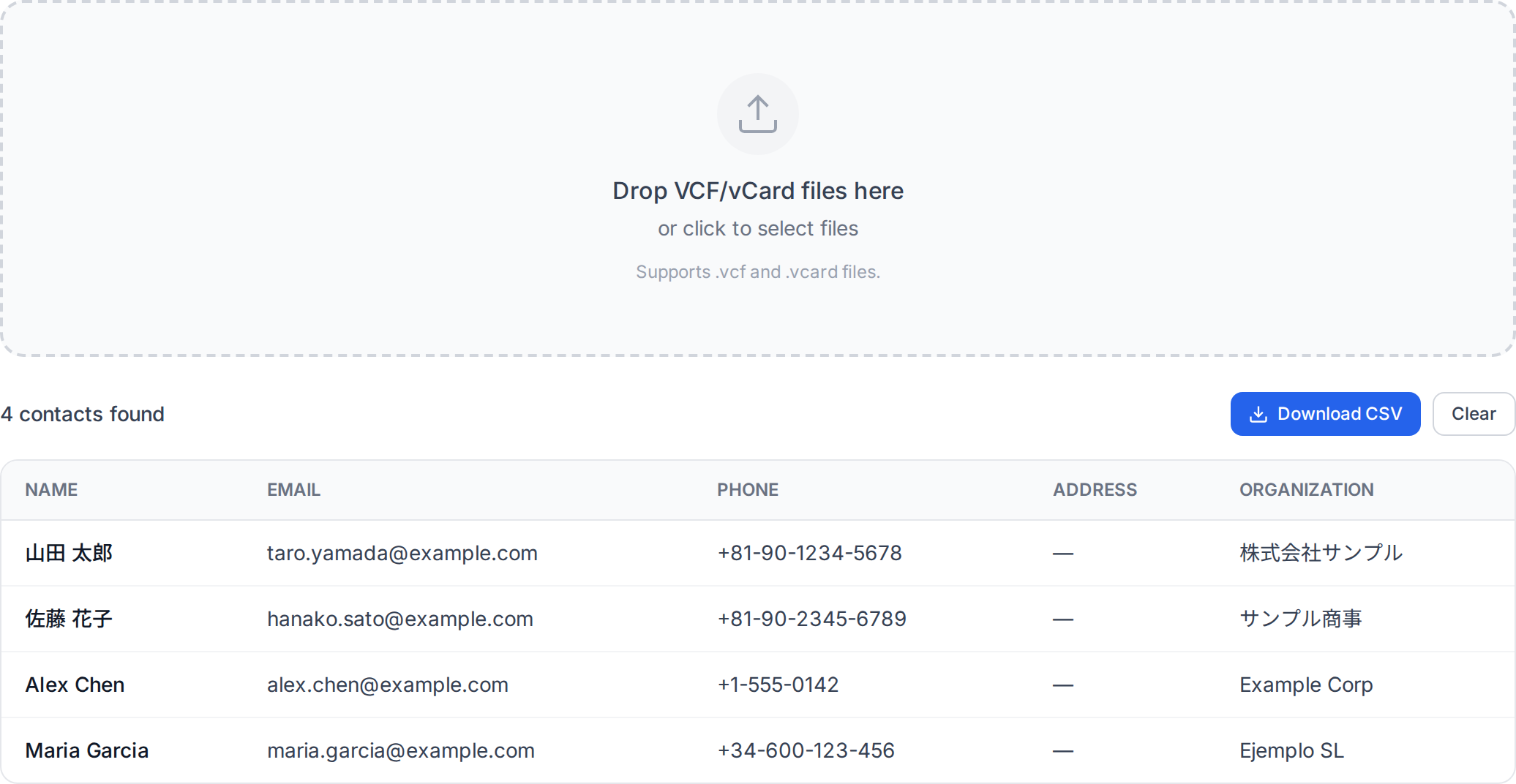
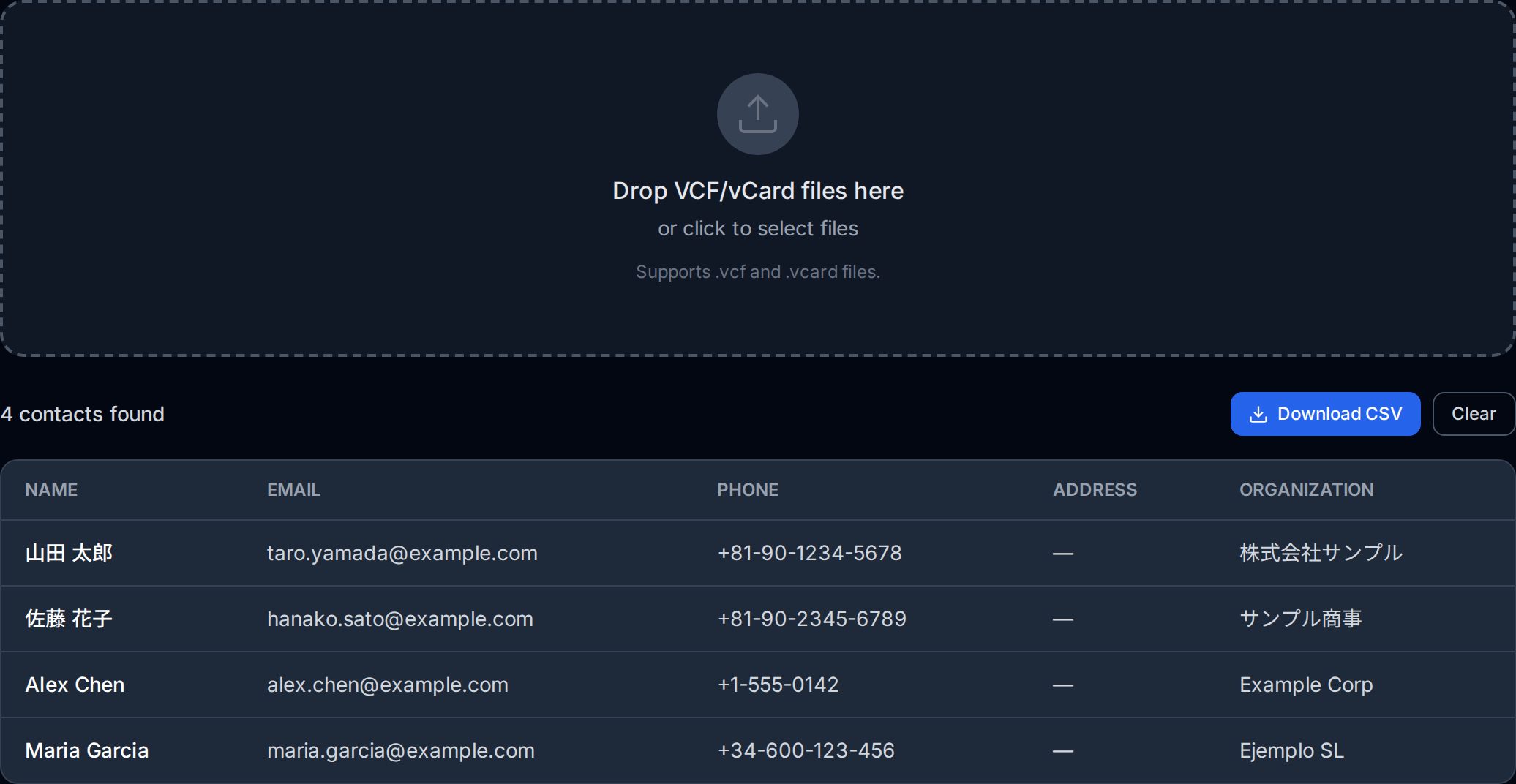
The fastest and most private way to convert VCF to CSV is to use a browser-based tool that processes your files locally on your device. The OpenedFile VCF to CSV Converter runs entirely in your browser — your contact data is never uploaded to any server.
Follow these steps to convert your VCF file:
- Open the converter — Navigate to the VCF to CSV Converter page in any modern web browser on your computer, phone, or tablet.
- Load your VCF file — Click the upload area or drag and drop your
.vcffile onto the page. The tool accepts single-contact VCF files as well as multi-contact VCF files containing hundreds or thousands of entries. - Review the parsed contacts — The converter will instantly parse the VCF data and display a preview of the extracted contacts, including names, phone numbers, email addresses, and other fields. Take a moment to verify that the data looks correct.
- Download as CSV — Click the download or export button to generate your CSV file. The file will be saved to your default downloads folder, ready to be opened in Excel, Google Sheets, or any other spreadsheet application.
The entire process takes just a few seconds, even for VCF files containing thousands of contacts. Because the conversion happens locally in your browser, there is no file size limit imposed by a server, and your sensitive contact information remains completely private.
Recommended
Use the OpenedFile VCF to CSV Converter for instant, browser-based conversion. Your contacts are processed entirely on your device — nothing is uploaded to a server. It handles vCard 2.1, 3.0, and 4.0 formats, supports international characters, and works on any device with a modern browser.
Understanding the CSV Output Format
The CSV file generated from a VCF conversion will contain one row per contact, with columns for each type of data found in the original VCF file. A typical CSV output includes the following columns:
- Full Name — The formatted display name of the contact (from the
FNfield in the vCard). - First Name / Last Name — The structured name components (from the
Nfield), split into separate columns for easier sorting and filtering. - Organization — The company or organization name (from the
ORGfield). - Title — The contact's job title or role.
- Email — One or more email address columns. If a contact has multiple email addresses, they may appear in columns labeled "Email 1", "Email 2", and so on.
- Phone — Phone number columns, often labeled by type such as "Phone (Cell)", "Phone (Work)", or "Phone (Home)".
- Address — Mailing address fields, which may be broken into street, city, state, postal code, and country columns.
- Notes — Any additional text stored in the vCard's
NOTEfield.
The exact column structure depends on what data is present in your VCF file. Contacts exported from different sources (iPhone, Android, Google Contacts, Outlook) may include different sets of fields, and the converter will adapt its output accordingly.
Opening CSV in Excel
Microsoft Excel is the most popular tool for working with CSV files, but there are a few important considerations when opening converted contact data:
UTF-8 Encoding
Contact data often includes international characters — names with accents (e.g., Jose), Asian characters (e.g., Japanese or Chinese names), or special symbols. CSV files from the converter are encoded in UTF-8, which is the universal standard for text encoding. However, older versions of Excel (particularly Excel 2016 and earlier on Windows) default to a legacy encoding called Windows-1252, which can cause international characters to appear as garbled text.
Important
When opening a CSV file in Excel, always ensure the file is imported with UTF-8 encoding to avoid garbled international characters. In Excel, go to Data > From Text/CSV, select your file, and choose "65001: Unicode (UTF-8)" from the encoding dropdown before clicking Load. Simply double-clicking the CSV file may cause Excel to use the wrong encoding, resulting in names and addresses appearing as unreadable symbols.
Column Formatting Tips
After importing your CSV into Excel, consider these formatting improvements:
- Format phone columns as text — Excel may interpret phone numbers as numeric values, stripping leading zeros or converting them to scientific notation. Select the phone columns, right-click, choose "Format Cells", and set the format to "Text" before importing.
- Auto-fit column widths — Select all columns (Ctrl+A) and double-click the border between any two column headers to auto-fit all widths to the content.
- Apply filters — Click any cell in the header row and press Ctrl+Shift+L to enable Excel's filter dropdowns, making it easy to sort and filter contacts by any field.
- Freeze the header row — Go to View > Freeze Panes > Freeze Top Row so the column headers stay visible as you scroll through a long contact list.
Importing CSV into Google Sheets
Google Sheets handles UTF-8 encoded CSV files natively, making it a particularly smooth experience for imported contact data. To import your converted CSV:
- Open Google Sheets in your browser and create a new blank spreadsheet.
- Go to File > Import and select the Upload tab.
- Drag your CSV file onto the upload area or click "Select a file from your device" to browse for it.
- In the import dialog, set the separator type to Comma and choose whether to replace the current sheet or insert a new one.
- Click Import data. Your contacts will appear as a neatly formatted spreadsheet with proper column headers.
Google Sheets correctly handles international characters out of the box, so you will not encounter the encoding issues that can affect Excel. It also makes your contact data accessible from any device and easy to share with collaborators.
Common Issues and Solutions
Character Encoding Problems
The most common issue when working with converted CSV files is garbled characters. This almost always happens because the application opening the CSV file is not using UTF-8 encoding. Names with diacritics (e.g., Muller, Fernandez), CJK characters (Chinese, Japanese, Korean), or Cyrillic characters are particularly affected. The solution is to always use the UTF-8 import method described in the Excel section above. In Google Sheets and most modern applications, UTF-8 is the default and no special steps are needed.
Missing Fields
If certain fields appear empty in the CSV output, it usually means the original VCF file did not contain that data. Different contact sources export different levels of detail. For example, a contact saved on your phone might only include a name and phone number, while a contact exported from a CRM might include job title, organization, multiple addresses, and custom fields. Check the original VCF file to confirm what data is present. You can view the raw VCF content with any text editor since it is a plain-text format.
Multiple Phone Numbers and Emails
A single vCard contact can contain multiple phone numbers (home, work, cell, fax) and multiple email addresses. The converter handles this by creating separate columns for each instance. However, if you have contacts with varying numbers of phone entries, some rows may have empty cells in the additional phone columns. This is normal behavior — each row only fills as many phone or email columns as that specific contact has. When working with this data in Excel, you can use the COUNTA function to count how many phone numbers each contact has, or use TEXTJOIN to merge multiple phone columns into a single cell if needed.
Alternative Methods
Manual Conversion
For very small VCF files with just a few contacts, you can technically convert them manually. Open the VCF file in a text editor (like Notepad or VS Code) and you will see the vCard markup. Each contact begins with BEGIN:VCARD and ends with END:VCARD, with fields like FN (full name), TEL (telephone), and EMAIL listed on separate lines. You could extract this data by hand and type it into a spreadsheet. However, this approach is impractical for more than a handful of contacts, error-prone, and does not handle encoded values like quoted-printable strings or base64-encoded photos.
Scripting with Python
Developers may prefer to write a script for custom conversion logic. Python's vobject library can parse VCF files, and the built-in csv module can write the output. This approach offers full control over which fields are extracted and how they are mapped to columns. It is ideal for one-off data migration projects where you need custom transformations, but requires programming knowledge and time to set up and debug.
Desktop Applications
Some desktop applications, such as the Windows Contacts app or macOS Contacts, can import VCF files and then export them in CSV or other formats. This two-step approach works but is cumbersome and may lose data during the intermediate import step if the application does not support all vCard fields. A direct VCF-to-CSV converter is simpler and more reliable.
Conclusion
Converting VCF to CSV bridges the gap between contact management and data analysis. Whether you are preparing a mail merge, importing contacts into a CRM, cleaning up a messy address book, or simply want to view your contacts in a familiar spreadsheet layout, CSV is the format you need. The OpenedFile VCF to CSV Converter makes this conversion instant, private, and hassle-free — all processing happens in your browser with no server uploads required.
Remember to pay attention to UTF-8 encoding when opening CSV files in Excel, format phone number columns as text to preserve leading zeros, and use Google Sheets if you want the smoothest experience with international characters. With these tips in hand, you can confidently convert and work with contact data in any spreadsheet application.
About the author
Ren
Developer, OpenedFile
I build and maintain OpenedFile on my own. It started when a winmail.dat attachment landed in my inbox and nothing would open it — and every online converter I found wanted me to upload the file to their server first. So I wrote a TNEF parser from scratch instead, and every tool here has run entirely in the browser ever since.
More about OpenedFile