How to Prevent Winmail.dat: Outlook Settings Guide
Configure Microsoft Outlook to stop sending winmail.dat files to your recipients.
If your colleagues, clients, or friends have told you that your emails arrive with a mysterious winmail.dat attachment instead of the files you intended to send, the problem is almost certainly your Outlook settings. The good news is that fixing it takes just a few minutes, and once you make the change, the issue will not recur.
In this guide, we will explain exactly why Outlook sends winmail.dat files and walk you through the settings you need to change in every modern version of Outlook to prevent it from happening.
Why Outlook Sends Winmail.dat
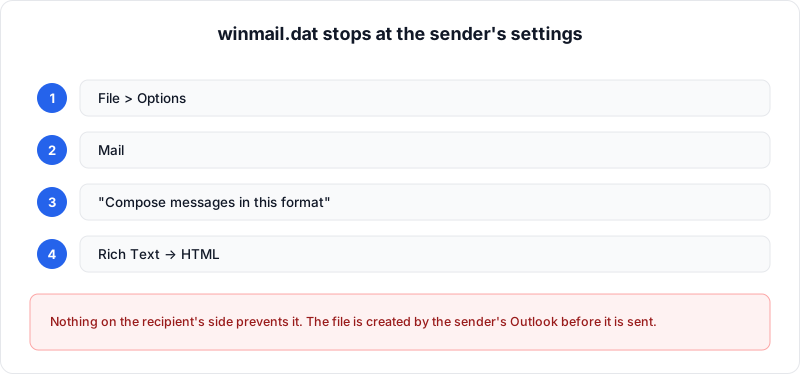
Microsoft Outlook supports three email formats: HTML, Plain Text, and Rich Text Format (RTF). When you compose a message using RTF, Outlook encodes the entire email, including attachments, formatting, and metadata, using a proprietary format called TNEF (Transport Neutral Encapsulation Format). This encoded data is attached to the email as a file called winmail.dat.
When the recipient also uses Outlook, the winmail.dat file is decoded automatically, and the message appears as intended. But when the recipient uses any other email client, such as Apple Mail, Gmail, Thunderbird, or a mobile email app, they cannot decode the TNEF data. Instead, they see a useless winmail.dat attachment, and the original files appear to be missing.
The solution is straightforward: configure Outlook to use HTML format instead of RTF. HTML provides rich formatting (fonts, colors, images, and layout) while remaining compatible with every modern email client.
Recommended
The quick fix: Go to File > Options > Mail, and change "Compose messages in this format" from Rich Text to HTML. This single change prevents winmail.dat for all new messages.
Checking Your Current Format Settings
Before making changes, it is helpful to check what format Outlook is currently using. There are two places where the format is set:
- Global default: The format used for all new messages by default.
- Per-contact override: A format specified for individual contacts, which overrides the global default when sending to those contacts.
Even if your global setting is correct, a per-contact override can cause winmail.dat files to be sent to specific recipients. We will address both settings below.
Changing the Default Format in Outlook 365 and Outlook 2021
Microsoft 365 (formerly Office 365) and Outlook 2021 share the same interface for mail format settings. Follow these steps:
Open Outlook Options
Open Outlook and click File in the top menu bar, then click Options in the left sidebar.
Navigate to Mail Settings
In the Outlook Options dialog, click Mail in the left panel.
Change the Compose Format
Under the Compose messages section, find the dropdown labeled "Compose messages in this format" and change it from Rich Text to HTML.
Save Your Changes
Click OK to save your changes. From this point forward, all new messages you compose will use HTML format by default, and Outlook will not generate winmail.dat files for them.
Changing the Default Format in Outlook 2019 and 2016
The process for Outlook 2019 and Outlook 2016 is identical to the steps above:
- Go to File > Options > Mail.
- Under Compose messages, change the format dropdown to HTML.
- Click OK.
If you are using an older version of Outlook (2013 or 2010), the same setting exists in the same location. Microsoft has kept this setting consistent across many versions.
Changing the Format for a Single Message
If you only need to change the format for a specific email rather than your global default, you can do so while composing the message:
- Step 1: Open a new email or the reply/forward window.
- Step 2: Click the Format Text tab in the ribbon.
- Step 3: In the Format group, you will see three buttons: HTML, Plain Text, and Rich Text.
- Step 4: Click HTML to switch the current message to HTML format.
This changes the format for only the current message without affecting your default setting. It is useful when you notice that a message has been set to Rich Text, perhaps because you replied to an RTF message or because a per-contact setting triggered it.
Per-Contact Format Settings
One of the most overlooked causes of winmail.dat files is the per-contact format override. Outlook allows you to specify a preferred email format for individual contacts. If a contact is set to "Send using Outlook Rich Text format," every email you send to that person will be TNEF-encoded, regardless of your global default.
Important
Per-contact format overrides are one of the most overlooked causes of winmail.dat. Even if your global default is set to HTML, a single contact with "Send using Outlook Rich Text format" will still receive winmail.dat files. Always check individual contact settings if the problem persists for specific recipients.
To check and fix per-contact settings:
Open the Contact
Open your Contacts (People) in Outlook and find and double-click the contact you want to check.
Open the Email Format Dialog
Double-click on the contact's email address within the contact form. In the dialog that appears, look for the "Internet Format" dropdown.
Change the Format Setting
Change the dropdown from "Send using Outlook Rich Text format" to "Let Outlook decide the best sending format" or "Send Plain Text only." Click OK and save the contact.
If you have many contacts, it may not be practical to check each one individually. In that case, ensuring your global default is set to HTML and paying attention to the format indicator when composing messages is the best approach.
Exchange Server and Microsoft 365 Admin Settings
If you are an IT administrator managing an Exchange Server or Microsoft 365 organization, you can prevent winmail.dat files at the server level. This is the most effective approach because it applies to all users in the organization without requiring each person to change their individual settings.
Did You Know?
Exchange administrators can disable TNEF encoding organization-wide with a single setting. In Exchange Online, navigate to Mail flow > Remote domains and set "Rich Text format" to "Never" on the Default domain. For on-premises Exchange, run Set-RemoteDomain -Identity Default -TNEFEnabled $false in PowerShell. This prevents winmail.dat for all external recipients instantly.
Exchange Online (Microsoft 365)
In the Exchange Admin Center, you can configure remote domains to prevent TNEF encoding:
- Navigate to Mail flow > Remote domains.
- Select the Default remote domain (which applies to all external recipients).
- Under Text and character set, find the "Rich Text format" setting.
- Change it to "Never" to prevent TNEF encoding for all outbound email to external domains.
- Save your changes.
Exchange Server On-Premises
For on-premises Exchange Server, you can use the Exchange Management Shell (PowerShell):
- Run the command: Set-RemoteDomain -Identity Default -TNEFEnabled $false
- This disables TNEF encoding for all messages sent to external recipients through the default remote domain.
These server-level settings override individual user preferences, ensuring that no one in the organization sends winmail.dat files to external recipients.
Outlook for Mac Settings
Outlook for Mac handles email format differently from the Windows version. In general, Outlook for Mac is less likely to send winmail.dat files because it defaults to HTML format and does not expose the Rich Text Format option as prominently. However, it is still worth verifying your settings:
- Open Outlook on your Mac.
- Go to Outlook > Preferences (or Settings in newer versions).
- Click Composing.
- Under Message format, ensure that HTML is selected.
- Ensure that any option related to Rich Text or TNEF is unchecked or set to the non-RTF option.
The new Outlook for Mac (built on web technologies) does not use TNEF at all, so if you have migrated to the new version, winmail.dat files should not be a concern from your end.
Testing Your Changes
After updating your settings, it is important to verify that the changes are working. Here is how to test:
- Send a test email with an attachment to a non-Outlook email address (such as a Gmail or Yahoo address that you can check).
- Check the received email on the non-Outlook client. Verify that the attachment appears as the original file (PDF, DOCX, JPG, etc.) rather than as a winmail.dat file.
- Check the email source: If you want to be thorough, view the raw email source in the receiving client. Look for the Content-Type header of the attachment. It should show the correct MIME type (e.g., application/pdf) rather than application/ms-tnef.
- Test with multiple recipients: If you changed per-contact settings, send test emails to several contacts to ensure the fix works across the board.
When TNEF Is Still Needed
There are rare cases where TNEF encoding is actually necessary:
- Voting buttons: Outlook's voting button feature relies on TNEF to transmit the voting options. If you use voting buttons in your emails, they will only work when sent in RTF/TNEF format to other Outlook users.
- Custom Outlook forms: Organizations that use custom Outlook forms may require TNEF to transmit form data.
- Certain calendar features: While standard calendar invitations use the iCalendar format, some advanced Outlook calendar features may depend on MAPI properties transmitted via TNEF.
In these cases, you can change the format to RTF for specific messages using the Format Text tab while keeping your default set to HTML. This ensures that TNEF is only used when intentionally needed.
Conclusion
Preventing winmail.dat files is a simple configuration change that can save your recipients significant frustration. By switching your Outlook default from Rich Text to HTML, checking your per-contact settings, and (if you are an administrator) configuring your Exchange server to disable TNEF for external recipients, you can ensure that your emails and attachments arrive in a universally readable format.
If you are on the receiving end and need to open a winmail.dat file right now, our free Winmail.dat Viewer can extract the contents in seconds, directly in your browser. But with the settings described in this guide, you can help ensure that fewer people ever need to use such a tool in the first place.
Related Articles
What Is a Winmail.dat File?
The complete guide to understanding winmail.dat files and how to open them.
Understanding Outlook's TNEF Encoding
A deep dive into the proprietary format behind winmail.dat files.
How to Open Winmail.dat on Mac
Step-by-step guide for macOS users dealing with winmail.dat attachments.
About the author
Ren
Developer, OpenedFile
I build and maintain OpenedFile on my own. It started when a winmail.dat attachment landed in my inbox and nothing would open it — and every online converter I found wanted me to upload the file to their server first. So I wrote a TNEF parser from scratch instead, and every tool here has run entirely in the browser ever since.
More about OpenedFile