How to Open Winmail.dat on Mac
Step-by-step guide to opening winmail.dat files on macOS without installing any software.
You are on your Mac, checking your email, when you notice an attachment called winmail.dat. You try to open it. Nothing happens. You try to preview it with Quick Look. It shows nothing useful. You search for an associated application. There is none. If this scenario sounds familiar, you are one of countless Mac users who have been stumped by this peculiar file.
The good news is that opening a winmail.dat file on a Mac is simple once you know what the file is and have the right tool. In this guide, we will walk through exactly why Mac users encounter this problem and provide multiple methods for extracting the contents of a winmail.dat file on macOS.
The Mac Winmail.dat Problem
Winmail.dat files are created by Microsoft Outlook when it sends emails using Rich Text Format (RTF). Outlook encodes the message and its attachments using a proprietary format called TNEF (Transport Neutral Encapsulation Format). When this email reaches a Mac user, whether through Apple Mail, Spark, Airmail, or any other non-Outlook mail client, the email application cannot decode the TNEF encoding. Instead of the original attachments, the user sees a single file called winmail.dat.
This is particularly common in business environments where the sender uses Outlook on Windows while the recipient uses a Mac. The sender has no idea that their email arrived in an unreadable format because Outlook does not warn them about potential compatibility issues.
Why Apple Mail Cannot Open Winmail.dat
Apple Mail has included limited TNEF support in recent versions of macOS, and some winmail.dat files may be partially decoded. However, this support is inconsistent. Complex TNEF structures, multiple attachments, or messages with extensive MAPI properties may still produce an unopenable winmail.dat file in Apple Mail.
Did You Know?
Apple Mail's built-in TNEF support is limited and inconsistent. It may extract simple attachments from some winmail.dat files, but complex TNEF structures with multiple files, MAPI properties, or embedded OLE objects will still appear as unopenable winmail.dat attachments.
The fundamental issue is that TNEF is a Microsoft-proprietary format. Apple has not implemented full TNEF decoding in Mail because it is not an open standard and because Microsoft has historically not provided comprehensive documentation for the format. As a result, Mac users need a dedicated tool to reliably extract winmail.dat contents.
Method 1: Use a Browser-Based Tool (Recommended)
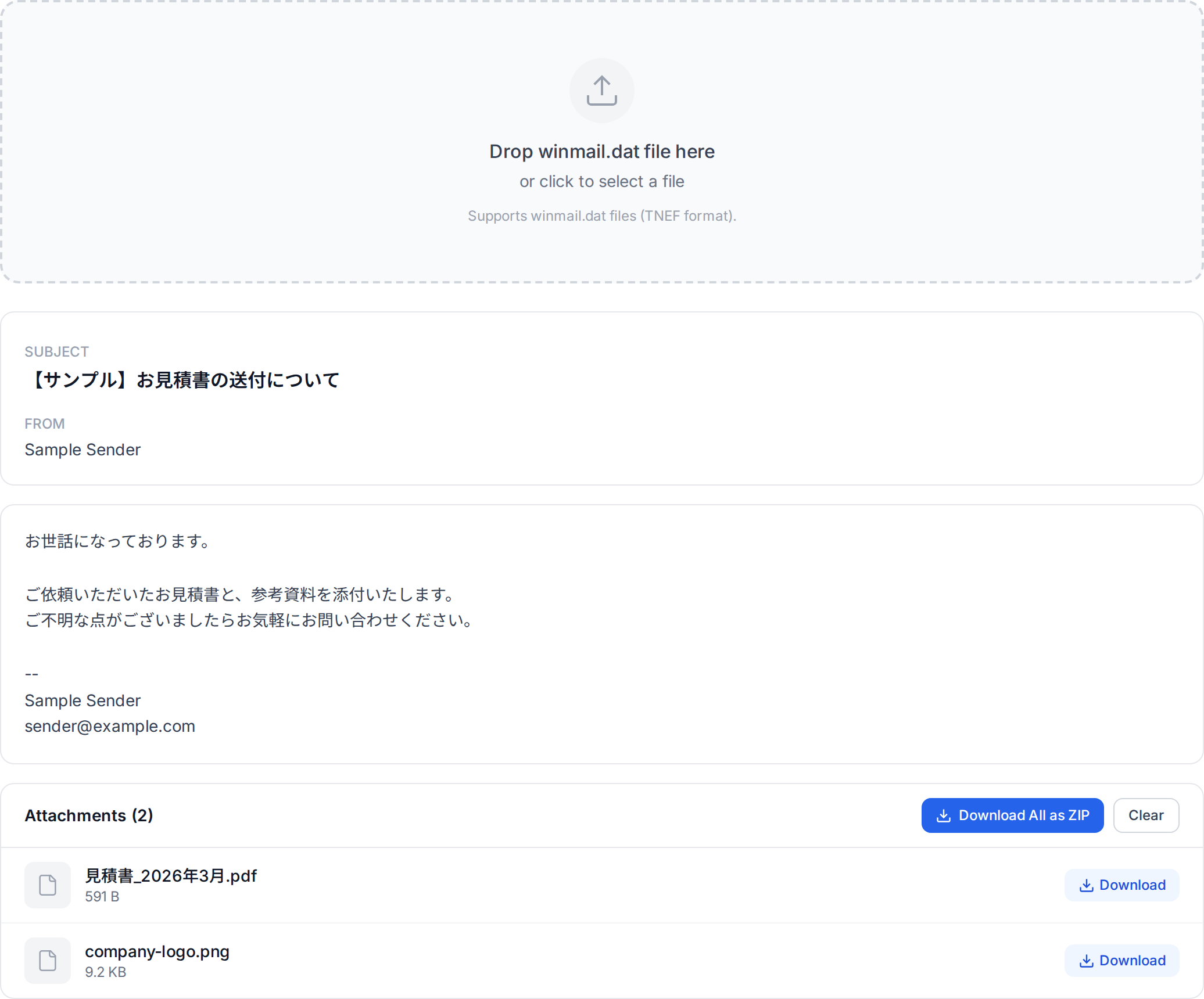
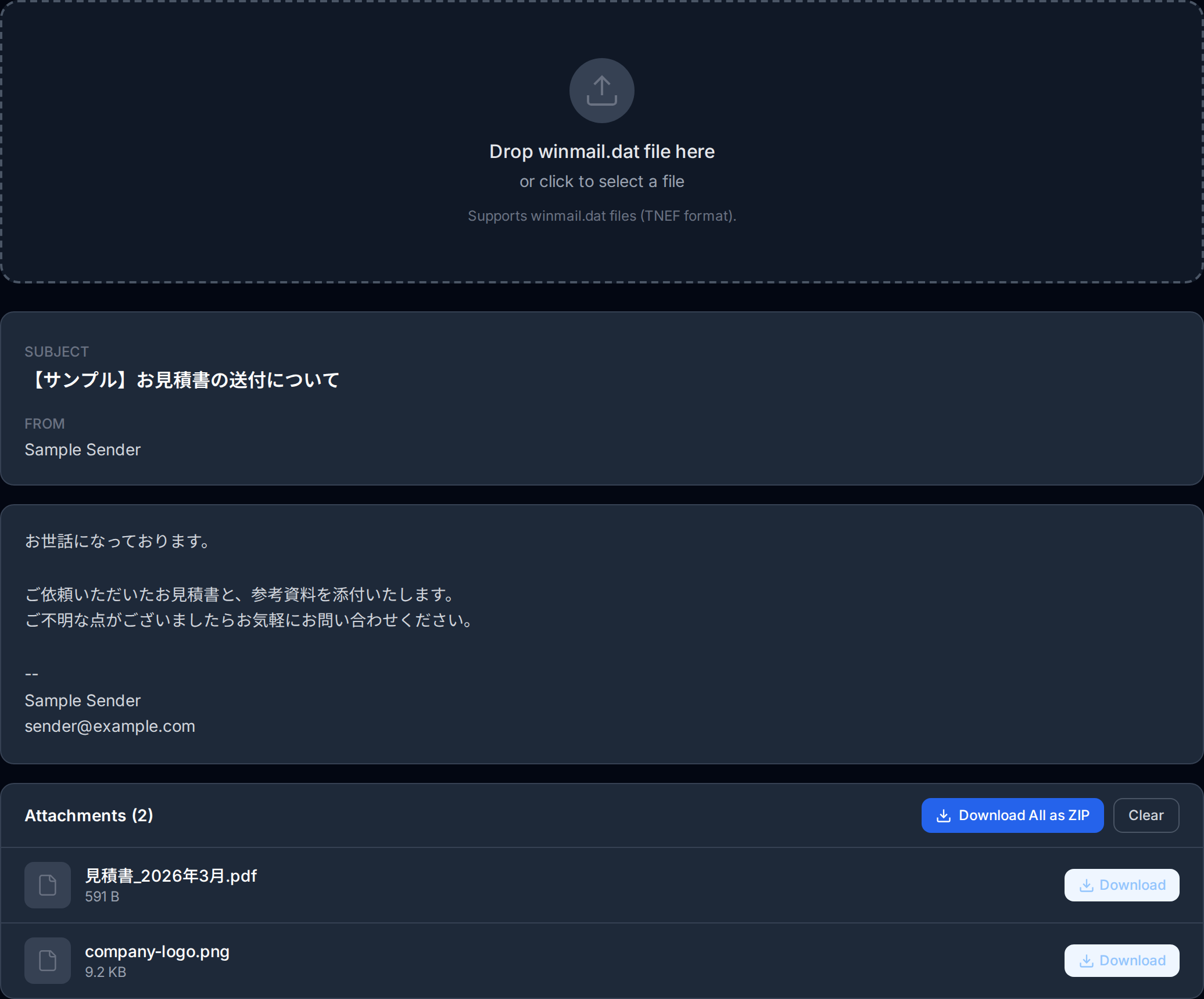
The fastest and easiest way to open a winmail.dat file on your Mac is to use a browser-based viewer. Our free Winmail.dat Viewer works directly in Safari, Chrome, Firefox, or any other browser on your Mac. Here is how to use it:
Recommended
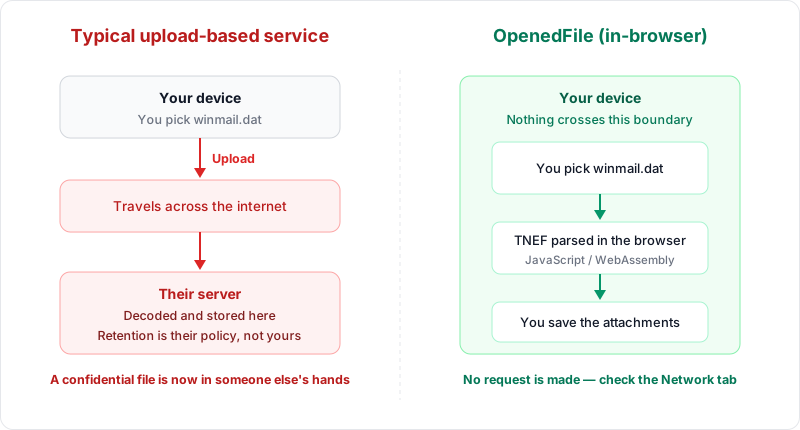
The browser-based tool is the fastest method. No software to install, works on any Mac with a web browser, and your file is processed locally so nothing leaves your computer. The entire process takes less than 30 seconds.
Save the Winmail.dat File
Save the winmail.dat file from your email to your Mac. In Apple Mail, you can right-click the attachment and choose "Save Attachment" or simply drag it to your Desktop or Downloads folder.
Open the Viewer
Open your web browser and navigate to our Winmail.dat Viewer.
Upload the File
Drag and drop the winmail.dat file onto the viewer, or click the upload area to select the file from your Mac.
View and Download Contents
The tool will instantly decode the TNEF file and display its contents. You will see a list of all attachments that were embedded inside, along with options to download each one individually.
This entire process takes less than 30 seconds and requires no software installation. The file is processed entirely within your browser, so your data never leaves your Mac. This makes it the most convenient and privacy-respecting option available.
Method 2: Third-Party Mac Applications
If you receive winmail.dat files frequently and prefer a native Mac application, there are several third-party apps available:
TNEF's Enough
TNEF's Enough is a free, open-source Mac application that can decode winmail.dat files. You can download it from the Mac App Store or from its GitHub repository. To use it, simply open the winmail.dat file with TNEF's Enough, and it will extract and display the embedded attachments.
Letter Opener
Letter Opener is a paid application that integrates directly with Apple Mail as a plugin. Once installed, it automatically decodes winmail.dat attachments inline within Apple Mail, so you never have to deal with the raw file at all. This is a good option for users who receive winmail.dat files regularly and want a seamless experience.
While these applications work well, they require installation and maintenance. For occasional winmail.dat files, a browser-based tool like our Winmail.dat Viewer is usually the more practical choice.
Method 3: Ask the Sender to Resend
If you have a relationship with the sender, you can ask them to resend the email in a different format. Here is what to tell them:
- Open a new email in Outlook (do not reply to or forward the original message).
- Go to the Format Text tab in the ribbon.
- Select HTML instead of Rich Text.
- Attach the files again and send the new message.
This will send the email using standard HTML formatting with standard MIME attachments, which every email client can handle. However, this approach is not always practical, especially if the sender is a business contact, an automated system, or someone you do not know well.
Comparing the Methods
Here is how the three methods compare for Mac users:
- Browser-based tool: No installation required. Works on any Mac with a web browser. Fast and private. Best for occasional or one-time use. Accessible from any device.
- Third-party app: Requires downloading and installing software. Good for frequent use. May integrate with Apple Mail for a seamless experience. Costs money (for some apps).
- Ask sender to resend: No tools needed on your end. Depends on the sender's willingness and ability. Causes delays. Not suitable for automated emails.
For most Mac users, the browser-based approach is the best starting point. It solves the immediate problem without requiring any commitment to installing software, and it works on the very first try.
Tips for Mac Users Who Frequently Receive Winmail.dat
If you regularly receive winmail.dat files from the same sender or organization, here are some strategies to reduce the annoyance:
- Bookmark the viewer: Keep our Winmail.dat Viewer bookmarked in your browser for quick access whenever a winmail.dat file arrives.
- Educate the sender: Politely let the sender know that their emails are arriving as winmail.dat files. Many Outlook users are unaware that this is happening. Share our guide on how to prevent winmail.dat with them.
- Contact the sender's IT department: If the sender is part of an organization, their IT team can configure Exchange Server or Microsoft 365 to disable TNEF encoding for external recipients. This is a one-time fix that benefits all recipients.
- Consider an Apple Mail plugin: If the volume of winmail.dat files is high enough to justify it, a plugin like Letter Opener can decode them automatically within Apple Mail.
Conclusion
Receiving a winmail.dat file on a Mac can be frustrating, but it does not have to be a roadblock. With a free browser-based tool like our Winmail.dat Viewer, you can extract the contents of any winmail.dat file in seconds without installing anything on your Mac. Whether you choose a browser tool, a desktop application, or simply ask the sender to switch formats, the solution is straightforward and accessible.
The next time a winmail.dat file appears in your inbox, you will know exactly what it is and exactly how to handle it.
Related Articles
About the author
Ren
Developer, OpenedFile
I build and maintain OpenedFile on my own. It started when a winmail.dat attachment landed in my inbox and nothing would open it — and every online converter I found wanted me to upload the file to their server first. So I wrote a TNEF parser from scratch instead, and every tool here has run entirely in the browser ever since.
More about OpenedFile