How to Open EML Files Without Outlook
Discover the best ways to open .eml email files without Microsoft Outlook — browser tools, free apps, and more.
You have received an .eml file as an email attachment or found one on your computer, but you do not have Microsoft Outlook installed. Maybe you use Gmail, maybe you are on a Mac, or maybe you simply prefer not to pay for a Microsoft 365 subscription. Whatever the reason, you need a way to read that EML file, and the good news is that there are plenty of options available to you.
In this guide, we will walk through every practical method for opening EML files without Outlook, from browser-based tools that require zero installation to free desktop applications and even a raw text approach for the technically curious.
What Is an EML File?

An EML file is a standard email message saved in the MIME (Multipurpose Internet Mail Extensions) format. Each .eml file represents a single email, including its headers (sender, recipient, subject, date), the message body in plain text or HTML, and any file attachments encoded within the message. The format was originally popularized by Microsoft Outlook Express, but it has since become a widely recognized standard supported by many email clients and archival systems.
Did You Know?
EML files are fundamentally just plain text files following the MIME standard (RFC 2822). You can open any .eml file in a text editor and read the raw headers and message content directly. Attachments are stored as Base64-encoded blocks of text within the file, which is why EML files can sometimes be larger than the original attachment sizes suggest.
Because EML is based on an open internet standard rather than a proprietary format, it is far more portable than alternatives like Outlook's .msg files. This also means that many different applications can read EML files, making it entirely possible to work with them even if you have never installed Outlook.
Why You Might Not Have Outlook
There are many legitimate reasons why Outlook is not available to you:
- Cost: Microsoft 365 requires a paid subscription, and not everyone needs a full office suite just to read the occasional email file.
- Platform choice: You may be on Linux, ChromeOS, or an older system where Outlook is not available or practical to install.
- Preference: Many people use Gmail, Apple Mail, Thunderbird, or other free email clients and have no need for Outlook in their daily workflow.
- Corporate restrictions: Some workplaces lock down software installation, and you may not have administrator privileges to install Outlook on a shared computer.
- One-time need: You received a single EML file from a colleague or archive and do not want to install an entire application just to view one email.
Whatever your situation, the methods below will help you open and read EML files quickly and freely.
Methods to Open EML Without Outlook
1. OpenedFile EML Viewer (Browser-Based, Recommended)
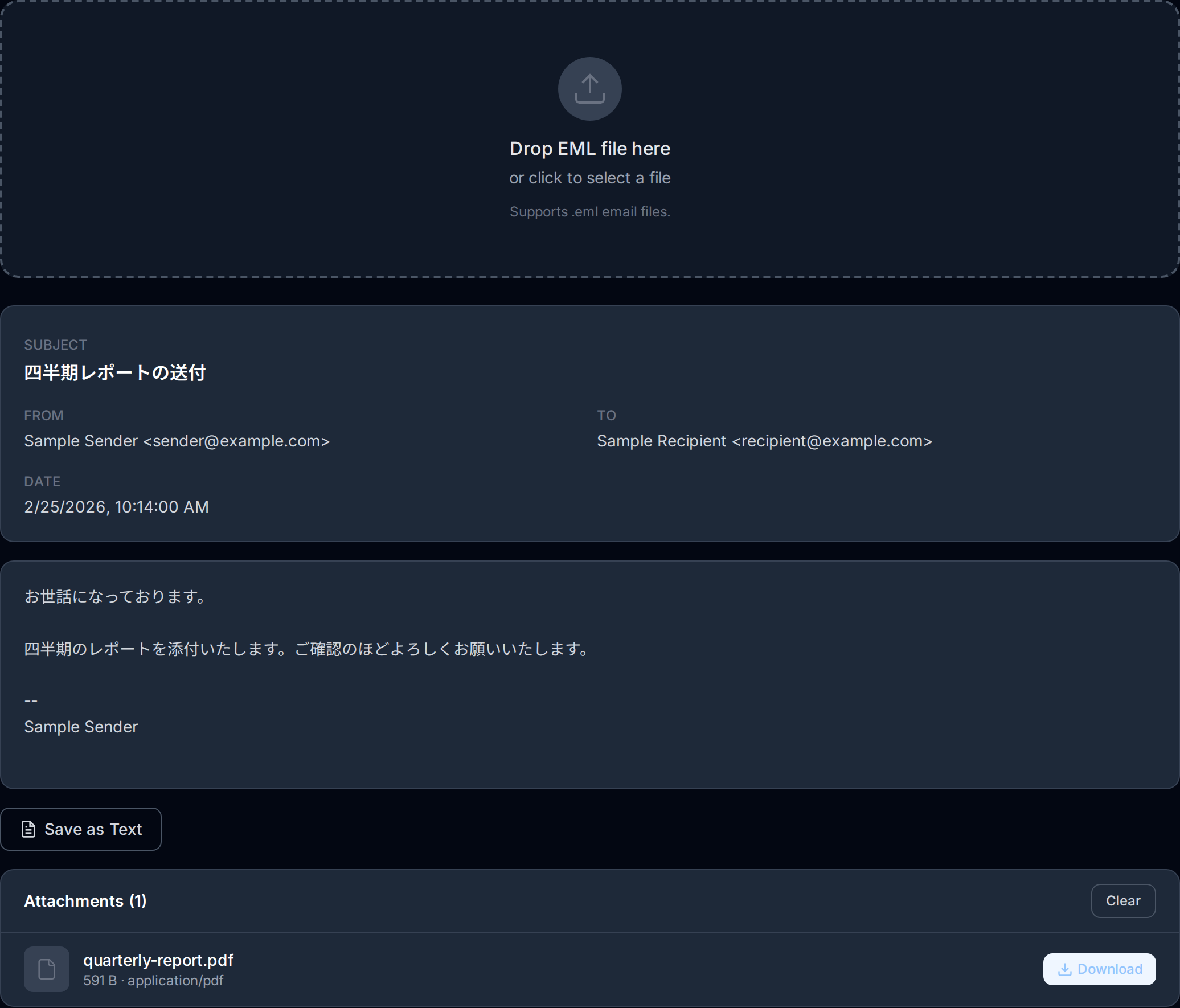
The fastest and most convenient way to open an EML file without Outlook is to use our free EML Viewer directly in your browser. There is nothing to install, no account to create, and no file size limits that get in the way. Simply visit the tool, drag and drop your .eml file onto the page, and the email content is rendered instantly, complete with formatted HTML body, headers, and downloadable attachments.
Because OpenedFile processes everything locally in your browser using client-side JavaScript, your email data never leaves your device. This makes it an excellent choice for sensitive or confidential emails where privacy is a concern. It works on any operating system with a modern web browser, including Windows, macOS, Linux, and ChromeOS.
Recommended
The OpenedFile EML Viewer is the easiest way to read EML files without Outlook. No installation required, your data stays private on your device, and it works on any device with a web browser, including phones and tablets.
2. Mozilla Thunderbird
Thunderbird is a free, open-source email client developed by Mozilla. It natively supports opening EML files. To view an EML file in Thunderbird, you can simply drag the .eml file into the Thunderbird window, or use File > Open Saved Message from the menu. Thunderbird will display the full email with formatting, inline images, and attachments, just as it would appear in your inbox.
Thunderbird is available for Windows, macOS, and Linux. If you regularly work with email archives or receive EML files frequently, having Thunderbird installed can be a useful long-term solution. However, installing a full email client just to open one file may feel like overkill for occasional use.
3. Windows Mail App
If you are running Windows 10 or Windows 11, the built-in Mail app can open EML files. Double-clicking an .eml file on Windows will typically open it in the Mail app by default. The app renders the email body, shows the sender and recipient information, and allows you to download any attachments. While the Mail app is not as feature-rich as Outlook, it handles basic EML viewing well and requires no additional installation.
4. Apple Mail (macOS and iOS)
On a Mac, Apple Mail has built-in support for EML files. Simply double-click the .eml file in Finder, and Apple Mail will open it in a new window displaying the full email content. This also works on iPhones and iPads: if you receive an EML file as an attachment in another app, tapping it will offer to open it in the Mail app. Apple Mail renders both plain text and HTML emails and provides access to any embedded attachments.
5. Text Editor (Raw View)
For the technically inclined, opening an EML file in a plain text editor like Notepad, VS Code, or Sublime Text reveals the raw MIME content of the email. You will see the email headers at the top (From, To, Subject, Date, Content-Type), followed by the message body. If the email contains HTML content, you will see the raw HTML markup. Attachments appear as long blocks of Base64-encoded text.
This method is not ideal for casual reading, but it is invaluable for debugging email delivery issues, inspecting headers for spam analysis, or understanding the structure of an email at the protocol level. Developers and IT professionals often use this approach when troubleshooting email problems.
Step-by-Step Guide: Using OpenedFile EML Viewer
Here is a quick walkthrough of how to open your EML file using the OpenedFile EML Viewer:
- Navigate to the tool: Open your web browser and go to openedfile.com/tools/eml/.
- Load your file: Drag your .eml file directly onto the drop zone on the page, or click the area to browse and select the file from your device.
- View the email: The viewer instantly parses the EML file and displays the email headers (From, To, Subject, Date) along with the formatted message body. If the email contains HTML content, it is rendered visually just as it would appear in your inbox.
- Download attachments: If the email includes attachments, they appear as downloadable items below the message body. Click any attachment to save it to your device.
- Save as text (optional): If you need a plain text copy of the email for your records, use the "Save as text" button to export the email content.
The entire process takes just a few seconds, and because all processing happens in your browser, your email data is never transmitted to any server.
Opening EML Files on Mobile Devices
Opening EML files on smartphones and tablets can be particularly frustrating because mobile operating systems typically do not associate .eml files with any installed app by default. Here are your best options:
iPhone and iPad
On iOS, if you receive an EML file as an attachment in an app like Messages or a file manager, tapping the file should offer to open it in Apple Mail. If that does not work, or if you prefer not to use Apple Mail, you can open the file using the OpenedFile EML Viewer in Safari. Since it is a browser-based tool, it works perfectly on any iOS device without requiring an app installation.
Android
Android does not include a built-in EML viewer on most devices. Some email apps like Gmail may be able to preview EML files, but support varies widely. The most reliable approach on Android is to use the OpenedFile EML Viewer in Chrome or your preferred mobile browser. You can open the file from your Downloads folder or share it directly to the browser.
Comparison of Methods
Here is how the different methods stack up against each other:
- OpenedFile EML Viewer: No installation, works on all platforms, processes files privately in your browser, handles attachments. Best for quick, one-off viewing and for users who value privacy.
- Mozilla Thunderbird: Full-featured email client, excellent EML support, free and open-source. Best for users who want a permanent desktop email solution.
- Windows Mail App: Pre-installed on Windows 10 and 11, handles basic EML viewing. Best for Windows users who need a quick double-click solution.
- Apple Mail: Pre-installed on macOS and iOS, solid EML support. Best for Apple ecosystem users.
- Text Editor: Reveals raw MIME structure, no rendering of HTML or attachments. Best for developers and IT professionals who need to inspect email internals.
For most people, the browser-based approach offers the best combination of convenience, privacy, and cross-platform compatibility. You do not need to install anything, it works on any device, and your data stays on your machine.
Staying Safe with EML Files
While EML files themselves are just text-based email containers, the content they carry can include potentially harmful attachments or phishing links. Always apply the same caution you would with any email.
Important
Always verify the sender before opening attachments extracted from an EML file. Treat attachments from EML files with the same caution as any email attachment: scan files with antivirus software, avoid running executable files (.exe, .bat, .scr), and be wary of links that ask for personal information or login credentials.
Using a browser-based viewer like OpenedFile's EML Viewer adds an extra layer of safety because you can inspect the email content and attachment names before downloading anything to your device. This lets you make an informed decision about whether the contents are trustworthy.
Conclusion
You absolutely do not need Microsoft Outlook to open and read EML files. The EML format is based on open internet standards, which means a wide range of tools can handle it, from browser-based viewers to free desktop email clients to simple text editors. For the quickest and most private solution, the OpenedFile EML Viewer lets you read any EML file directly in your browser in seconds, with no installation or signup required.
Whether you are dealing with a single archived email, a batch of exported messages, or an attachment you received from a colleague, the methods in this guide have you covered on every platform and device. Choose the approach that best fits your workflow, and you will never be stuck with an unopenable .eml file again.
About the author
Ren
Developer, OpenedFile
I build and maintain OpenedFile on my own. It started when a winmail.dat attachment landed in my inbox and nothing would open it — and every online converter I found wanted me to upload the file to their server first. So I wrote a TNEF parser from scratch instead, and every tool here has run entirely in the browser ever since.
More about OpenedFile