HEIC Compatibility Guide: Windows, Android & Linux
Everything you need to know about HEIC support across platforms and how to solve compatibility issues.
Introduction
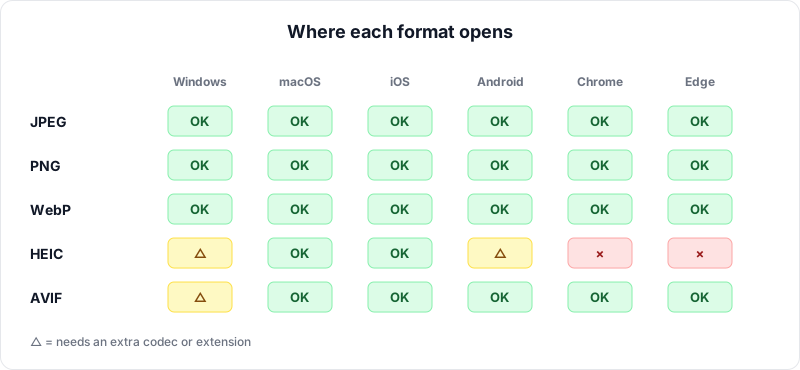
HEIC (High Efficiency Image Container) has been the default photo format on iPhones since 2017, yet nearly a decade later, compatibility across platforms remains uneven. If you have ever received a HEIC file and been unable to open it, or tried to upload one to a website only to be told the format is not supported, you are not alone. This guide covers the current state of HEIC compatibility across every major platform and provides practical solutions for dealing with compatibility issues.
The HEIC Compatibility Landscape
HEIC is based on the HEIF (High Efficiency Image Format) standard, which uses the HEVC (H.265) codec for compression. The compatibility challenges stem from two main factors: first, HEVC is a patented technology with licensing requirements that some platform vendors have been reluctant to absorb; second, HEIC arrived after decades of JPG dominance, and many legacy systems and applications were never updated to support it.
The result is a patchwork of support that varies significantly by operating system, device manufacturer, application, and even specific version numbers. Let us examine each platform in detail.
Windows Support
Windows 10 and Windows 11
Microsoft Windows does not include native HEIC support out of the box. To view HEIC files on Windows, you need to install two extensions from the Microsoft Store:
- HEIF Image Extensions: This free extension adds basic HEIF/HEIC file support to Windows, enabling the Photos app, File Explorer thumbnails, and other built-in tools to recognize HEIC files.
- HEVC Video Extensions: This extension provides the HEVC codec needed to actually decode the image data inside HEIC files. Microsoft charges a small fee (typically around $0.99) for this extension, although a free version titled "HEVC Video Extensions from Device Manufacturer" is sometimes available and comes pre-installed on certain OEM devices.
Important
Windows requires a paid HEVC Video Extensions codec (around $0.99) from the Microsoft Store to decode HEIC images. The free "HEIF Image Extensions" alone is not sufficient — you need both extensions installed for full HEIC support.
Even with these extensions installed, HEIC support on Windows has limitations. Some applications, particularly older versions of photo editing software, may still be unable to open HEIC files. File Explorer may show thumbnails inconsistently, and some users report that the extensions occasionally need to be reinstalled after major Windows updates.
Common Windows Issues
- The Photos app may display an error message asking you to install the HEVC codec
- Thumbnails may appear as blank icons in File Explorer
- Older versions of Microsoft Office may not be able to insert HEIC images into documents
- Third-party applications vary widely in their HEIC support
Android Support
Android's HEIC support is more fragmented than any other platform. While Google added baseline HEIF support to Android 9 (Pie) in 2018, the actual experience varies enormously depending on the device manufacturer, the specific chipset, and the Android version.
What Works
- Google Pixel devices running Android 9 or later generally handle HEIC files well
- Samsung Galaxy devices from the S10 generation onward typically support HEIC viewing
- Google Photos on Android can display HEIC images regardless of native OS support
What Often Does Not Work
- Budget Android devices may lack the hardware HEVC decoder needed for efficient HEIC handling
- Some Android gallery apps from device manufacturers do not support HEIC
- Sharing HEIC files between Android apps can produce errors or blank images
- Many Android apps that accept image uploads do not list HEIC as a supported format
If you regularly receive HEIC files on an Android device and encounter problems, converting them to JPG is the most reliable solution. OpenedFile's browser-based HEIC converter works on any Android device with a modern web browser, regardless of native HEIC support.
Linux Support
Linux has the most limited native HEIC support of any major platform. Most Linux distributions do not include HEIC support by default, and adding it requires installing additional libraries.
Installing HEIC Support on Linux
The primary library for HEIC support on Linux is libheif, an open-source HEIF decoder and encoder. On Debian and Ubuntu-based distributions, you can install it with:
sudo apt install libheif-examples
This provides the heif-convert command-line tool for converting HEIC files to
other formats. For graphical applications, you may also need to install HEIF plugins for
your specific image viewer or editor:
- GIMP: Install the
gimp-heif-pluginpackage (availability varies by distribution) - GNOME Image Viewer (Eye of GNOME): May require
eogupdates and libheif to be installed - KDE Gwenview: HEIF support depends on Qt's image format plugins and may require additional configuration
Limitations on Linux
Even with libheif installed, HEIC support on Linux can be inconsistent. Thumbnail generation in file managers may not work, some image viewers may crash or display incorrect colors, and hardware-accelerated HEVC decoding is rarely available. For Linux users who occasionally need to work with HEIC files, a browser-based converter is often the most hassle-free option.
macOS Support
Apple's macOS has the most comprehensive HEIC support of any desktop operating system, which is expected given that Apple championed the format. Native HEIC support was introduced in macOS High Sierra (10.13) in 2017 and has been refined in every subsequent release.
- Preview opens and displays HEIC files natively
- Finder generates thumbnails and Quick Look previews for HEIC files
- Photos app fully supports HEIC, including depth map and Live Photo data
- Most macOS applications, including Pages, Keynote, and Numbers, can insert HEIC images
- Automator and Shortcuts can batch-convert HEIC to other formats
If you are on macOS, you are unlikely to encounter HEIC compatibility issues in your own workflow. The main scenario where you might need to convert is when sharing files with people on other platforms.
Web Browser Support
Web browser support for HEIC is one of the most significant gaps in the format's compatibility story. As of early 2026, the situation is as follows:
- Safari: Full native HEIC support on macOS and iOS, as expected from Apple's browser
- Chrome: Does not support HEIC natively. Google has prioritized WebP and AVIF as its preferred modern image formats
- Firefox: Does not support HEIC. Mozilla has cited HEVC licensing costs as a barrier
- Edge: Does not support HEIC natively, despite being on Windows where HEVC extensions may be installed
- Opera, Brave, and other Chromium-based browsers: Do not support HEIC, following Chrome's lead
Did You Know?
Safari is the only major web browser with native HEIC support. Chrome, Firefox, and Edge all lack HEIC rendering, which means HEIC images cannot be used directly on websites if you want cross-browser compatibility.
This lack of browser support means that HEIC images cannot be used on websites. Any HEIC photos destined for the web must be converted to JPG, PNG, WebP, or AVIF first. This is a fundamental limitation that affects web developers, bloggers, and anyone who publishes images online.
Solving HEIC Compatibility Issues
Given the inconsistent support across platforms, the most reliable way to handle HEIC compatibility is to convert HEIC files to a universally supported format like JPG or PNG. There are several approaches:
Browser-Based Conversion
Recommended
Browser-based conversion is the most universal solution for HEIC compatibility. Tools like OpenedFile's HEIC converter work on any platform with a modern browser — no software installation needed, and your files stay private on your device.
OpenedFile's HEIC converter works in any modern web browser on any platform. Because it processes files locally using WebAssembly and JavaScript, your photos never leave your device. This approach works on Windows, macOS, Linux, Android, iOS, and ChromeOS without any software installation.
iPhone Settings
You can configure your iPhone to automatically convert HEIC to JPG when transferring photos to a computer. Go to Settings > Photos and set "Transfer to Mac or PC" to "Automatic." This converts photos to JPG during USB transfers while keeping the originals in HEIC on your device.
Platform-Specific Tools
On Windows, applications like the built-in Photos app (with extensions installed) can export
HEIC files as JPG. On macOS, Preview's Export function can convert HEIC to various formats.
On Linux, the heif-convert command-line tool handles batch conversion.
Batch Conversion Tips
When you need to convert many HEIC files at once, efficiency matters. Here are some practical tips for batch conversion:
- Organize before converting: Sort your HEIC files into folders before batch conversion to keep your converted files organized
- Choose the right quality: For sharing on social media or via email, a JPG quality of 85% provides a good balance of file size and visual quality. For archival purposes or printing, use 95% or higher
- Keep originals: Always retain the original HEIC files after conversion. They contain the full-quality image and any auxiliary data like depth maps that are lost during conversion
- Consider PNG for screenshots: If your HEIC files are screenshots or images with text and sharp edges, converting to PNG will preserve crisp edges better than JPG
- Use browser-based tools for privacy: If your photos contain sensitive or personal content, use a converter like OpenedFile that processes files locally rather than uploading them to a server
Conclusion
HEIC compatibility has improved significantly since the format's introduction in 2017, but it remains far from universal. macOS and iOS handle HEIC flawlessly, Windows requires extension installation, Android support is inconsistent, Linux requires manual library setup, and web browsers (outside Safari) do not support the format at all.
The practical solution is to keep your photos in HEIC for storage efficiency and convert to JPG or PNG when compatibility demands it. With browser-based tools like OpenedFile's HEIC converter, the conversion process is quick, private, and works on any platform with a web browser. Until HEIC achieves the universal support that JPG has enjoyed for decades, having a reliable conversion workflow is essential.
Related Articles
HEIC vs JPG: The Complete Comparison Guide
Compare HEIC and JPG image formats — quality, file size, compatibility, and when to use each.
Why iPhone Uses HEIC and How to Convert
Understand why Apple chose HEIC as the default photo format and learn easy ways to convert to JPG.
HEIC Quality and File Size: What You Need to Know
How HEIC achieves smaller file sizes without sacrificing image quality compared to JPG.
About the author
Ren
Developer, OpenedFile
I build and maintain OpenedFile on my own. It started when a winmail.dat attachment landed in my inbox and nothing would open it — and every online converter I found wanted me to upload the file to their server first. So I wrote a TNEF parser from scratch instead, and every tool here has run entirely in the browser ever since.
More about OpenedFile