How to Back Up Your Emails Safely
A practical guide to backing up your emails — learn about EML export, cloud vs. local storage, and best practices.
Your email inbox is more than a communication tool. It is an archive of contracts, receipts, personal conversations, account credentials, and years of professional correspondence. Losing access to your email, whether through accidental deletion, account compromise, or a provider shutting down, can mean losing irreplaceable data. Yet most people never back up their emails.
This guide walks you through everything you need to know about email backup: why it matters, the best methods available, how to export emails from popular clients, and how to ensure your backups remain usable for years to come.
Why Email Backup Matters
Most people assume their emails are safe because they live in the cloud. In reality, there are several scenarios where you could lose access to your entire email history overnight.
Data Loss and Accidental Deletion
It takes a single misclick to permanently delete a folder of important emails. Many providers move deleted messages to trash, but trash folders are automatically purged after 30 days. If you do not notice the deletion within that window, the messages are gone. Bulk operations, filter rules that auto-delete, and sync errors between devices are all common causes of accidental data loss.
Account Compromise
If an attacker gains access to your email account, they can delete all your messages, change your password, and lock you out permanently. Even after recovering your account, there is no guarantee that deleted messages can be restored. High-profile account takeovers happen regularly, and email accounts are prime targets because they are the gateway to password resets for every other service you use.
Provider Shutdown and Migration
Email services do not last forever. Smaller providers shut down, free tiers get discontinued, and corporate email systems get migrated to new platforms. When Google announced changes to its unlimited storage offerings, organizations scrambled to export years of email data on short notice. Having regular backups means you are never caught off guard by a provider change.
Did You Know?
EML is the most portable email format available. Unlike proprietary formats such as PST or MBOX, EML files store one message per file using the standard MIME/RFC 822 format. This means EML files can be opened by virtually any email client or viewer, making them the ideal choice for long-term email backups that you want to remain accessible regardless of which software you use in the future.
Email Backup Methods
There are several approaches to backing up your email, each with different trade-offs in terms of portability, ease of use, and completeness.
Export as EML Files
EML (Electronic Mail) is an open standard format that stores individual email messages as plain text files following the RFC 822 specification. Each EML file contains the complete message: headers, body text, HTML content, and all attachments encoded inline. Because EML is an open standard, these files can be opened by virtually any email client, including Thunderbird, Apple Mail, Windows Mail, and browser-based viewers like OpenedFile's EML Viewer.
EML is the best format for portable, long-term email backups. Files are self-contained, human-readable, and do not depend on any proprietary software. The one-file-per-message structure also makes it easy to organize, search, and selectively restore specific emails.
PST Export from Outlook
Microsoft Outlook uses the PST (Personal Storage Table) format to store emails, contacts, calendar entries, and other mailbox data in a single file. PST is a convenient backup option for Outlook users because it preserves folder structure, categories, and flags. However, PST is a proprietary Microsoft format. Opening PST files requires Outlook or specialized third-party tools, which makes it a poor choice for long-term archival if you might switch platforms in the future.
IMAP Backup Tools
IMAP backup tools connect to your email server using the IMAP protocol and download all messages to your local machine. Tools like imapbackup, OfflineIMAP, mbsync, and Thunderbird (acting as a local client) can mirror your entire mailbox to local storage. This approach works with any IMAP-compatible email service, including Gmail, Outlook.com, Yahoo Mail, and corporate Exchange servers. Many of these tools can export directly to EML or Maildir format for maximum portability.
Cloud vs. Local Storage
Once you have exported your emails, you need to decide where to store the backup. Both cloud storage and local storage have advantages and disadvantages.
Cloud Storage
Storing email backups in cloud services such as Google Drive, Dropbox, OneDrive, or Amazon S3 provides geographic redundancy, meaning your data survives even if your home is damaged by a fire or flood. Cloud backups are also accessible from any device with internet access, which is convenient when you need to find an old email quickly.
The downsides of cloud storage include ongoing subscription costs, dependence on yet another online service, and potential privacy concerns. You are essentially trusting another company with your sensitive email data. If the cloud provider suffers a breach, your email backups could be exposed.
Local Storage
Storing backups on external hard drives, USB drives, or NAS (Network Attached Storage) devices gives you full physical control over your data. There are no monthly fees, no privacy risks from third parties, and no dependency on internet connectivity. For sensitive personal or business emails, local storage offers the strongest privacy guarantees.
The risks of local-only storage include hardware failure, theft, and damage from fire or flooding. A single external hard drive is not a reliable backup because all storage devices eventually fail. The solution is redundancy: keep copies on at least two separate physical devices, ideally stored in different locations.
Important
If your email backups contain sensitive information such as financial records, legal correspondence, medical data, or personal identification details, you should encrypt them before storing. Use tools like VeraCrypt, 7-Zip with AES-256 encryption, or your operating system's built-in encryption (BitLocker on Windows, FileVault on macOS). Encrypted backups protect your data even if the storage device is lost, stolen, or compromised.
The best strategy for most people is a hybrid approach: keep one backup copy on a local external drive for quick access and privacy, and keep a second encrypted copy in the cloud for geographic redundancy. This way, you are protected against both hardware failure and physical disasters.
How to Export Emails as EML from Various Clients
The process for exporting emails as EML files differs depending on which email client you use. Here are step-by-step instructions for the most popular platforms.
Gmail (via Google Takeout)
Gmail does not provide a native option to save individual emails as EML files from the web interface. However, Google Takeout allows you to export your entire mailbox:
- Go to takeout.google.com and sign in with your Google account.
- Deselect all products, then select only Mail.
- Click "All Mail data included" to choose specific labels or folders if you do not want to export everything.
- Click "Next step" and choose your export format and delivery method.
- Google will create an MBOX file containing all your emails. You can then use a tool like Thunderbird or a command-line utility to convert MBOX to individual EML files.
Alternatively, you can configure Gmail's IMAP access and use Thunderbird to download all messages, then drag-and-drop individual emails to your desktop to save them as EML files.
Mozilla Thunderbird
Thunderbird makes EML export straightforward:
- Open Thunderbird and navigate to the folder containing the emails you want to back up.
- Select the messages you want to export. Use Ctrl+A to select all messages in a folder.
- Drag the selected messages from Thunderbird to a folder on your desktop or file manager. Each message is saved as an individual EML file.
- Alternatively, right-click the selected messages and choose Save As to save them to a specific location.
Thunderbird also stores its local mail in MBOX format in your profile directory. You can back up these MBOX files directly, though EML is preferred for portability.
Microsoft Outlook
Outlook supports saving individual emails as EML, though the process is less intuitive than in Thunderbird:
- Open the email you want to save.
- Click File > Save As.
- In the "Save as type" dropdown, select "Outlook Message Format - Unicode (*.msg)". Note that Outlook defaults to its proprietary MSG format.
- To save as EML instead, you can drag the message from Outlook directly to a folder in Windows Explorer. Outlook will automatically save it in EML format when you drag it out of the application window.
- For bulk exports, consider using Outlook's Export to PST feature (File > Open & Export > Import/Export), then convert the PST to individual EML files using a third-party conversion tool.
Verifying Your Backups
A backup is only useful if it works. After exporting your emails, you should verify that the EML files are complete and readable. Corrupted backups are worse than no backups at all because they give you a false sense of security.
Open a random sample of your exported EML files to confirm that the message body, headers, and attachments are all intact. Check that HTML formatting renders correctly and that inline images display properly. For large exports, spot-check at least 10 to 20 files from different date ranges and folders.
Recommended
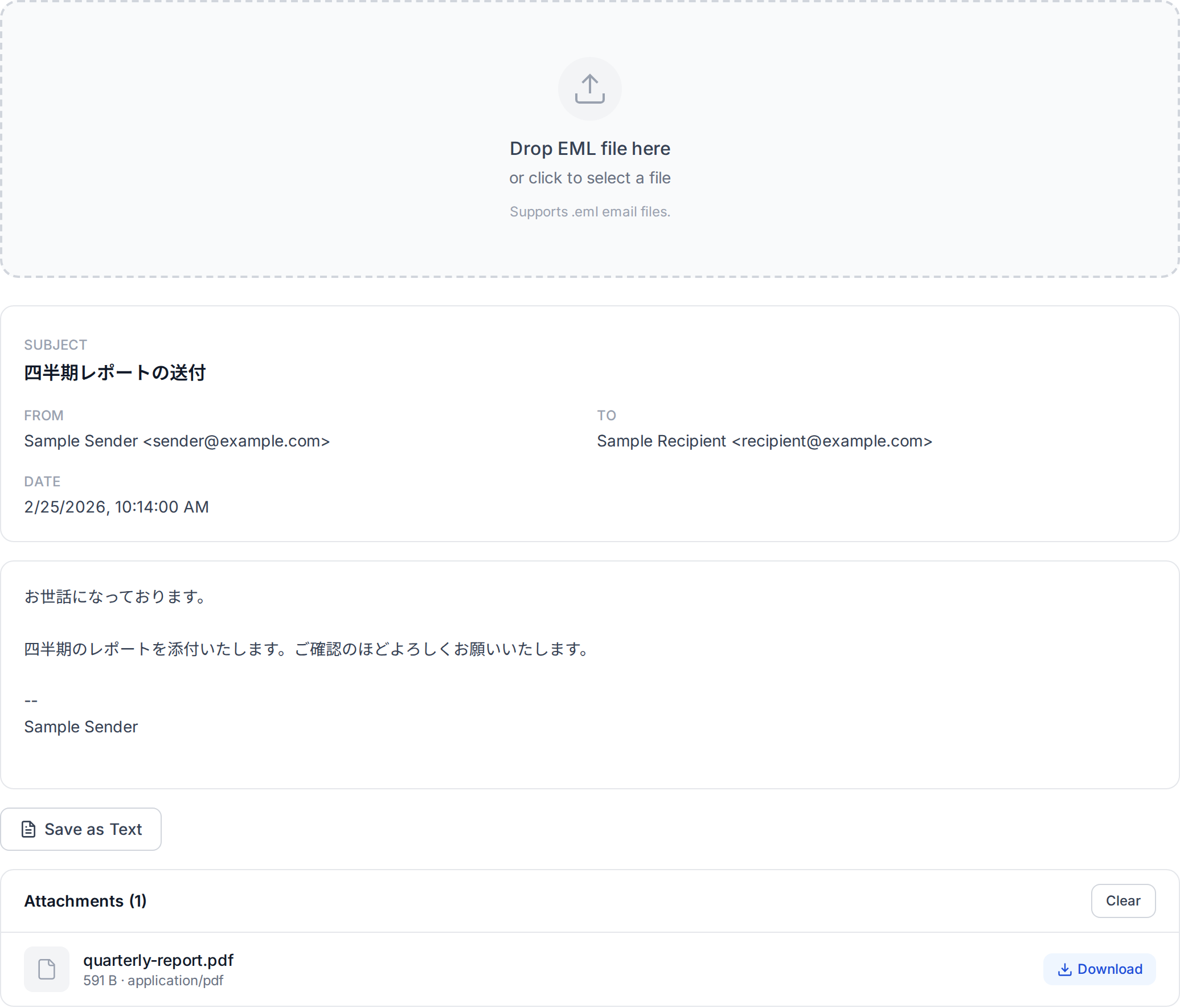
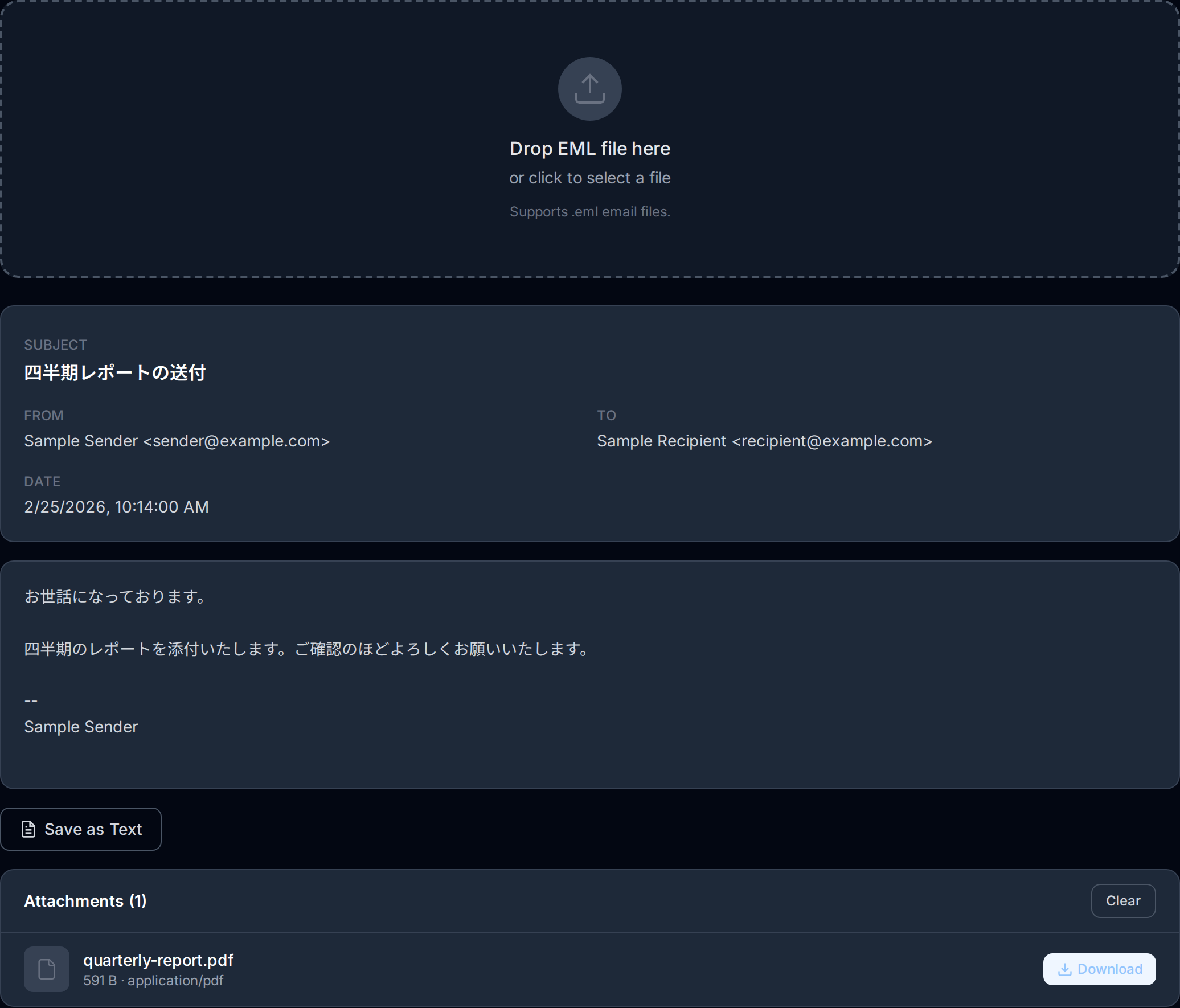
Use OpenedFile's EML Viewer to verify your EML backups quickly. Simply drag and drop any EML file into the viewer to confirm that headers, body content, and attachments are all intact. Because it processes files entirely in your browser, your email data never leaves your device, which is especially important when verifying backups of sensitive correspondence.
Pay special attention to these common issues when verifying backups:
- Missing attachments — Some export methods strip attachments or fail to include large files. Verify that attachments are present and downloadable.
- Encoding errors — Emails with non-ASCII characters (international languages, special symbols) may display incorrectly if the export tool handled character encoding poorly.
- Zero-byte files — Occasionally, export processes create empty EML files. Check that file sizes are reasonable; a typical email with no attachments is 2 to 50 KB.
- Truncated messages — Very long emails or emails with large inline content may be truncated during export. Compare the exported file against the original message in your email client.
Backup Schedule Recommendations
How often you back up your email depends on how much email you receive and how critical it is. Here are general guidelines for different use cases:
- Personal email (light use) — A quarterly backup is usually sufficient. Set a calendar reminder to export new emails every three months.
- Personal email (heavy use) — Monthly backups are recommended if you receive important correspondence regularly, such as financial statements, medical records, or legal documents.
- Business email — Weekly or bi-weekly backups are appropriate for professional accounts. Many businesses have compliance requirements that mandate email retention for specific periods.
- Critical or regulated industries — Daily automated backups using IMAP backup tools are recommended for industries with strict compliance requirements, such as healthcare (HIPAA), finance (SOX), or legal (litigation hold requirements).
Regardless of your schedule, always perform an immediate backup before any major account change, such as switching email providers, migrating to a new domain, or changing your organization's email platform.
Long-Term Archival Best Practices
If you want your email backups to remain accessible for years or even decades, follow these archival best practices:
- Use open formats — Store emails as EML files rather than proprietary formats like PST or MSG. EML is based on open RFC standards and can be read by any compliant software, regardless of which companies exist in the future.
- Organize by date and folder — Create a clear directory structure for your backups, such as
email-backup/2026/inbox/oremail-backup/2026/work-projects/. This makes it easy to locate specific emails without specialized search tools. - Include metadata — Save a text file alongside each backup set that documents when the export was performed, which account it came from, how many messages were exported, and which tool was used. This metadata is invaluable when revisiting backups years later.
- Follow the 3-2-1 rule — Keep at least 3 copies of your backup, on 2 different types of storage media, with 1 copy stored offsite. For example: one copy on your computer's hard drive, one on an external SSD, and one encrypted copy in the cloud.
- Test periodically — Every six months, open a few EML files from your archive to confirm they are still readable. Storage media degrades over time, and catching corruption early gives you a chance to restore from a redundant copy.
- Refresh storage media — Hard drives and SSDs have limited lifespans. Every three to five years, copy your backups to new storage devices. Optical media such as Blu-ray can last longer, but it should still be verified periodically.
Email is one of the most important digital records most people possess. A consistent backup routine using portable formats like EML, combined with redundant storage and periodic verification, ensures that your correspondence remains safe and accessible no matter what happens to your email provider or devices.
Related Articles
What Is an EML File? The Complete Guide
Learn what EML files are, how they work, and how to open them on any device or operating system.
EML vs MSG: Which Email Format Should You Use?
Compare the open EML standard with Microsoft's proprietary MSG format across portability, compatibility, and archival.
Privacy Risks of Online File Converters
Why uploading your files to online conversion tools is risky and what client-side alternatives exist.
About the author
Ren
Developer, OpenedFile
I build and maintain OpenedFile on my own. It started when a winmail.dat attachment landed in my inbox and nothing would open it — and every online converter I found wanted me to upload the file to their server first. So I wrote a TNEF parser from scratch instead, and every tool here has run entirely in the browser ever since.
More about OpenedFile